
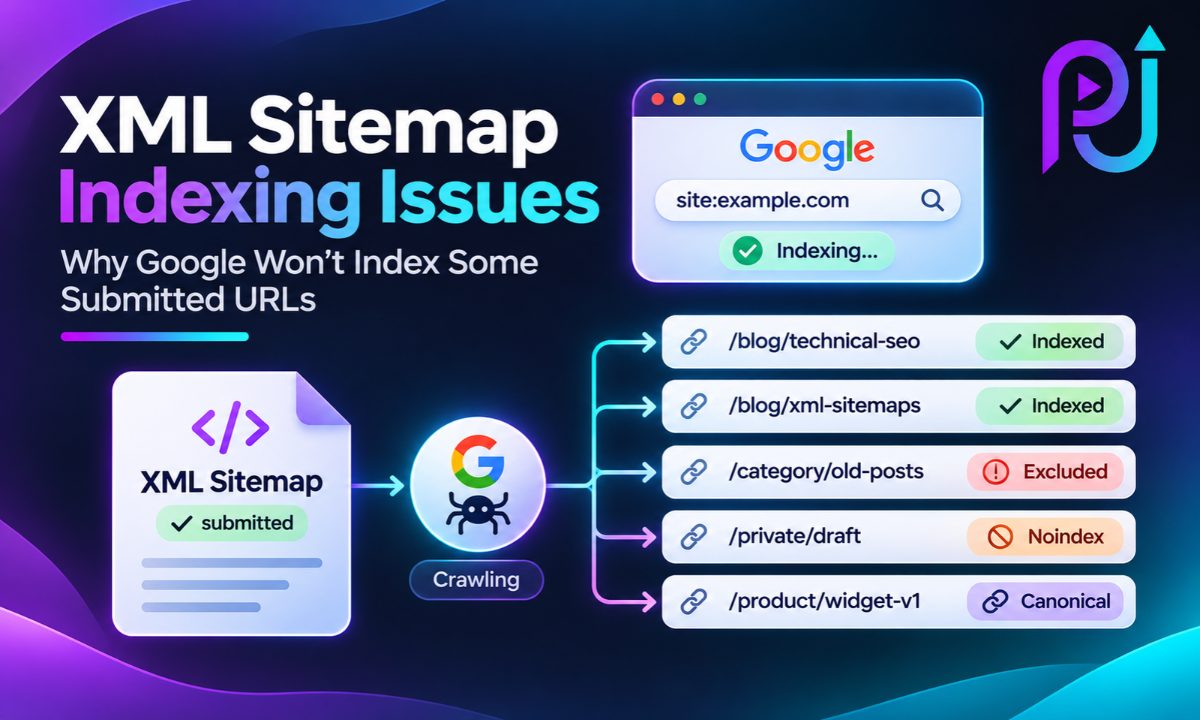
You publish a new blog post on your website.
You add it to your XML sitemap, submit the sitemap through Google Search Console, and receive a successful submission status.
Everything looks correct.
But several days later, the page still isn't indexed.
You check another URL. The same problem appears.
Some pages show "Discovered - currently not indexed." Others show "Crawled - currently not indexed."
Meanwhile, your sitemap contains hundreds of URLs that Google hasn't added to its search index.
Why is this happening?
XML Sitemap Indexing Issues occur when Google cannot process certain URLs or decides not to index pages listed in a submitted sitemap.
A sitemap helps Google discover website content. However, it does not require Google to crawl or index every URL.
Sometimes the problem is technical. Your sitemap may contain broken links, incorrect canonical URLs, blocked pages, or invalid XML.
Other times, Google can access the pages but does not consider them worth indexing at that point.
This distinction matters because repairing a sitemap won't solve every indexing problem.
Before making changes, review the broader technical issues covered in my guide to Google Search Console Errors.
In this article, I'll explain why Google doesn't index some URLs from your XML sitemap, how to diagnose the issue, and 12 practical fixes to improve your website's crawlability and indexing signals.
What Is an XML Sitemap?
An XML sitemap is a file that lists website URLs you want search engines to discover.
It helps Google locate important pages without relying only on links found while crawling your website.
A typical XML sitemap may contain:
- Homepage
- Service pages
- Product pages
- Category pages
- Blog articles
- Other important canonical URLs
For example, a website might have a sitemap at:
https://example.com/sitemap.xml
The file could contain:
<?xml version="1.0" encoding="UTF-8"?>
<urlset xmlns="http://www.sitemaps.org/schemas/sitemap/0.9">
<url>
<loc>https://example.com/services/</loc>
<lastmod>2026-11-20</lastmod>
</url>
<url>
<loc>https://example.com/blog/seo-guide/</loc>
<lastmod>2026-11-22</lastmod>
</url>
</urlset>
The <loc> element identifies a URL.
The optional <lastmod> element tells search engines when the page was last significantly modified.
Google can use accurate modification dates when deciding whether to revisit content.
However, changing a date without making meaningful updates does not force Google to crawl the page.
Google's official XML Sitemap Documentation explains the supported formats and submission process.
Does Submitting a Sitemap Guarantee Google Indexing?
No. Submitting an XML sitemap does not guarantee that Google will index the URLs it contains.
This is one of the biggest misunderstandings in technical SEO.
Google Search generally involves several stages:
| Stage | What Happens |
|---|---|
| Discovery | Google finds the URL through links, sitemaps, or other sources |
| Crawling | Googlebot requests the page |
| Processing | Google examines the page, its content, and technical signals |
| Indexing | Google decides whether to include the content in its search index |
| Serving | Google may display the page for relevant searches |
Your XML sitemap helps with discovery.
It doesn't control the final indexing decision.
For example, Google might discover 400 URLs from a sitemap but index only 250.
The remaining 150 URLs could include duplicates, blocked pages, low-value content, or pages that have not yet been crawled.
That doesn't automatically mean your sitemap is broken.
The next step is to determine why those 150 URLs aren't indexed.
Understanding Google Search Console Sitemap Statuses
Open Google Search Console and navigate to Indexing → Sitemaps.
You may encounter different statuses.
| Sitemap Status | What It Means |
|---|---|
| Success | Google fetched and processed the sitemap without the reported errors |
| Couldn't fetch | Google could not retrieve the sitemap |
| Has errors | Google encountered problems while processing the sitemap |
A successful sitemap status does not mean every submitted page is indexed.
The Page Indexing report provides more information about individual URLs.
What Does Discovered - Currently Not Indexed Mean?
Google knows the URL exists but hasn't crawled it yet, or has not selected it for crawling at that point.
Possible contributing factors include crawl prioritization, site structure, server capacity, and perceived value.
What Does Crawled - Currently Not Indexed Mean?
Google has crawled the URL but has not included it in the index.
Possible factors include content duplication, limited usefulness, or Google's indexing decisions.
This status does not reveal one definite cause.
You need to inspect the affected page and compare it with other pages on your website.
12 Reasons URLs in Your XML Sitemap Are Not Indexed
| # | Possible Cause | Recommended Action |
|---|---|---|
| 1 | Google hasn't prioritized the URL | Review discovery and crawl signals |
| 2 | Sitemap data appears outdated | Check sitemap processing and URL lists |
| 3 | Sitemap cannot be fetched | Test access and server response |
| 4 | Invalid XML structure | Validate sitemap formatting |
| 5 | Pages contain noindex | Correct directives or remove URLs |
| 6 | Robots.txt blocks crawling | Review crawl restrictions |
| 7 | URLs return errors or redirects | List valid destination URLs |
| 8 | Canonical conflicts | Align preferred URLs |
| 9 | Pages contain duplicate or weak content | Improve or consolidate content |
| 10 | Important pages lack internal links | Strengthen site structure |
| 11 | JavaScript or server problems | Test rendered content and availability |
| 12 | Sitemap limits or index-file errors | Split and repair sitemap files |
Let's examine each issue.
1. Google Has Discovered Your URLs but Hasn't Prioritized Crawling
A URL can appear in your sitemap without Google immediately requesting it.
Google determines crawling activity based on several factors, including site size, content changes, crawl demand, and server responsiveness.
For example, imagine a new website publishes 100 articles within one week.
All 100 URLs appear in the sitemap.
Google may discover them but crawl only a portion initially.
This doesn't necessarily indicate a technical failure.
How to Fix It
Open the Page Indexing report.
Identify URLs marked Discovered - currently not indexed.
Check whether those URLs appear in your internal navigation, relevant category pages, or other published content.
Prioritize important pages and ensure they are accessible through normal HTML links.
Review whether your website contains many unimportant or duplicate URLs competing for crawling attention.
For larger sites, consult Google's Crawl Budget Management Guide.
Important: Most small websites don't need aggressive crawl-budget optimization. Start with basic accessibility, useful content, and internal linking.
2. Google Search Console Shows an Outdated Sitemap URL Count
One of the community cases you shared describes a website owner whose sitemap URL count appeared unchanged for several months.
The site had published additional pages, but Search Console still showed the older discovered URL count.
This can happen for different reasons.
The submitted sitemap may not contain the newer URLs.
Google might not have processed the latest version.
The sitemap index could reference outdated child files.
Or the report may not yet reflect the current state.
How to Fix It
First, open your live sitemap in a browser.
Confirm that the new URLs are actually present.
Next, check the sitemap's Last read information in Search Console.
If your sitemap uses an index file, open the referenced child sitemaps and inspect their contents.
Also check that you're viewing the correct Search Console property.
For example:
https://example.com/
and
https://www.example.com/
are different URL-prefix properties.
What If Child Sitemaps Don't Appear?
Google's Sitemaps report is not a complete list of every sitemap Google knows about.
A child sitemap missing from the visible submitted-sitemaps list doesn't automatically prove Google failed to discover it.
Check the sitemap index, fetch status, and affected URLs before concluding that the child sitemap is being ignored.
3. Google Cannot Fetch Your XML Sitemap
Sometimes Search Console reports:
Couldn't fetch
This means Google's sitemap processing system could not retrieve the submitted file.
Possible reasons include:
- Incorrect sitemap URL
- HTTP 404 response
- Temporary server errors
- Authentication requirements
- Security or firewall restrictions
- Redirect problems
- Access restrictions affecting Googlebot
How to Fix It
Open the sitemap URL in a browser.
Check whether the server returns a successful response.
Use a server-response checker if necessary.
Review hosting, firewall, CDN, and security plugin configurations.
You can also test access through the URL Inspection tool.
However, a successful live fetch does not guarantee that Search Console's separate sitemap-processing system has already succeeded.
If your sitemap is reachable, continue checking the processing status and server logs rather than assuming Google is permanently unable to access it.
4. Your Sitemap Has Invalid XML Formatting
An XML sitemap must follow a supported structure.
Even small syntax problems can prevent correct processing.
For example, special characters inside XML values must be escaped.
Incorrect:
<loc>https://example.com/products?color=blue&size=large</loc>
Correct:
<loc>https://example.com/products?color=blue&size=large</loc>
Other common errors include missing closing tags, incorrect namespaces, invalid dates, and malformed URLs.
How to Fix It
Validate your sitemap using an XML validator.
Ensure the required elements and namespace declarations are present.
Use complete URLs, including the protocol and hostname.
If the sitemap is generated by WordPress or another CMS, check whether a plugin or custom function is producing invalid output.
Correct the file and confirm that Search Console can process the updated sitemap.
5. Your Sitemap Contains Pages With Noindex Tags
A page can appear in your sitemap and still contain a directive telling Google not to index it.
For example:
<meta name="robots" content="noindex">
Google may also receive a noindex directive through the page's HTTP response headers.
If a page is intended to remain publicly indexed, this creates a conflict with your sitemap strategy.
How to Fix It
Inspect the affected page.
Check the HTML robots meta tag and the HTTP X-Robots-Tag header.
If the page should appear in Google Search, remove the unintended noindex directive.
If the page should remain excluded, remove it from your XML sitemap.
Important distinction: A noindex header on the XML sitemap file itself is different from a noindex directive on a page listed inside the sitemap. Sitemaps do not need to appear as ordinary pages in Google's search results.
Avoid removing a sitemap's own noindex header without confirming that it causes an actual sitemap-processing problem.
6. Robots.txt Is Blocking Important URLs
The robots.txt file controls which paths Googlebot is allowed to crawl.
For example:
User-agent: *
Disallow: /private/
This rule asks compliant crawlers not to access URLs under /private/.
If your sitemap contains public service pages in a blocked directory, Google may be unable to crawl their content.
How to Fix It
Open:
https://example.com/robots.txt
Review rules that apply to Googlebot.
Identify whether important page directories are blocked.
If the restriction is unintentional, update it.
Then use URL Inspection to check crawling access.
Do not assume that removing a robots.txt restriction guarantees indexing.
Also remember that blocking crawling does not always guarantee that Google will exclude a URL from search. Use proper noindex directives when exclusion is the goal and the page can be crawled.
7. Sitemap URLs Return 404 Errors or Redirect Elsewhere
A sitemap should normally contain the preferred URLs you want Google to discover and index.
But websites change.
A business might rename service pages, remove products, or change its URL structure.
The sitemap may continue listing outdated addresses.
For example:
Old URL:
https://example.com/services/old-page
New URL:
https://example.com/services/new-page
If the old URL redirects to the new one, the sitemap should generally list the new destination directly.
If the old page no longer exists and has no replacement, it should normally be removed from the sitemap.
How to Fix It
Audit sitemap URLs for HTTP status codes.
Identify 404, 410, 5xx, and unnecessary redirect entries.
Update the sitemap to include live, preferred URLs.
When content has permanently moved, use a suitable redirect to the relevant replacement.
Avoid redirecting unrelated deleted pages to the homepage.
My guide to Google Search Console 404 Errors explains which missing pages require fixes and which can remain removed.
8. Your Sitemap URLs Conflict With Canonical Tags
Canonical tags help Google identify the preferred version of duplicate or very similar pages.
For example, your sitemap contains:
https://example.com/product?color=blue
But its canonical declaration points to:
https://example.com/product
Google may select the main product page and exclude the parameter-based variation from its index.
That can be correct behavior.
A larger problem arises when your sitemap, canonical tags, redirects, and internal links consistently favor different URLs.
How to Fix It
Check the user-declared canonical and Google-selected canonical in URL Inspection.
Compare them with the sitemap URL.
Keep your preferred canonical URLs consistent across the site where appropriate.
If two pages provide the same information, consider consolidating them.
If they serve genuinely different purposes, review their content and canonical implementation.
For a detailed explanation, read Why Google Chooses the Wrong Canonical URL.
Remember that canonical annotations are signals. Google can choose a different canonical when its systems find stronger evidence elsewhere.
9. Your Pages Have Duplicate or Low-Value Content
Sometimes the sitemap works perfectly.
The pages load, Googlebot can crawl them, and the canonical tags are valid.
Yet the pages remain unindexed.
This may be because Google doesn't consider the pages sufficiently distinct or useful to include at that time.
Examples include:
- Several service pages with almost identical text
- Thin product pages copied from supplier descriptions
- Location pages with only city names changed
- Auto-generated articles that repeat existing information
- Pages with little useful content beyond a heading
Google does not publish a simple content-quality score that explains every indexing decision.
However, useful and original content can support a stronger overall search presence.
How to Fix It
Compare unindexed pages with similar pages already indexed.
Look for repeated content, weak explanations, and unclear search intent.
Add information that helps readers solve a genuine problem.
For a service page, include what the service covers, who needs it, how the process works, and other relevant details.
Review your Service Page SEO approach to ensure each important page has a distinct purpose.
Do not assume adding more words will guarantee indexing. Relevance and usefulness matter more than length alone.
10. Your Important Pages Have Weak Internal Linking
Google uses internal links to discover pages and understand relationships between them.
A page listed only in a sitemap may be harder for users and search engines to find through the normal website structure.
These pages are often called orphan pages when no internal links point to them.
Imagine publishing a detailed guide about Google Ads conversion tracking.
It appears in your sitemap but has no link from your blog index, related articles, or navigation.
The sitemap gives Google one discovery path.
Internal links would give the page additional context and accessible paths.
How to Fix It
Check whether important pages have relevant internal links.
Connect related articles using descriptive anchor text.
Make sure category pages link to the content they organize.
Review links from service pages, blog pages, and other useful navigation points.
Use meaningful links rather than placing dozens of unrelated links in one section.
Good internal linking helps users and crawlers move through your website.
It does not guarantee that every linked page will be indexed.
11. JavaScript Rendering or Server Problems Affect Crawling
Some websites depend heavily on JavaScript to display their content.
Google can render JavaScript, but problems may occur when important content or links are unavailable during processing.
For example, your page may load a blank container before JavaScript runs.
If the necessary resources fail, Google may not receive the content you expect.
Server issues can also interrupt crawling.
These include repeated timeouts, unstable hosting, and HTTP 5xx errors.
How to Fix It
Use URL Inspection to test important pages.
Review the rendered HTML and available screenshot when supported.
Check whether the main content and internal links are available to Googlebot.
Inspect server responses and Crawl Stats for recurring problems.
If the website uses JavaScript rendering, consider whether important content and links can be provided through server-rendered or otherwise crawl-accessible HTML.
Resolve access problems before changing sitemap settings repeatedly.
12. Your Sitemap Exceeds Google's Limits or Has Broken Child Files
Google supports large websites through sitemap index files.
However, individual sitemap files have limits.
| Requirement | Google Sitemap Limit |
|---|---|
| URLs per sitemap | 50,000 |
| Uncompressed file size | 50 MB |
| URLs in sitemap | Complete, valid URLs |
| Sitemap index | References supported sitemap files |
If a website has 120,000 important URLs, it should divide them into multiple sitemap files rather than place everything in one oversized file.
For example:
https://example.com/sitemap_index.xml
could reference:
https://example.com/post-sitemap.xml
https://example.com/page-sitemap.xml
https://example.com/product-sitemap.xml
How to Fix It
Check each sitemap file's size and URL count.
Validate the sitemap index.
Confirm that all referenced child sitemaps exist and are accessible.
Review the sitemap index structure and the URLs contained in each child file.
Avoid duplicate or retired sitemap references.
Use Google's Sitemap Index Documentation when configuring large websites.
How to Find Which Sitemap URLs Google Has Not Indexed
This is the workflow I recommend when Search Console shows a gap between submitted and indexed URLs.
Step 1: Open the Sitemaps Report
Go to Google Search Console.
Select the correct property.
Open Indexing → Sitemaps.
Review the sitemap's submission status, Last read date, and discovered URL count.
Step 2: Open the Page Indexing Report
Go to Indexing → Pages.
Select the relevant sitemap filter where available.
Review indexed and not-indexed pages.
Step 3: Identify the Main Exclusion Reasons
Look for patterns such as:
- Discovered - currently not indexed
- Crawled - currently not indexed
- Excluded by noindex tag
- Blocked by robots.txt
- Duplicate, Google chose different canonical
- Page with redirect
- Not found (404)
- Server error (5xx)
- Soft 404
Step 4: Inspect Representative URLs
Don't start by inspecting hundreds of pages.
Choose a small sample from each issue group.
Check the HTTP response, crawl permission, indexing directive, canonical selection, and last crawl information.
Step 5: Compare the Live Website
Open the affected pages directly.
Check whether their content loads correctly and whether internal links point to them.
Compare the live page with what Google last crawled.
Step 6: Fix the Underlying Cause
Apply the appropriate correction.
For example, remove an accidental noindex tag, update an obsolete sitemap URL, or improve a page that adds little value.
Step 7: Request Indexing for Important URLs
Once a confirmed issue has been corrected, use URL Inspection for a limited number of important pages.
For larger groups of URLs, maintain an accurate sitemap.
Repeated requests do not guarantee faster indexing.
Example: Sitemap Contains 500 URLs but Google Indexes Only 280
Let's consider an illustrative SEO audit.
A website submits an XML sitemap containing 500 URLs.
Search Console shows 280 indexed pages.
The other 220 URLs have different statuses.
| Google Search Console Status | URLs |
|---|---|
| Indexed | 280 |
| Crawled - currently not indexed | 90 |
| Discovered - currently not indexed | 70 |
| Duplicate or alternate canonical | 35 |
| Noindex, redirects, or other exclusions | 25 |
| Total | 500 |
The indexing percentage is:
280 ÷ 500 × 100 = 56%
But that percentage does not tell us which changes to make.
The 35 duplicate URLs may be intentionally excluded.
Some of the 25 other exclusions could be correct.
The 90 crawled but unindexed URLs require content and technical review.
And the 70 discovered URLs need checks for crawl prioritization, internal linking, and accessibility.
Treat each group according to its actual cause.
The goal is not to force every URL into Google's index. It is to ensure your important, indexable pages have the best possible chance of being discovered and evaluated.
Does Updating Your Sitemap Every Day Improve Indexing?
Not automatically.
Google may use the <lastmod> value when it is accurate and reflects significant changes.
Changing the modification date every day without updating the content is not a reliable way to encourage crawling.
Google also does not use the traditional sitemap <priority> and <changefreq> values for crawling decisions.
Focus on keeping the sitemap correct.
Update it when important URLs are added, removed, or meaningfully changed.
Avoid rebuilding or resubmitting unchanged sitemap files simply to create activity.
Should Every Website Page Be Included in Your XML Sitemap?
No.
A well-maintained sitemap should focus on URLs you want Google to consider for indexing.
You would generally avoid including:
- Intentionally noindexed pages
- Duplicate URL variations
- Internal search-result pages
- Expired URLs without useful replacements
- URLs returning errors
- Unnecessary redirected URLs
- Private or restricted pages
A large number of submitted URLs is not an SEO achievement by itself.
If you have 1,000 pages but only 400 provide distinct value, submitting every low-value variation does not improve the quality of the website.
Your High-Intent SEO Keyword Strategy can also help you decide which commercial and informational pages deserve attention.
Focus your effort on useful content that matches genuine search demand.
XML Sitemap Indexing Audit Checklist
| Check | What to Verify | Priority |
|---|---|---|
| Sitemap availability | Successful HTTP response | High |
| Sitemap status | Search Console processing result | High |
| XML validation | Correct formatting and encoding | High |
| Child sitemaps | Accessible and correctly referenced | High |
| URL status codes | Preferred pages return 200 | High |
| Noindex directives | Important pages are indexable | High |
| Robots.txt | Important pages can be crawled | High |
| Canonical URLs | Preferred versions are consistent | High |
| Duplicate content | Unnecessary variants are consolidated | High |
| Internal linking | Important pages are discoverable | High |
| Rendered content | Google can access useful page content | High |
| Server stability | No recurring crawl failures | High |
| Lastmod accuracy | Dates reflect real changes | Medium |
| Sitemap limits | Files meet supported limits | Medium |
| Search Console reports | Reviewed after important changes | High |
How Long Does It Take Google to Index Pages After Sitemap Submission?
There is no fixed indexing deadline.
Google may crawl some URLs within days.
Other URLs may take longer.
Some pages may never be indexed.
Google explains that crawling can take days to weeks, and indexing is not guaranteed.
The timeline depends on the website, its accessibility, the content, and Google's crawling and indexing decisions.
For broader SEO expectations, see my guide on How Long SEO Takes.
The most useful approach is to correct confirmed problems, keep important pages linked, and monitor Search Console over time.
About Prem Jasuja
Prem Jasuja is a freelance digital marketing professional specializing in SEO, technical SEO, Google Search Console, Google Ads, Meta Ads, Google Analytics 4, Google Tag Manager, and conversion tracking.
His SEO work includes diagnosing crawl and indexing problems, reviewing canonical URLs, improving internal linking, auditing website content, and fixing technical errors that affect organic search visibility.
He focuses on helping businesses understand why pages aren't performing and which changes can improve their chances of reaching relevant search users.
Final Thoughts
XML Sitemap Indexing Issues are not always caused by broken sitemap files.
A sitemap can be valid and successfully submitted while many listed URLs remain unindexed.
Sometimes Google has not crawled those pages yet.
Sometimes technical restrictions, redirects, or canonical conflicts prevent the preferred URLs from being indexed.
And sometimes Google has crawled the content but decided not to include it in its index.
The most effective solution starts with the correct diagnosis.
Check the Sitemaps report.
Review Page Indexing statuses.
Inspect the affected URLs.
Fix technical problems, improve content where needed, and make important pages easy to discover through internal links.
Don't focus only on increasing the number of indexed URLs.
Focus on getting your most useful, relevant, and technically sound pages into Google's index while keeping unnecessary URLs out of your sitemap.
Frequently Asked Questions
Why Is Google Not Indexing URLs From My XML Sitemap?
Google may not index sitemap URLs because it hasn't crawled them yet, has selected another canonical page, found technical restrictions, or decided not to index the content. Sitemap submission helps discovery but does not guarantee indexing.
Does Submitting an XML Sitemap Guarantee Indexing?
No. Google treats sitemap submission as a discovery signal. It does not guarantee that the submitted URLs will be crawled or indexed. Each page must still meet Google's technical requirements and be selected for indexing.
Why Does My Sitemap Show Success but Pages Are Not Indexed?
Success means Google fetched and processed the sitemap without the reported errors. It does not mean every listed URL is indexed. Use the Page Indexing report to investigate individual URL statuses.
What Does Discovered - Currently Not Indexed Mean?
It means Google knows the URL exists but has not crawled it yet, or has not selected it for crawling at that point. Review internal links, site accessibility, crawl demand, and whether the page is important and useful.
What Does Crawled - Currently Not Indexed Mean?
It means Google crawled the URL but has not included it in its index. Possible factors include duplication, limited content value, or Google's indexing decisions. Review the page and compare it with other relevant content.
Why Is Google Search Console Not Updating My Sitemap URL Count?
The live sitemap may contain outdated URLs, Google may not have processed its latest version, or the report may not reflect recent changes. Check the actual sitemap files, child sitemaps, Last read information, and Search Console property.
Should I Remove Noindex Pages From My XML Sitemap?
Generally, yes. If a page is intentionally excluded from Google Search, it usually should not appear in a sitemap intended for indexable pages. If the noindex directive is accidental, correct it instead.
Can Duplicate Content Prevent Sitemap URLs From Being Indexed?
Yes. Google may group duplicate or very similar pages and select one canonical URL. Other versions may remain excluded from the index even when they appear in the sitemap.
How Long Does Google Take to Index Pages After Sitemap Submission?
There is no guaranteed timeline. Crawling can take days or weeks, while indexing may take longer or never happen for some URLs. Submission and indexing requests do not guarantee faster inclusion.
How Can I Fix XML Sitemap Indexing Issues?
Check the sitemap's fetch status and XML format, review Page Indexing errors, inspect affected URLs, correct robots and canonical problems, remove unwanted URLs, improve useful content, and strengthen internal links. Request indexing for important pages after fixing confirmed issues.