
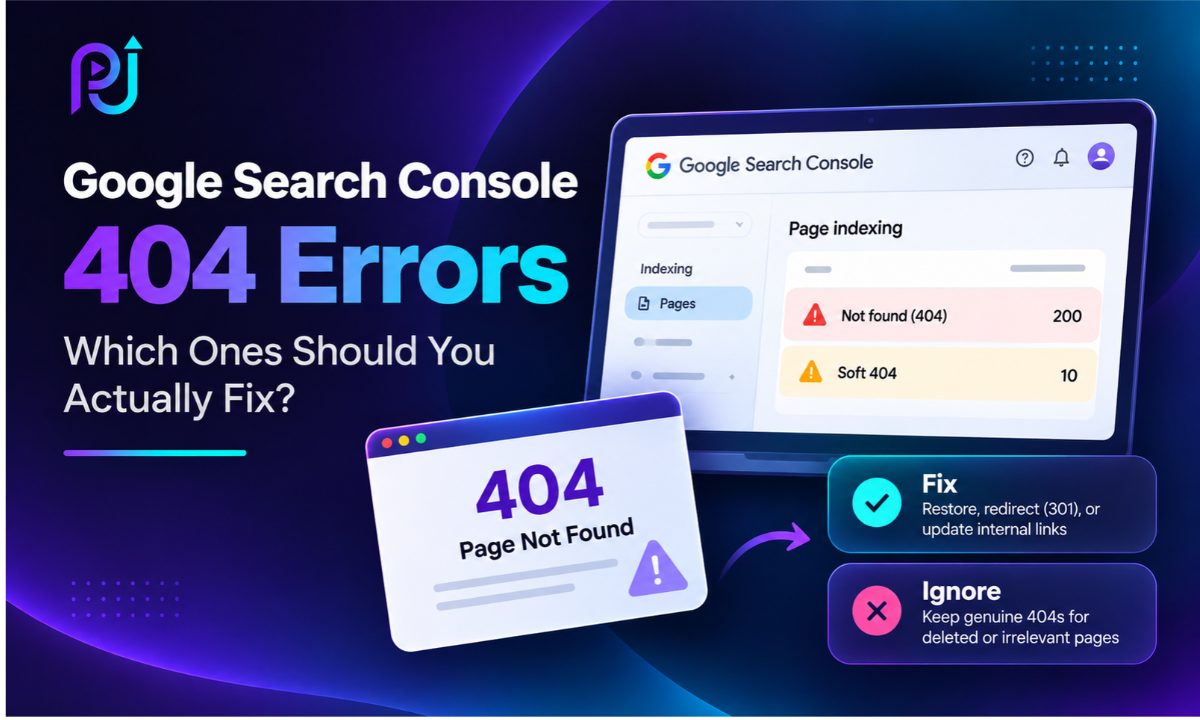
You open Google Search Console to check your website's organic performance. Everything looks normal until you visit the Page Indexing report.
Suddenly, you notice hundreds of pages marked as "Not Found (404)" or "Soft 404."
Your first thought might be that something is wrong with your website.
Will Google penalize your website? Will your rankings drop? Should you redirect every broken URL to your homepage?
Not necessarily.
One of the biggest mistakes website owners make when dealing with Google Search Console 404 Errors is trying to fix every reported URL without understanding why it appeared in the first place.
Some 404 errors need immediate attention. Others are a natural part of managing a website and can safely be ignored.
In this guide, I'll explain how to identify important 404 errors, fix Soft 404 issues, use redirects correctly, and prevent unnecessary technical SEO problems.
What Are 404 Errors in Google Search Console?
A 404 error occurs when a browser or search engine requests a URL that the server cannot find.
Whenever someone visits your website, the server returns an HTTP status code that describes the result of the request.
For example:
| HTTP Status Code | Meaning |
|---|---|
| 200 OK | The requested page is available |
| 301 Moved Permanently | The page has permanently moved |
| 302 Found | The page is temporarily redirected |
| 404 Not Found | The requested page cannot be found |
| 410 Gone | The page has been removed and is likely gone permanently |
| 500 Internal Server Error | The server encountered an internal problem |
When Googlebot discovers a URL that returns a 404 status code, Google may include it in the Page Indexing report.
This does not automatically mean your website has a technical problem.
It simply means Google attempted to access a URL that was unavailable.
Whether you need to fix it depends on why the page is missing and whether it should still exist.
Why Does Google Search Console Report Pages That Never Existed?
Many website owners become concerned when Google Search Console reports URLs they have never created.
Imagine your website contains this service page:
example.com/services/roof-repair
However, Google Search Console reports:
example.com/services/roofing-repairs
You check your website, sitemap, and content management system. The second URL does not exist anywhere.
So how did Google find it?
Google discovers URLs from many sources, including:
- External backlinks
- Incorrect internal links
- Old website structures
- Previously indexed pages
- Automatically generated URLs
- URL parameters
- Spam websites
- Typographical errors
Your XML sitemap is not the only source Google uses to discover pages.
Even when a URL has never appeared in your sitemap, Google may still attempt to crawl it.
If the URL has never existed and there is no reason for it to exist, returning a 404 status code is correct.
What Is the Difference Between a 404 and a Soft 404?
Google Search Console reports genuine 404 errors and Soft 404 errors separately.
Although they sound similar, they represent different situations.
Not Found (404)
A genuine 404 occurs when the server returns a 404 HTTP status code because the requested page is unavailable.
For example, a business permanently removes an old promotion page.
Anyone visiting the original URL receives a properly configured 404 page.
There is nothing technically wrong with this response.
Soft 404
A Soft 404 occurs when Google determines that a page appears to be missing, empty, or an error page, despite the server returning a successful response.
It can also occur when removed URLs redirect to irrelevant destinations.
For example, a deleted product page displays:
"Sorry, this product could not be found."
However, the server returns a 200 OK status code.
The server indicates that the request succeeded, but the page behaves like an error page.
Google may classify it as a Soft 404 and exclude it from search results.
404 vs Soft 404 Comparison
| Feature | Not Found (404) | Soft 404 |
|---|---|---|
| HTTP Status | 404 | Often 200 or an irrelevant redirect |
| Page Content | Missing page | Missing, empty, or error-like content |
| Google Indexing | Excluded | Generally excluded |
| Always Requires a Fix? | No | Should be investigated |
| Common Cause | Deleted or incorrect URL | Incorrect response or rendering problem |
| Recommended Action | Depends on page purpose | Correct the response, redirect, or content |
Do Google Search Console 404 Errors Hurt SEO?
A properly configured 404 page does not automatically harm your website's overall search rankings.
Websites change over time. Products are discontinued, promotions expire, articles are removed, and URLs are updated.
Google expects some URLs to disappear.
However, 404 errors become a problem when they affect valuable pages or interrupt the user experience.
For example, imagine your website has a service page that generates organic traffic every month.
If that page is accidentally deleted, potential customers can no longer access it. Google may eventually remove it from search results.
The traffic loss occurs because an important page is no longer available, not because Google has imposed a site-wide 404 penalty.
This distinction is important when carrying out a technical SEO audit.
Which 404 Errors Should You Actually Fix?
Before making changes, classify your reported URLs according to their purpose and business value.
| Type of 404 Error | Recommended Action | Priority |
|---|---|---|
| Important service page accidentally deleted | Restore the page | High |
| Product page with a relevant replacement | Apply a 301 redirect | High |
| Broken navigation links | Update internal links | High |
| Valuable page with backlinks | Restore or redirect if appropriate | High |
| Deleted URL in XML sitemap | Remove it from the sitemap | Medium |
| Existing page classified as Soft 404 | Investigate and repair | High |
| Permanently deleted page without replacement | Keep 404 or 410 | Low |
| Random URLs that never existed | Ignore | Low |
| Spam-generated URLs | Usually ignore | Low |
Let's examine these situations in more detail.
1. Important Website Pages That Were Accidentally Deleted
An accidental 404 on an important service, product, or landing page should be addressed quickly.
For example, a dental clinic has a dedicated dental implants page that generates organic inquiries.
During a website update, the page is accidentally removed.
Google begins receiving a 404 response.
If the problem continues, the page may disappear from search results, affecting organic traffic and potential bookings.
How to Fix It
Restore the original page from a backup where possible.
Ensure the restored URL returns a 200 OK status code.
Check that it remains accessible through internal links and is included in the XML sitemap.
Use Google Search Console's URL Inspection tool to test the live page and request indexing.
If the original content has permanently moved, redirect the old URL to its new location.
2. Broken Internal Links on Your Website
Broken internal links occur when one page on your website links to another page that no longer exists.
These links may appear in navigation menus, blog articles, service pages, buttons, breadcrumbs, or footer sections.
For example, your homepage links to:
example.com/services/web-design-old
But your updated service page is located at:
example.com/services/web-design
Visitors clicking the original link reach a 404 page.
How to Fix It
Use an SEO crawling tool such as Screaming Frog to identify internal URLs returning 404 responses.
Review the pages linking to each broken URL.
Update the links so they point directly to the correct destination.
If the original URL was previously valid and has permanently moved, add a 301 redirect as well.
Fixing internal links improves navigation and helps both visitors and search engines discover relevant pages.
3. Website URLs That Changed Without Redirects
Website redesigns and migrations often result in changes to URL structures.
For example:
Old URL: example.com/google-ads-services.html
New URL: example.com/services/google-ads
If the old URL is removed without a redirect, Google and existing visitors may continue trying to access it.
This can interrupt traffic and reduce the value of links pointing to the original page.
How to Fix It
Create a permanent 301 redirect from the old URL to the new address.
Update internal links, canonical references, and XML sitemap entries where necessary.
Avoid unnecessary redirect chains.
Ideally, the old URL should redirect directly to the final destination.
Review your redirect map before launching any major website redesign.
4. Deleted Pages With Valuable Backlinks
A page may no longer exist but still receive traffic from external websites.
For example, an old SEO guide might have backlinks from industry publications, business directories, or relevant blogs.
If the guide is removed, those links may lead visitors to a 404 page.
How to Fix It
Review the page's historical traffic and backlink profile.
If the original content is still useful, consider restoring it.
If an updated article covers the same topic, create a 301 redirect to that article.
If there is no meaningful replacement, retaining the 404 may be the correct choice.
Do not redirect unrelated pages solely because the original URL has backlinks.
Preserving a useful visitor experience should remain the priority.
5. Deleted URLs Still Included in Your XML Sitemap
An XML sitemap helps Google discover pages that you want considered for indexing.
If your sitemap contains deleted URLs, you are providing conflicting information.
The sitemap identifies the URL as a page worth discovering, while your server indicates that it is unavailable.
This frequently happens when websites remove content without updating manually maintained sitemaps.
How to Fix It
Open your XML sitemap and locate the affected URLs.
Remove permanently deleted pages and URLs that redirect elsewhere.
Keep the sitemap focused on canonical, indexable URLs that return successful responses.
Submit the updated sitemap through Google Search Console.
Google will process the new sitemap as it recrawls your website.
Which 404 Errors Can You Safely Ignore?
Not every URL needs to remain accessible forever.
Some 404 responses are entirely appropriate.
Permanently Deleted Products
If an online store permanently removes a discontinued product and there is no relevant replacement, returning a 404 or 410 is reasonable.
There is no need to redirect the product to an unrelated category.
Expired Promotions
An old promotional page may no longer serve a useful purpose.
If the offer will never return and there is no suitable replacement, the URL can return a 404.
Incorrect URLs From External Websites
Another website may accidentally link to an incorrect version of your page.
If the link receives meaningful traffic, correcting it or adding a relevant redirect may help users.
However, there is no need to create redirects for every malformed URL.
Random and Spam-Generated URLs
Google may discover made-up URLs through external websites or automated systems.
If these pages never existed and do not serve a legitimate purpose, a genuine 404 response is appropriate.
The goal is to maintain a healthy website, not an artificially empty error report.
How to Find 404 Errors in Google Search Console
Google Search Console provides information about URLs that Google could not index.
Follow these steps to locate them:
Step 1: Open Google Search Console
Sign in and select the correct website property.
Step 2: Open the Page Indexing Report
Navigate to Indexing and select Pages.
Scroll down to the section titled "Why pages aren't indexed."
Step 3: Select the Relevant Error
Look for these two reasons:
- Not found (404)
- Soft 404
Select either reason to review the affected URLs.
Step 4: Export the Available URLs
Use the Export option to save the available URL list.
Create a spreadsheet with columns for HTTP status, page purpose, internal links, backlinks, recommended action, and priority.
Step 5: Inspect Individual URLs
Use the URL Inspection tool to examine important pages.
Review their last crawl date, indexing status, and referring page information when available.
Click Test Live URL to evaluate their current accessibility.
Remember that the live test and historical indexing report may show different results if the website has changed since Google's last crawl.
You can follow similar diagnostic principles when investigating other technical indexing issues.
How to Fix Soft 404 Errors in Google Search Console
Soft 404 errors deserve particular attention when they affect pages that should appear in search results.
The correct solution depends on what caused Google to classify the page as missing.
1. Correct the HTTP Status Code
Some website themes display a custom error page but return a 200 OK response.
Google may interpret this as a Soft 404.
Configure your website or server to return a genuine 404 status code when a requested URL does not exist.
A custom error page can still include navigation links, branding, and useful information.
Its HTTP response must accurately reflect the missing resource.
2. Remove Irrelevant Redirects
Some website owners redirect all deleted pages to the homepage.
This may appear to eliminate broken pages, but it can create new Soft 404 issues.
Imagine someone clicks a link expecting a specific product and instead lands on a generic homepage.
The destination does not satisfy the original request.
Replace irrelevant redirects with appropriate destination pages.
If there is no suitable destination, return a 404 or 410.
3. Improve Empty or Incomplete Pages
A page may return a 200 status code but contain very little meaningful information.
This can occur with empty product categories, unfinished service pages, or templates that fail to load their content.
If the page is intended to rank, improve it with relevant and useful information.
For example, a service page could include service details, pricing information where appropriate, location coverage, customer questions, and a clear explanation of the process.
Adding words alone is not the solution. The page needs to serve a genuine purpose.
My guide to High-Intent SEO Keywords explains how to identify the searches your content should address.
4. Fix JavaScript Rendering Problems
Some websites depend on JavaScript to load their main content.
If Google cannot access or execute the required resources, the rendered page may appear empty.
This can lead to a Soft 404 classification even when the page looks normal in your browser.
Use URL Inspection and examine the tested page's rendered screenshot and available resources.
Check for blocked JavaScript or CSS files, failed API requests, missing content, and server errors.
Work with your developer to ensure that the important page content loads correctly.
5. Handle Out-of-Stock Products Correctly
Temporarily out-of-stock products do not automatically require a 404 response.
If the product will return, keep its page accessible with a 200 status code.
Retain useful information such as product descriptions, specifications, images, and availability details.
If the product has been permanently discontinued, consider a relevant replacement or return a 404 or 410 when no suitable alternative exists.
Should You Use a 301 Redirect, 404, or 410 Status Code?
Choosing the correct response is more important than removing URLs from your Search Console report.
| Situation | Recommended Response |
|---|---|
| Page moved permanently | 301 redirect |
| Content merged into another relevant page | 301 redirect |
| Page does not exist | 404 Not Found |
| Page permanently removed without replacement | 404 or 410 |
| Page deleted accidentally | Restore with 200 OK |
| Product temporarily out of stock | 200 OK with meaningful content |
| Valid page that should not appear in search | 200 OK with noindex |
A 410 explicitly communicates that a resource is gone and is likely to remain unavailable.
Google generally handles 404 and 410 responses similarly for indexing purposes.
There is no need to convert every genuine 404 into a 410 for SEO benefits.
How to Check the Actual HTTP Status Code
A page displaying "Page Not Found" does not necessarily return a 404 response.
You should verify the actual HTTP status.
In Google Chrome, open Developer Tools, select the Network tab, and reload the page.
Select the main document request and check its status code.
You can also use a command-line tool:
curl -s -o /dev/null -w "%{http_code}\n" https://example.com/deleted-page
If the page is genuinely missing, you would expect an appropriate response such as 404 or 410.
If an error page returns 200, investigate the server or website configuration.
This simple check can help distinguish a genuine missing page from a possible Soft 404.
Should You Click Validate Fix for Every 404 Error?
No.
The Validate Fix feature asks Google to check whether a reported issue has been resolved.
It does not change your website, repair links, or create redirects.
If a deleted URL correctly returns a 404 response, there may be nothing to validate.
Requesting validation for genuine 404s that remain unchanged can result in failed validation.
That does not necessarily indicate a problem with your website.
How to Validate Fixed 404 Errors
Once you have corrected the affected pages that required repair:
- Open Google Search Console.
- Navigate to Pages under Indexing.
- Select the relevant issue.
- Click Validate Fix if appropriate.
- Monitor the validation status.
Google may display statuses such as Started, Looking Good, Passed, or Failed.
Avoid repeatedly restarting validation while an existing request is in progress.
How Long Does It Take Google to Remove 404 Errors?
Google indicates that validation often takes up to around two weeks, although some cases take considerably longer.
The timing depends on factors such as crawl frequency, URL availability, website size, and Google's processing schedule.
Google may also continue checking previously discovered URLs after they have been deleted.
The appearance of an old 404 in Search Console does not necessarily mean the page is still indexed.
Similarly, a successful validation does not guarantee that a restored page will rank or even become indexed.
Example: Fixing 200 Google Search Console 404 Errors
Imagine an e-commerce website reports 200 affected URLs.
After an audit, the website owner identifies the following:
| Issue | URLs | Recommended Action |
|---|---|---|
| Permanently deleted products | 100 | Keep proper 404 or 410 responses |
| Old URLs with replacement pages | 35 | Add relevant 301 redirects |
| Broken internal link destinations | 25 | Correct internal links |
| Accidentally deleted pages | 10 | Restore the pages |
| Random or spam URLs | 20 | Ignore genuine 404s |
| Soft 404 pages | 10 | Investigate and repair |
| Total | 200 |
In this example, 80 URLs require some form of corrective action, while the remaining 120 can retain their genuine missing-page responses.
The website owner avoids creating unnecessary redirects and focuses on important pages, navigation, and indexing problems.
These figures are hypothetical and illustrate how to prioritize a 404 audit.
How to Prevent Unnecessary 404 Errors
Regular website maintenance can help prevent avoidable indexing problems.
Create a redirect map before changing website URLs. Update internal links when removing content, keep your XML sitemap current, and perform periodic website crawls.
Monitor important service pages and high-traffic blog articles after website updates.
You should also test your custom 404 template to ensure it returns the correct HTTP response.
Fixing technical issues is one part of building sustainable organic visibility. Learn more about the wider process in my guide on How Long SEO Takes.
When Should You Consider a Technical SEO Audit?
A technical SEO audit is useful when your website experiences a sudden increase in 404 errors, loses indexed pages after a migration, or reports Soft 404 issues on important pages.
An audit should examine broken internal links, redirects, HTTP responses, canonical tags, XML sitemaps, JavaScript rendering, and indexing status.
It should also identify which problems affect organic traffic and business opportunities.
If you are unsure which issues deserve attention, explore my Digital Marketing Services or review my Portfolio.
About Prem Jasuja
Prem Jasuja is a freelance digital marketing professional specializing in SEO, Google Ads, Meta Ads, landing pages, and conversion tracking.
His technical SEO work includes website audits, indexing analysis, broken link identification, and the assessment of issues affecting organic visibility.
Learn more about his experience on the About Prem Jasuja page.
Final Thoughts
Seeing hundreds of Google Search Console 404 Errors can be concerning, but not every missing page represents an SEO issue.
A genuine 404 is the correct response when a page no longer exists and has no suitable replacement.
The problems that deserve attention are broken internal links, accidentally deleted pages, incorrect redirects, outdated sitemap entries, and Soft 404s affecting valuable content.
Before creating redirects or requesting validation, understand why each URL appears in the report.
Focus on maintaining an accessible, useful, and technically sound website rather than trying to eliminate every indexing notification.
The goal of technical SEO is not to achieve zero 404 errors. It is to ensure that the pages your visitors and search engines need are available and working correctly.
Frequently Asked Questions
What Are Google Search Console 404 Errors?
They indicate that Google attempted to crawl URLs that returned a 404 Not Found status code. These URLs may have been deleted, moved, or discovered through incorrect links.
Do 404 Errors Negatively Affect SEO?
Genuine 404 errors do not automatically harm your website's overall rankings. However, missing pages that previously generated traffic, contained valuable content, or received backlinks can affect organic performance.
Should I Fix Every 404 Error in Google Search Console?
No. Prioritize accidentally deleted pages, broken internal links, valuable URLs, and outdated sitemap entries. URLs that should not exist can generally retain their 404 responses.
What Is the Difference Between a 404 and a Soft 404?
A genuine 404 returns a 404 HTTP status code. A Soft 404 occurs when Google interprets a page as missing or error-like despite a successful response or an unsuitable redirect.
Should I Redirect All 404 Pages to My Homepage?
No. Redirecting unrelated pages to the homepage creates a poor user experience and may lead to Soft 404 classifications. Use redirects only when a relevant replacement exists.
Is a 410 Status Code Better Than a 404 for SEO?
Not necessarily. A 410 indicates that a resource is gone and likely permanently unavailable. Google generally treats both codes similarly for indexing, and neither provides an automatic ranking advantage.
How Long Does 404 Error Validation Take in Google Search Console?
Validation often takes up to around two weeks, but it can take longer depending on crawl frequency and Google's processing schedule.
Why Does Google Crawl URLs That Are Not in My Sitemap?
Google discovers URLs through internal links, external backlinks, historical crawl data, and other sources. Your XML sitemap is not the only method Google uses to discover pages.
Why Does Google Search Console Still Show 404 Errors After I Fixed Them?
Google may not have recrawled the affected URLs since you implemented the changes. Check the last crawl date and use URL Inspection to test the current response.
Can Soft 404 Errors Prevent Pages From Being Indexed?
Yes. Google generally excludes pages classified as Soft 404s from search results. If the page should be indexed, investigate its content, HTTP response, redirects, and rendering behavior.