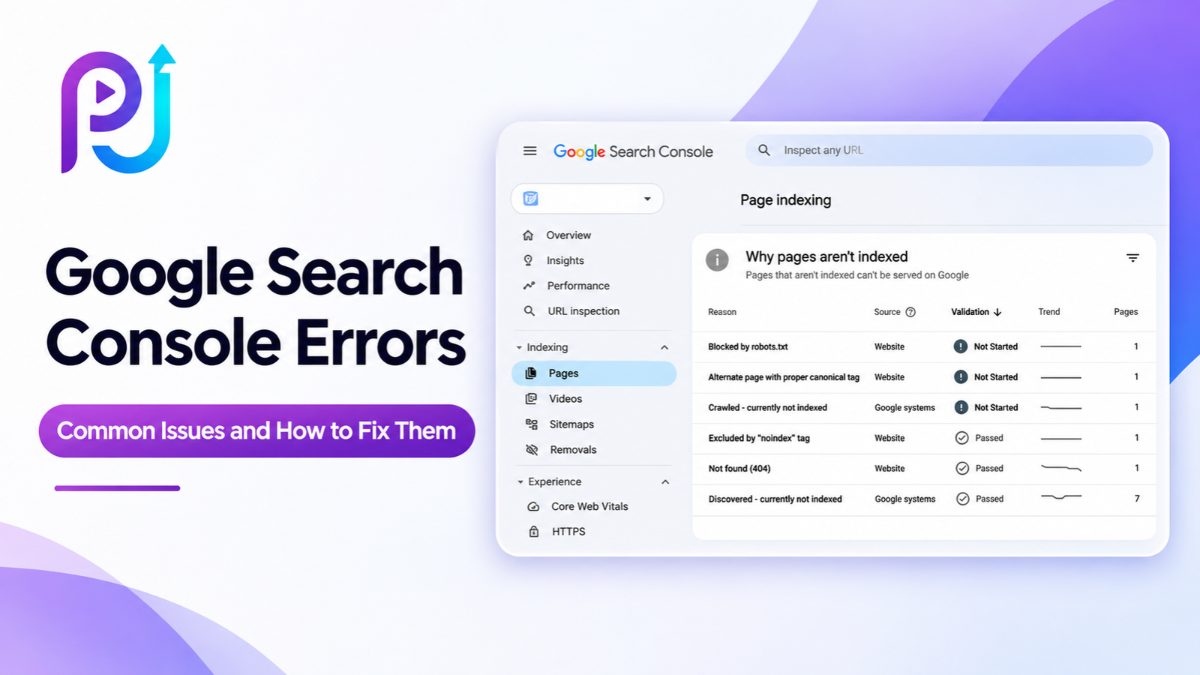
You open Google Search Console to check your website's performance and notice something concerning.
Several pages appear under "Not indexed." Some show 404 errors, others have redirect problems, and a few are marked "Crawled – currently not indexed."
Does this mean Google cannot find your website? Are these issues affecting your search rankings? Should you fix every warning?
Not necessarily.
Google Search Console Errors help website owners identify issues related to crawling, indexing, and search visibility. Some require immediate attention, while others are normal and do not need fixing.
For example, a deleted page returning a 404 status may be working as intended. However, an important service page blocked by a noindex tag could prevent potential customers from finding it through Google.
The key is understanding which issues matter and how to resolve them.
In this guide, I'll explain the most common Google Search Console errors, what causes them, and how to fix them without making unnecessary changes to your website.
What Are Google Search Console Errors?
Google Search Console is a free tool that helps website owners understand how their websites appear in Google Search.
It provides information about website indexing, search queries, organic clicks, impressions, sitemaps, and technical problems.
When Google's systems encounter an issue while discovering, crawling, or indexing a URL, Search Console may display a specific status.
Common examples include:
- Server Error (5xx)
- Not Found (404)
- Soft 404
- Redirect Error
- Crawled – Currently Not Indexed
- Discovered – Currently Not Indexed
- Duplicate Without User-Selected Canonical
- Excluded by Noindex Tag
- Blocked by Robots.txt
- Sitemap Errors
These statuses help identify potential problems, but not every non-indexed URL needs attention.
For instance, an old page that redirects correctly to a new URL normally does not need to appear separately in Google's index.
The main goal of Technical SEO is to make important pages accessible, understandable, and eligible for indexing.
Common Google Search Console Errors and Their Fixes
| Error or Status | Possible Cause | Recommended Fix |
|---|---|---|
| Server Error (5xx) | Hosting or server problems | Check server logs and hosting |
| Not Found (404) | Deleted or incorrect URL | Restore or redirect if appropriate |
| Soft 404 | Missing or empty content | Fix content or return the correct status |
| Redirect Error | Broken redirects or loops | Correct redirect configuration |
| Crawled – Currently Not Indexed | Google crawled but did not index | Review content and indexing signals |
| Discovered – Currently Not Indexed | Google has not crawled the URL | Review discovery and server access |
| Duplicate Without Canonical | Similar pages with unclear canonical signals | Specify the preferred URL |
| Excluded by Noindex | Noindex directive detected | Remove if indexing is intended |
| Blocked by Robots.txt | Crawling restrictions | Review robots.txt rules |
| Sitemap Error | Invalid or inaccessible sitemap | Correct sitemap configuration |
The right solution depends on whether the affected page should be indexed.
How to Find Google Search Console Errors
Before fixing an issue, identify the affected URL and the reason Google reported it.
Step 1: Open Google Search Console
Sign in to Google Search Console and select your website property.
Make sure you are viewing the correct domain or URL-prefix property.
Step 2: Navigate to Page Indexing
From the left navigation menu, open:
Indexing → Pages
You'll see a report showing indexed and non-indexed pages.
Step 3: Review the Reported Reasons
Scroll to the section explaining why pages are not indexed.
Select an issue to view example URLs.
Step 4: Inspect an Affected URL
Enter an affected URL into the URL Inspection tool.
Review the indexing status, last crawl, canonical information, and other available details.
Step 5: Test the Live Page
Use the live URL test to check whether Google can currently access the page.
Remember that Search Console reports may describe an earlier crawl. A page could already be fixed even though the report has not been updated.
Google provides more details in its official Page Indexing Report Documentation.
1. How to Fix Server Error (5xx)
A server error occurs when Google attempts to access a webpage but the website's server cannot complete the request.
Common server errors include:
- 500 Internal Server Error
- 502 Bad Gateway
- 503 Service Unavailable
- 504 Gateway Timeout
These problems may be caused by server overload, incorrect configuration, database failures, or website application errors.
Why Server Errors Matter
If Google repeatedly encounters server problems, it may reduce crawling activity.
Persistent errors can prevent important pages from being indexed or updated.
How to Fix Server Errors
First, open the affected URL in your browser.
Check whether it loads correctly.
Next, review your hosting dashboard and server logs.
Look for recent plugin updates, website deployments, database problems, or hosting interruptions.
If the problem affects many pages, contact your hosting provider or developer.
After resolving it, test the URL through Search Console.
For important pages, you can request indexing once the server is working.
2. How to Fix 404 Not Found Errors
A 404 error means Google requested a URL that no longer exists or cannot be found.
This commonly happens when a page is deleted, its URL changes, or another page contains an incorrect link.
For example, your website might have an old service URL:
example.com/seo-consulting-old
You later replace it with:
example.com/seo-consulting
If the old page disappears without a redirect, Google may report a 404.
Are All 404 Errors Bad for SEO?
No.
A 404 response is correct when a page has been removed and no relevant replacement exists.
However, a broken URL becomes a problem when it is an important landing page or receives valuable traffic.
How to Fix 404 Errors
Determine whether the page should still exist.
If the page was removed by mistake, restore it.
If its content moved permanently, add a 301 redirect to the relevant new URL.
If there is no suitable replacement, keeping the 404 may be correct.
Update internal links that point to broken URLs.
Also remove deleted pages from your XML sitemap.
Avoid redirecting every deleted URL to the homepage because this may create poor user experiences and soft 404 problems.
3. How to Fix Soft 404 Errors
A soft 404 occurs when Google determines that a page behaves like a missing or empty page even though the server may return a successful response.
For example, a product page might return HTTP 200 but display:
"Product No Longer Available."
Google may classify this as a soft 404.
Common Causes
Soft 404 issues may occur because of empty pages, broken content rendering, incorrect error-page responses, or redirects to unrelated destinations.
How to Fix Soft 404 Errors
Start by checking what the affected page displays.
Confirm that its content loads correctly.
If the page should exist, restore or improve the actual content.
If the page has been permanently deleted, return a genuine 404 or 410 response.
If the content has moved, redirect visitors to the most relevant replacement.
Do not add unnecessary text just to remove a warning.
A page should provide useful information for the visitor.
4. How to Fix Redirect Errors
Redirects send visitors and search engines from one URL to another.
They are useful when changing URL structures, merging pages, or migrating websites.
However, incorrect redirects can prevent Google from accessing the intended destination.
Common Redirect Problems
A redirect loop occurs when URLs repeatedly redirect to each other.
For example:
Page A → Page B → Page A
A redirect chain sends users through several intermediate URLs before reaching the final destination.
Other problems include invalid destinations or broken redirects.
How to Fix Redirect Errors
Use a redirect checker to identify the full redirect path.
Confirm the intended final URL.
Remove redirect loops and unnecessary intermediate steps.
Use permanent redirects, such as 301 or 308, for permanent moves.
Use temporary redirects when the move is temporary.
Check that the final page loads successfully.
Finally, update internal links to point directly to the preferred destination.
5. How to Fix Crawled – Currently Not Indexed
This is one of the most common Google Search Console indexing issues.
Crawled – currently not indexed means Google has visited the URL but has not included it in its index.
This does not automatically mean your website has a technical error.
Google may decide not to index the page for several reasons.
Possible Causes
The page may contain content similar to other indexed URLs.
It may have weak internal linking, limited useful information, or rendering issues.
Google may also decide not to index an otherwise accessible page.
How to Fix It
First, inspect the affected URL.
Confirm that it returns a successful HTTP response and has no unintended noindex directive.
Review the page's canonical settings.
Check whether important content appears when Google renders the page.
Next, evaluate the content.
Does it answer a specific question? Does it provide information that isn't already covered by another page?
Improve the content where there is a genuine need.
Add relevant internal links from other useful pages.
If your website has many similar location or service pages, make sure each page serves a distinct purpose.
After making improvements, allow time for Google to reassess the page.
Requesting indexing does not guarantee that the URL will enter Google's index.
6. How to Fix Discovered – Currently Not Indexed
Discovered – currently not indexed means Google knows the URL exists but has not crawled it yet.
This is different from Crawled – currently not indexed.
In this case, Google has not visited the page to process its content.
Why Does This Happen?
The URL may be new.
Google may delay crawling because of scheduling, crawl demand, or website accessibility.
Large numbers of unnecessary URLs may also make crawling less efficient.
However, the status alone does not prove that a website has a crawl budget problem.
How to Fix It
Confirm the URL is publicly accessible.
Check whether it appears in the website's XML sitemap.
Add relevant internal links from related pages.
Review robots.txt rules and server availability.
Avoid creating large numbers of unnecessary parameter URLs.
If the page is new and everything appears correct, allow reasonable time for crawling.
Repeated indexing requests are not a guaranteed solution.
7. How to Fix Duplicate Without User-Selected Canonical
This status means Google has identified duplicate or very similar URLs without a clearly selected canonical version from the website.
A canonical URL tells search engines which version you prefer when similar content exists at multiple addresses.
For example:
example.com/service
example.com/service?source=menu
Both addresses may display the same content.
Google may select one version for indexing.
How to Fix It
Identify the preferred URL.
Where supported, add a canonical tag pointing to that version.
Keep sitemap entries and internal links consistent with your preferred URL.
If an alternative URL has permanently moved, use a suitable redirect.
Remember that Google treats canonical tags as signals rather than absolute instructions.
If Google chooses the correct canonical URL, the duplicate exclusion may not need any action.
8. How to Fix Excluded by Noindex Tag
A noindex directive tells Google not to include a page in search results.
Website owners often use it intentionally for certain pages.
However, problems occur when important service or product pages receive the directive by mistake.
How to Fix It
Open the affected page.
Review its robots meta tag and HTTP headers.
Check for a noindex directive.
If the page should be indexed, remove the unintended directive.
Make sure Google can crawl the page and access its content.
If a robots.txt rule blocks crawling, Google may not be able to see the updated directive.
After correcting the issue, test the URL.
If the page was intentionally excluded, no fix is necessary.
9. How to Fix Blocked by Robots.txt
A robots.txt file controls which URLs search engine crawlers can request.
It is useful for managing crawling.
However, an incorrect rule can block important website content.
For example, a rule blocking the entire /services/ directory may prevent Google from crawling service pages.
How to Fix It
Open your website's robots.txt file.
Review rules affecting the reported URLs.
Remove or adjust unintended restrictions.
Check that Google can access important pages and resources.
Use URL Inspection to test the current configuration.
Do not remove intentional restrictions from private or unnecessary website areas.
Also remember that robots.txt is not a reliable tool for preventing a URL from appearing in search results.
10. How to Fix XML Sitemap Errors
An XML sitemap helps search engines discover important website pages.
Search Console may report problems when the sitemap is inaccessible, incorrectly formatted, or contains unsuitable URLs.
How to Fix It
Navigate to Indexing → Sitemaps.
Review the submitted sitemap and its status.
Check whether the sitemap URL opens correctly.
Confirm that the XML format is valid.
Where appropriate, include canonical URLs of pages you want indexed.
Remove broken links, unnecessary redirects, and intentionally excluded pages.
If your website uses a CMS that generates its sitemap automatically, review those settings before manually editing files.
Submitting a valid sitemap helps Google discover URLs, but it does not guarantee indexing.
11. How to Fix Core Web Vitals Issues
Google Search Console also reports Core Web Vitals, which measure aspects of the website experience.
The main metrics are:
| Metric | Good Threshold | Purpose |
|---|---|---|
| Largest Contentful Paint (LCP) | 2.5 seconds or less | Measures loading performance |
| Interaction to Next Paint (INP) | 200 ms or less | Measures responsiveness |
| Cumulative Layout Shift (CLS) | 0.1 or less | Measures visual stability |
How to Improve Core Web Vitals
For poor LCP, investigate slow server responses, large images, and render-blocking resources.
For high INP, review heavy JavaScript and tasks that delay interactions.
For CLS problems, reserve space for images, advertisements, and other elements that load later.
Use PageSpeed Insights and browser performance tools to identify the actual cause.
A strong Landing Page Optimization process can also help improve usability and conversion performance.
Remember that Core Web Vitals are only one part of page experience and do not guarantee rankings.
12. Security Issues and Manual Actions
Some Search Console warnings require urgent attention.
Security issues may involve malware, hacked content, or phishing.
Manual actions occur when Google's human reviewers identify violations of its spam policies.
These issues are different from normal indexing exclusions.
How to Fix Them
Open the Security & Manual Actions section.
Review the specific warning.
For security problems, investigate compromised files, outdated plugins, and unauthorized website access.
For manual actions, address the identified policy violations.
Once the underlying problem is corrected, submit the relevant review request when available.
Avoid requesting a review before completing the necessary fixes.
Which Google Search Console Errors Should You Fix First?
Not every issue deserves the same priority.
Focus on problems that affect important pages and actual business outcomes.
| Priority | Issue | Reason |
|---|---|---|
| Critical | Malware or Manual Actions | May affect site safety and visibility |
| High | Persistent Server Errors | Can stop important pages being crawled |
| High | Important Pages Set to Noindex | Prevents intended indexing |
| High | Broken Service or Product Pages | Visitors cannot reach key content |
| High | Incorrect Redirects | Prevents access to intended pages |
| Medium | Important Pages Not Indexed | Requires investigation |
| Medium | Canonical Conflicts | May affect preferred URL selection |
| Medium | Sitemap Errors | Can affect page discovery |
| Review | Intentional 404s or Redirects | Often require no change |
For example, a broken service page that generates customer inquiries should take priority over an intentionally excluded filter URL.
An effective Technical SEO Audit should identify which issues affect important pages rather than treating every exclusion as a problem.
How to Validate Fixes in Google Search Console
After fixing an issue, verify that the page behaves correctly.
Step 1: Test the URL
Open the affected page and confirm that it loads.
Step 2: Check the HTTP Status
Verify that the page returns the appropriate status code.
Step 3: Review Indexing Signals
Check canonical tags, noindex directives, and robots.txt access.
Step 4: Use URL Inspection
Run a live URL test to confirm Google's current access.
Step 5: Select Validate Fix When Available
If Search Console provides the Validate Fix option for the issue, use it after correcting the underlying problem.
Google will begin checking whether the reported condition has been resolved.
Validation may take time.
It does not guarantee immediate indexing or higher rankings.
How to Prevent Google Search Console Errors
Preventing technical problems is often easier than fixing them after they affect important pages.
Review Google Search Console regularly.
Monitor page indexing reports, redirects, sitemap status, and server availability.
Test important pages after website updates.
Before changing URL structures, create a redirect plan.
When publishing new content, use descriptive URLs and clear internal links.
Keep XML sitemaps accurate.
Avoid creating unnecessary duplicate pages.
It is also useful to document website changes so you can connect new issues with recent deployments.
Businesses investing in Search Engine Optimization should include crawling and indexing checks as part of their regular website maintenance.
The goal is to make important content accessible and useful, not force every URL into Google's index.
Example: A Website With Multiple Search Console Issues
Imagine a local service business with 120 website URLs.
Google Search Console reports:
- 15 pages with 404 responses
- 12 pages marked Crawled – currently not indexed
- 8 pages marked Discovered – currently not indexed
- 10 duplicate URLs
- 3 pages accidentally set to noindex
What should the business do first?
The correct approach is to review the importance of each URL.
The three accidentally excluded service pages may deserve immediate attention.
The 404 URLs should be checked to determine whether their removal was intentional.
The duplicate URLs may not require fixing if Google selected the preferred canonical version.
The remaining unindexed pages should be reviewed for content usefulness, accessibility, and internal linking.
This is a hypothetical example, not actual client data.
The lesson is simple: the number of reported URLs matters less than the reason for exclusion and the value of the affected pages.
When Should You Hire a Technical SEO Specialist?
Some Google Search Console issues are straightforward.
Others require checking website code, server logs, redirects, canonical signals, rendering, and CMS configuration.
A professional review can help when important pages remain unindexed, errors appear after a website migration, or the same problems return after attempted fixes.
An SEO specialist should identify the root cause before making changes.
They should also distinguish between technical problems, content-related concerns, and intentional exclusions.
For examples of practical marketing and website improvement work, explore the SEO Portfolio.
Why Work With Prem Jasuja for SEO?
Prem Jasuja is a freelance digital marketing professional working across SEO, Google Ads, Meta Ads, conversion tracking, and website optimization.
His work includes technical website reviews, search performance monitoring, and improving the customer journey.
A good SEO strategy should connect technical improvements with business goals.
For example, fixing a broken service page helps both search engines and potential customers access the information they need.
Improving internal links can make important pages easier to discover.
Resolving incorrect canonical tags can clarify which URLs should represent your content in search results.
You can learn more about Prem's experience as a Digital Marketing Specialist.
Final Thoughts
Google Search Console Errors provide useful information about your website, but they should not all be treated as emergencies.
Some issues, such as persistent server errors, accidental noindex directives, or broken important pages, require attention.
Other statuses, including intentional redirects and duplicate URL exclusions, may be completely normal.
The best approach is to identify the affected URL, understand the reported issue, and determine whether the page should be indexed.
Then correct the underlying problem and verify the change.
Avoid making unnecessary technical changes just to reduce warning counts.
Good Technical SEO is about keeping important pages accessible, useful, and eligible for indexing.
Need Help Fixing Google Search Console Errors?
If your website has indexing problems, broken URLs, or recurring technical SEO issues, a structured review can help you identify what needs attention.
Prem Jasuja provides support with website optimization, SEO analysis, and technical troubleshooting.
Explore SEO Services to learn how these issues can be reviewed and addressed.
Frequently Asked Questions
What Are Google Search Console Errors?
Google Search Console errors are reported issues or statuses related to how Google accesses, crawls, indexes, or evaluates parts of a website. Some indicate technical problems, while others describe intentional or normal indexing behavior.
How Do I Fix Google Search Console Errors?
Open the Page Indexing report, identify the affected URLs, and inspect each important page. Check the reported issue, correct the underlying cause, and use URL Inspection or Validate Fix where appropriate.
Why Are My Website Pages Not Indexed by Google?
Pages may remain unindexed because of noindex directives, duplicate content, technical problems, crawling delays, or Google's indexing decisions. The reason shown in Search Console helps guide your investigation.
What Does Crawled – Currently Not Indexed Mean?
It means Google has crawled a URL but has not included it in its index. Review the page's content, uniqueness, internal links, canonical signals, and technical accessibility. Indexing is not guaranteed.
What Does Discovered – Currently Not Indexed Mean?
It means Google knows the URL exists but has not crawled it yet. Check whether the page is accessible, linked from other pages, and included in the sitemap where appropriate.
Are 404 Errors Bad for SEO?
Not always. A genuine 404 is appropriate when a page has been removed without a replacement. However, broken links to important pages or missing pages that should exist need attention.
How Do I Fix Duplicate Without User-Selected Canonical?
Identify the preferred URL and review duplicate alternatives. Use appropriate canonical tags, redirects, internal links, and sitemap entries to communicate the preferred version consistently.
Does Validating a Fix Guarantee Google Indexing?
No. Validate Fix asks Google to confirm whether a reported issue has been corrected. It does not guarantee that the page will be indexed or receive higher rankings.
How Often Should I Check Google Search Console?
Active websites can benefit from weekly checks, while smaller sites may need less frequent reviews. Check after major website changes, migrations, publishing updates, or unexpected drops in search traffic.
Can Google Search Console Errors Affect Website Rankings?
Some technical problems can affect crawling, indexing, or page experience, which may influence search visibility. However, not every Search Console warning is a ranking problem, and fixing an issue does not guarantee improved positions.