You publish a new service page on your website.
The content is unique, the page loads without errors, and you've added a self-referencing canonical tag.
Everything looks correct.
But when you inspect the URL in Google Search Console, you find an unexpected message:
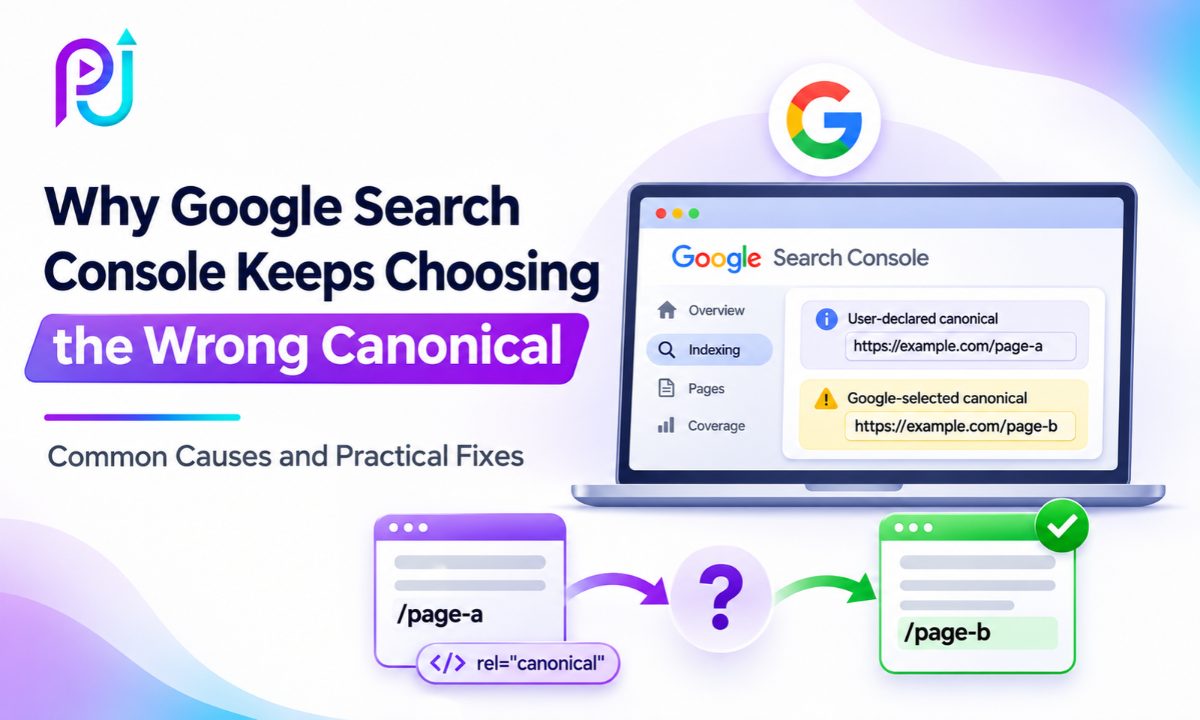
"Duplicate, Google chose different canonical than user."
Google has selected another URL as the canonical version of your page.
Sometimes it chooses an older page. Sometimes it selects a different service page, a URL with parameters, or even a page from another domain.
This can be confusing, especially when you've already checked the canonical tag and requested indexing.
The important thing to understand is that Google Canonical Selection Issues are not always caused by incorrect canonical tags.
Google uses several signals to decide which URL should represent a group of duplicate or similar pages. If those signals conflict, Google may choose a different URL from the one you prefer.
Canonical problems often appear alongside other technical issues, such as Google Search Console 404 Errors, incorrect redirects, duplicate pages, and indexing problems.
In this guide, I'll explain why Google chooses a different canonical URL, how to identify the cause, and what you can do to resolve the issue.
What Is a Canonical URL in SEO?
A canonical URL is the version of a page that Google considers the main representative of a group of duplicate or very similar pages.
For example, imagine your website has these two URLs:
https://example.com/services/seo
https://example.com/services/seo?source=email
Both URLs display essentially the same content.
You want Google to treat the clean service URL as the main version.
You can express that preference by adding a canonical tag to the HTML head of the page:
<link rel="canonical" href="https://example.com/services/seo">
This tells Google which URL you would prefer it to use.
However, a canonical tag is not a command that Google must follow.
Google evaluates the content and available signals before making its final decision.
That's why a page can have a valid canonical tag while Google selects a different URL.
User-Declared Canonical vs Google-Selected Canonical
Google Search Console shows two important canonical fields.
| Canonical Type | Meaning |
|---|---|
| User-Declared Canonical | The preferred URL specified by your website |
| Google-Selected Canonical | The URL Google has chosen as the main version |
For example:
User-declared canonical:
https://example.com/services/roof-repair
Google-selected canonical:
https://example.com/services/roofing
In this situation, your website prefers the roof repair page, but Google has selected the general roofing page.
This does not automatically mean that the roof repair page contains an invalid canonical tag.
Google may consider the pages too similar or may be receiving conflicting signals elsewhere on the website.
The next step is to determine why Google selected the alternative.
Why Does Google Ignore Your Canonical Tag?
Google doesn't use canonical tags in isolation.
It also evaluates signals such as redirects, page content, sitemap inclusion, HTTPS preferences, and relationships between localized pages.
For example, your canonical tag may point to a new URL while your internal links, sitemap, and redirects continue favoring an older URL.
Google must then interpret those conflicting signals.
Google also compares the main content of pages.
If two pages are substantially similar, it may group them together and select one representative URL, even when each page declares itself canonical.
Google's official Canonicalization Troubleshooting Guide explains that technical configurations and content similarity can influence its choice.
This is why changing the canonical tag alone does not always solve the problem.
10 Reasons Google Chooses the Wrong Canonical URL
| Issue | Possible Cause | Recommended Fix |
|---|---|---|
| 1 | Duplicate or Similar Content | Make separate pages meaningfully different |
| 2 | Conflicting Canonical Tags | Correct the canonical declarations |
| 3 | Incorrect Redirects | Fix redirect destinations |
| 4 | XML Sitemap Conflicts | Include preferred canonical URLs |
| 5 | Internal Linking Conflicts | Link to the preferred URLs |
| 6 | HTTP and HTTPS Versions | Standardize preferred URL versions |
| 7 | CMS or Plugin Errors | Review generated canonical tags |
| 8 | JavaScript Rendering Issues | Check initial and rendered HTML |
| 9 | Regional Page Conflicts | Review hreflang and localized content |
| 10 | Staging or Duplicate Domains | Fix unintended public copies |
Let's examine each issue.
1. Google Considers Your Pages Too Similar
One of the main reasons Google selects an unexpected canonical is content similarity.
You may believe two pages are unique because they have different URLs, titles, or headings.
However, Google evaluates the main content of each page.
For example, imagine a plumbing company publishes three pages:
- Emergency Plumbing Services
- Residential Plumbing Services
- Professional Plumbing Services
Each page uses almost the same content, with only the service name changed.
Google may consider some of these pages duplicates or near-duplicates.
Even if every page has a self-referencing canonical tag, Google may choose one page to represent the group.
How to Fix It
Compare the pages Google has grouped together.
Identify whether each page serves a genuinely different search intent.
If the pages describe different services, give each page meaningful information specific to that service.
Include relevant explanations, service details, pricing information where applicable, and useful supporting content.
Keyword targeting also matters when deciding whether separate pages are necessary.
For example, if two pages target the same customer need using slightly different keywords, creating separate URLs may not add value.
A better approach is to understand High-Intent SEO Keywords and organize your content around distinct search needs.
If two pages serve the same purpose, consider consolidating them rather than trying to force both into Google's index.
Changing a few words or headings may not be enough to make pages distinct.
2. Your Website Has Conflicting Canonical Tags
Sometimes a website sends conflicting canonical instructions.
For example, a page may contain two canonical tags:
<link rel="canonical" href="https://example.com/service-a">
<link rel="canonical" href="https://example.com/service-b">
This can happen when a theme, SEO plugin, or custom code generates separate canonical elements.
If multiple canonical declarations conflict, Google may not follow your intended preference.
How to Fix It
Open the affected page.
View the HTML source and search for rel="canonical".
Check how many canonical elements appear and where they point.
Review whether the website also sends canonical information through HTTP headers.
For an ordinary HTML page, maintain one clear, valid canonical declaration.
If multiple systems generate canonicals, identify which system should control them and remove the conflicting output.
3. Your Redirects Point to a Different URL
Redirects are strong canonicalization signals.
If your website redirects an old URL to a new one, Google may use that redirect as evidence that the destination should become canonical.
However, incorrect redirects can create problems.
Imagine that your preferred service page is:
https://example.com/services/seo
But the URL redirects to:
https://example.com/services
In this case, the canonical tag cannot make the original URL independently indexable while it redirects elsewhere.
How to Fix It
Check the HTTP response of the preferred URL.
If the page should remain independently accessible, it should normally return a successful response, such as 200 OK.
If an old URL has permanently moved, use an appropriate permanent redirect to its replacement.
Avoid unnecessary redirect chains.
Also make sure you do not redirect unrelated pages to the homepage merely to remove them from search results.
A redirect should lead users to a relevant replacement page.
4. Your XML Sitemap Lists the Wrong URL
An XML sitemap helps search engines discover the URLs you want crawled.
It can also provide a canonicalization signal.
However, sitemap inclusion is weaker than redirects and canonical annotations.
Imagine your preferred URL is:
https://example.com/about-us
But your sitemap contains:
https://example.com/about
Your canonical tag and sitemap are now sending different preferences.
How to Fix It
Open your XML sitemap.
Find the affected page and confirm that its listed URL matches your preferred canonical version.
Remove retired or unwanted duplicate URLs from the sitemap.
Check whether your sitemap includes redirected pages or URLs that should not be indexed.
If you use WordPress, review the sitemap generated by your SEO plugin.
Keep the sitemap aligned with the canonical URLs you want Google to consider.
5. Your Internal Links Point to Another Page
Internal links help Google discover website pages and understand their relationships.
They also communicate which URLs your website uses consistently.
For example, imagine your preferred URL is:
https://example.com/services/window-tinting
But your navigation menu, footer, and service pages all link to:
https://example.com/window-tinting-services
Google may receive conflicting URL signals.
How to Fix It
Review links from the homepage, navigation menus, footer, breadcrumbs, and related content.
Update links so they point directly to the preferred URL.
Check whether important pages link to old addresses that redirect to the current page.
Correct those links where possible.
For pages that deserve their own search visibility, make sure Google can discover them through relevant internal links.
A page that appears in the navigation but receives an unexpected canonical selection may still require a full review of its content and technical signals.
6. HTTP, HTTPS, WWW, and Trailing Slash Versions Conflict
A website can sometimes serve essentially the same page through several URL variations.
For example:
http://example.com/services
https://example.com/services
https://www.example.com/services
https://example.com/services/
These variations may create duplicate URLs.
Google generally prefers HTTPS over HTTP for equivalent pages, but other signals can affect its decision.
How to Fix It
Choose the preferred protocol, hostname, and URL format for your website.
Use redirects where appropriate to consolidate duplicate versions.
Make sure canonical tags, XML sitemaps, and internal links use the preferred URLs.
Check that the HTTPS version works correctly and has a valid SSL certificate.
For trailing-slash differences, choose a consistent format and make sure both versions do not create unnecessary duplicate pages.
7. Your CMS or SEO Plugin Generates Incorrect Canonicals
Content management systems can create canonical tags automatically.
This is useful, but automatic generation does not guarantee accuracy.
For example, a WordPress page may have a canonical URL inherited from a duplicated page template.
A Shopify product variation might generate a canonical pointing to another product URL.
A custom theme may also add canonical markup separately from an SEO plugin.
How to Fix It
Inspect the canonical URL generated in the live page's HTML.
Check the relevant settings in your CMS or SEO plugin.
Review custom templates and theme code.
If the problem affects many pages, conduct a site crawl to identify patterns.
Look for missing canonicals, duplicate canonical declarations, and pages pointing to unrelated URLs.
Do not assume the canonical is correct simply because your SEO plugin shows a green status.
8. JavaScript Is Changing Your Canonical URL
Some websites use JavaScript to render or update their page content.
This can introduce canonicalization issues when the initial HTML and rendered page contain different canonical information.
For example, the initial HTML might declare:
https://example.com/product-a
But JavaScript later changes it to:
https://example.com/product-b
The conflicting signals can make it harder for Google to understand the intended canonical.
How to Fix It
Inspect the initial HTML source.
Then inspect the rendered HTML.
Compare the canonical URL in both versions.
Where possible, specify the correct canonical in the initial HTML and avoid changing it with JavaScript.
Also check that the main page content appears correctly when rendered.
A page can load successfully but still fail to display important content to search engines or users.
This is why reviewing Landing Page Mistakes can be useful when evaluating problems with page structure, content visibility, and user experience.
However, keep in mind that landing page usability and canonicalization are different issues. A poor layout alone does not prove why Google selected another canonical.
9. Regional Pages Are Missing Correct Hreflang Signals
International websites sometimes publish different regional versions of similar content.
For example:
https://example.com/us/services
https://example.com/uk/services
Both pages may contain nearly identical English content.
Google may group them as similar pages, especially if their main content does not reflect meaningful regional differences.
Hreflang annotations help Google understand regional and language alternatives.
How to Fix It
Review your hreflang implementation.
Confirm that regional URLs reference appropriate alternative versions.
Use suitable language and region codes.
Check that the intended canonical and hreflang relationships do not conflict.
If regional pages need independent visibility, make their content useful to customers in each market.
For example, reflect genuine differences in service availability, pricing, delivery policies, or regional information.
Hreflang can help Google understand localized pages, but it does not guarantee that every regional URL will be selected as canonical.
10. Old Staging Websites or Duplicate Domains Are Still Accessible
This is an issue that can be overlooked during website development.
Imagine your website was built using a staging domain:
https://dev.example.com
Later, the website launches at:
https://example.com
However, the development website remains publicly accessible and contains copies of your live pages.
Google may discover both versions.
Depending on the content and canonicalization signals, it may group pages across these domains.
This can create unexpected canonical selections.
How to Fix It
Check whether old staging and development websites remain publicly accessible.
If they are no longer needed, remove public access or configure them appropriately.
When staging URLs have been publicly indexed and have direct replacements, assess whether permanent redirects are suitable.
Make sure production pages contain the correct canonical URLs.
Check for old staging links in menus, sitemaps, templates, and website code.
Do not rely on blocking a duplicate URL through robots.txt as a method of forcing Google to select another canonical.
Google may need to crawl a URL to process its canonical or redirect signals.
How to Check Google-Selected Canonical in Search Console
Google Search Console provides the most direct way to check the canonical selected for a URL.
Follow these steps.
Step 1: Open Google Search Console
Select the relevant website property.
Step 2: Use URL Inspection
Enter the URL you want Google to index.
Step 3: Review Page Indexing Details
Find these fields:
User-declared canonical
Google-selected canonical
Step 4: Compare Both URLs
If the values differ, record the preferred URL and the URL selected by Google.
Step 5: Check the Last Crawl Date
Search Console's indexed information may reflect an earlier crawl.
If you recently changed the page, Google may not have processed the update yet.
Step 6: Run a Live URL Test
Use Test Live URL to verify accessibility and inspect the current page.
However, remember that the live test does not predict which canonical Google will select after indexing.
The indexed URL Inspection result is the correct place to review Google's selection.
What Does "Duplicate, Google Chose Different Canonical Than User" Mean?
This Search Console status means Google has identified a page as a duplicate or near-duplicate but selected a different canonical URL from the one your website declared.
It is not the same as a manual penalty.
For example, imagine your website contains two pages about the same roofing service.
Both have self-referencing canonical tags.
Google may determine that one page better represents their shared content.
The other page can then receive the status:
"Duplicate, Google chose different canonical than user."
Whether you need to fix this depends on the pages involved.
If Google selected an acceptable main version, the issue may not require action.
If it selected a different service, an outdated page, or an unwanted domain, investigate further.
Canonical-Related Search Console Statuses
| Search Console Status | Meaning | Action |
|---|---|---|
| Alternate Page With Proper Canonical Tag | Page points to a canonical that Google accepts | Usually no fix needed |
| Duplicate Without User-Selected Canonical | Google found a duplicate without an explicit canonical preference | Review if the chosen URL is appropriate |
| Duplicate, Google Chose Different Canonical Than User | Google disagrees with the declared canonical | Investigate conflicting signals |
| Crawled, Currently Not Indexed | Google crawled the page but has not indexed it | Investigate indexing separately |
Not every excluded page indicates a technical SEO problem.
The key question is whether Google has selected the right version for users.
How to Fix a Wrong Google-Selected Canonical: Step by Step
Once you've identified the affected URLs, follow this process.
Step 1: Record all relevant URLs. Note the inspected URL, user-declared canonical, and Google-selected canonical.
Step 2: Compare the content. Check whether the pages are genuinely different or serve the same search intent.
Step 3: Inspect canonical tags. Confirm that there are no incorrect or conflicting declarations.
Step 4: Check redirects. Make sure each URL returns the intended HTTP response and redirects to a relevant destination when needed.
Step 5: Review the XML sitemap. Confirm that preferred canonical URLs are included.
Step 6: Inspect internal links. Update navigation, breadcrumbs, and relevant links to point to preferred URLs.
Step 7: Verify accessibility. Check for noindex directives, robots.txt restrictions, server errors, and rendering problems.
Step 8: Review regional signals. If the site uses international URLs, inspect hreflang relationships.
Step 9: Request indexing. Once you've corrected meaningful issues, request indexing for important affected URLs.
Step 10: Monitor the result. Allow Google to recrawl and reassess the pages before deciding whether further changes are necessary.
The objective is to make your preferred URL the clearest representative of its content.
Why Google Still Chooses the Wrong Canonical After You Fix Everything
Sometimes the technical problems have been corrected, but Search Console continues showing the previous canonical.
This can happen because Google has not yet recrawled and reassessed the relevant URLs.
It can also happen because the pages are still too similar.
Google's canonicalization troubleshooting documentation explains that pages can remain grouped together for up to two weeks after content fixes.
In other situations, reprocessing can take longer.
Repeatedly requesting indexing does not guarantee that Google will change its canonical selection.
If the problem persists, revisit the content and signals rather than submitting the same request without further changes.
Can an Incorrect Canonical Affect Your SEO Rankings?
An unexpected canonical selection can affect which URL Google chooses to index and show in search results.
However, it does not automatically mean your website has received a ranking penalty.
For duplicate pages, Google generally chooses a representative URL and consolidates relevant signals.
Problems become more important when Google chooses a URL that does not serve the intended user.
For example, a dedicated service page may be excluded because Google considers it a duplicate of a general service page.
This can limit the dedicated page's ability to appear independently for its intended search queries.
You may also find that the wrong URL appears for a search or that Search Console reports performance under a different canonical URL.
A canonical problem can affect the customer's experience as well.
If someone searches for a specific service but reaches a general page instead, they may need to search again to find the right information.
That creates an opportunity to review the page's content and Landing Page Conversion Rate.
Improving conversions will not force Google to change its canonical choice, but ensuring that the selected page meets the user's needs is still valuable.
Should Every Website Page Have a Self-Referencing Canonical?
A self-referencing canonical is often useful for important indexable pages.
It gives Google a clear indication that the current URL is the preferred version.
For example:
<link rel="canonical" href="https://example.com/contact">
However, not every page needs an explicit canonical declaration.
Google can determine canonical URLs without one.
The more important requirement is that your signals remain consistent.
A correct self-referencing canonical cannot guarantee independent indexing if Google considers the page a duplicate of another URL.
Common Canonical SEO Mistakes to Avoid
Avoid pointing different service pages to one generic canonical unless they genuinely represent duplicate content.
Do not use robots.txt to force Google to choose a particular canonical.
Avoid using noindex as a substitute for proper canonicalization within your website.
Do not include unwanted duplicate URLs in the XML sitemap while declaring other URLs as canonical.
Avoid conflicting canonical tags generated by multiple plugins or scripts.
Also, do not assume that changing a title tag alone will make two similar pages unique.
Google evaluates the main content, not just the page title.
For important pages, review canonical settings as part of your regular SEO maintenance.
Google Canonical Selection Issues: Technical SEO Audit Checklist
| SEO Audit Area | What to Verify | Priority |
|---|---|---|
| Canonical Tags | Correct preferred URL | High |
| Duplicate Content | Main content is meaningfully distinct | High |
| Redirects | Correct status and destination | High |
| XML Sitemap | Preferred URLs included | High |
| Internal Links | Links point to intended URLs | High |
| Indexability | No unwanted noindex directive | High |
| HTTP Status | Preferred page is accessible | High |
| HTTPS | Secure preferred URL | High |
| JavaScript | Initial and rendered canonical agree | Medium |
| Hreflang | Regional signals are consistent | Medium |
| Staging Domains | Old development copies are handled | High |
| Search Console | Google-selected canonical reviewed | High |
How Long Does It Take Google to Update a Canonical URL?
There is no guaranteed timeframe.
Google must crawl the affected pages and reassess the signals.
Some changes may be reflected within days, while others can take several weeks.
Google notes that pages may remain grouped as duplicates for up to two weeks after content changes.
Larger sites, complicated URL structures, and less frequently crawled pages may require more time.
For broader expectations about organic search improvements, read How Long Does SEO Take?.
The best approach is to correct the underlying issues, request indexing where appropriate, and monitor the relevant pages in Search Console.
About Prem Jasuja
Prem Jasuja is a freelance digital marketing professional specializing in SEO, Google Ads, Meta Ads, Google Analytics 4, Google Tag Manager, and landing page optimization.
His SEO work includes technical website audits, indexing analysis, on-page optimization, internal linking reviews, and identifying issues that affect organic search visibility.
He focuses on helping businesses understand website problems and improve the way their pages are discovered and indexed.
Final Thoughts
Google Canonical Selection Issues can happen even when your canonical tags appear correct.
Google uses several signals to select the version of a page it considers most representative.
If your canonical tags, redirects, sitemaps, internal links, or content send conflicting signals, Google may choose a URL you did not intend.
The solution is not always to add another canonical tag.
Start by checking the user-declared and Google-selected canonical URLs in Search Console.
Compare the pages, inspect the technical signals, and determine whether they should be consolidated or indexed separately.
Fix conflicting signals and make sure each important page offers meaningful content for its intended users.
The goal is not to force Google to follow a tag. It is to give Google clear, consistent reasons to select the right URL.
Frequently Asked Questions
Why Does Google Choose a Different Canonical URL From Mine?
Google may choose a different canonical when it considers another URL a better representative of duplicate or similar content. Conflicting redirects, sitemap entries, canonical tags, and page content can influence its decision.
What Does "Duplicate, Google Chose Different Canonical Than User" Mean?
It means your website declared one canonical URL, but Google selected another page from the duplicate group. This is not automatically a penalty. Check whether the chosen URL is appropriate before making changes.
Can Google Ignore a Self-Referencing Canonical Tag?
Yes. A self-referencing canonical expresses your preferred URL, but it does not guarantee that Google will select it. Google also evaluates content similarity and other canonicalization signals.
How Do I Fix Google-Selected Canonical Issues?
Inspect the affected URLs in Search Console, compare their content, review canonical tags, check redirects, update internal links and sitemaps, and correct indexability problems. Request indexing after meaningful fixes.
Can Duplicate Content Cause Incorrect Canonical Selection?
Yes. Google can group pages with identical or very similar main content and select one canonical version. If pages need separate indexing, make their primary content and purpose meaningfully different.
Does an Incorrect Canonical URL Affect Google Rankings?
An unexpected canonical can affect which URL Google indexes and displays. However, canonical differences do not automatically create ranking penalties. The impact depends on whether Google selected an appropriate representative page.
Should Every Page Have a Self-Referencing Canonical?
Not every page requires an explicit canonical tag. However, self-referencing canonicals can help communicate the preferred URL for important indexable pages, especially when duplicate versions may exist.
Can an XML Sitemap Fix a Wrong Canonical URL?
A sitemap can support your preferred canonical selection, but sitemap inclusion is a weaker signal than redirects and canonical annotations. It should be consistent with your other technical signals.
How Long Does Google Take to Change a Canonical URL?
There is no fixed timeframe. Google must recrawl and reassess the affected pages. Google notes that duplicate clusters can remain unchanged for up to two weeks after content fixes, and some cases may take longer.
Should I Use Noindex or Robots.txt to Fix Canonical Issues?
No. Google does not recommend using robots.txt or noindex as canonicalization methods within a website. Use appropriate canonical tags, redirects, consistent internal links, and content improvements instead.