Imagine opening your Google Ads account and finding something you never expected.
Your campaign is using a different bidding strategy. New broad match keywords have appeared, and some of your negative keywords are missing.
You check with your team.
Nobody remembers making those changes.
Even more confusing, your campaign was generating qualified leads last week, but now you're spending more without seeing the same results.
So what happened?
Did someone access your account? Did Google change the settings? Or was an automation feature already enabled?
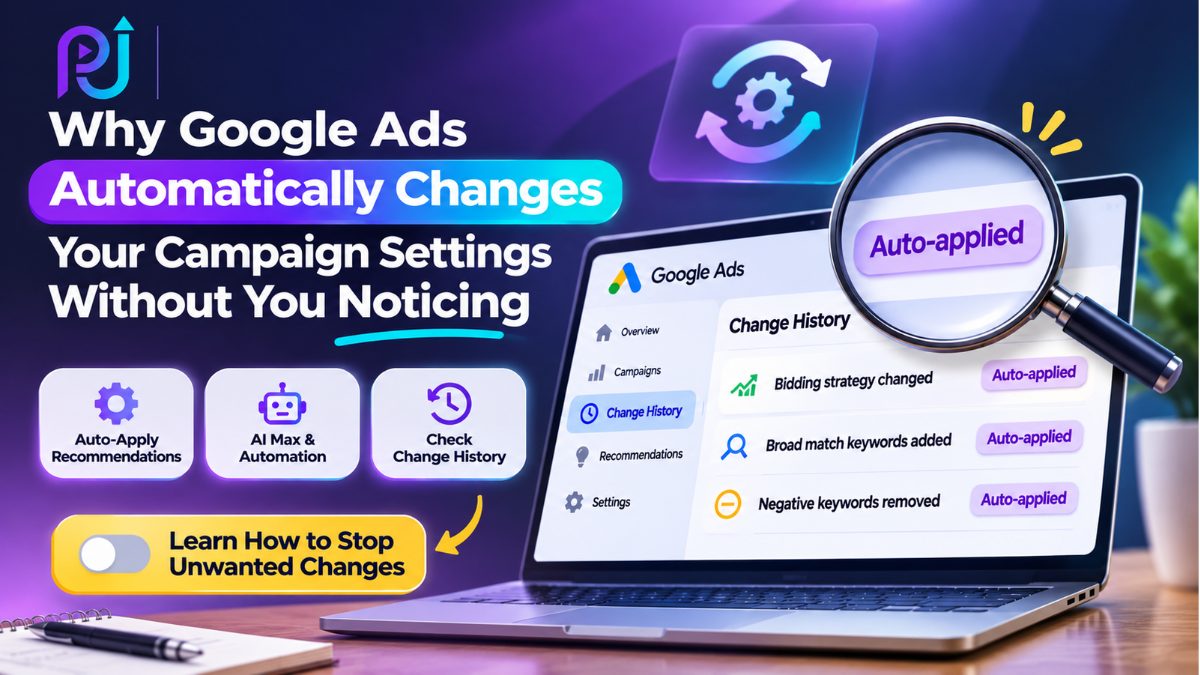
Google Ads Auto Applied Recommendations can make changes to your campaigns without requiring you to approve each individual update, provided someone previously enabled the relevant recommendation types.
But auto-applied recommendations are not the only possible explanation.
Google Ads also uses AI Max, automated ad assets, rules, scripts, and other features that can change campaign behavior.
Understanding your Google Ads Bidding Strategy is an important starting point because automatic changes to bidding settings or targets can influence how your advertising budget is spent.
In this guide, I'll explain why Google Ads may change campaign settings, how to identify the source of those changes, how to stop unwanted automation, and what to check before restoring your previous setup.
What Are Google Ads Auto Applied Recommendations?
Google Ads provides recommendations intended to help advertisers improve campaign performance.
These suggestions may involve keywords, bidding strategies, targeting, advertisements, and other account settings.
Advertisers can review individual recommendations and decide whether to apply them.
Google also offers an Auto-apply feature.
When an advertiser enables a supported recommendation type, Google can apply eligible recommendations of that type without asking for approval each time.
For example, imagine you enable an automatic recommendation to add broad match keywords.
Google may later identify additional keywords and add them to eligible campaigns.
The changes can affect which searches trigger your advertisements.
How Auto Applied Recommendations Work
| Feature | What It Means |
|---|---|
| Recommendations | Suggestions Google Ads provides |
| Auto-apply | Allows selected recommendation types to be implemented automatically |
| Account-level settings | Auto-apply subscriptions are controlled at account level |
| History | Shows previously applied recommendations |
| Change History | Helps identify recorded edits and their sources |
| Opt-out | Stops future applications of disabled recommendation types |
Google explains the enrollment and management process in its official Auto-apply Recommendations documentation.
An important point is that auto-applied recommendations require enrollment.
An advertiser, agency, or another authorized account user may have enabled them previously.
Can Google Ads Really Change Your Campaigns Without Asking?
Yes, but the reason matters.
Some changes happen because an account user previously authorized automatic recommendations.
Others happen because Google updates its advertising features or migrates older settings to new systems.
A campaign may also behave differently without any stored setting being edited.
For example, Smart Bidding adjusts auction-time bids automatically. That does not mean someone changed your campaign's bidding strategy.
Here are the main mechanisms to understand.
| Mechanism | Possible Impact | Where to Check |
|---|---|---|
| Auto-applied recommendations | Keywords, bidding, targeting, ads | Recommendations |
| AI Max | Search matching, text, landing page selection | Campaign Settings |
| Automated assets | Additional ad content | Assets |
| Automated rules | Scheduled changes | Automated Rules |
| Scripts and API tools | Changes made by connected systems | Change History |
| Account users | Manual edits | Access and Change History |
| Google feature migrations | Changes to available settings | Campaign Settings and notices |
These mechanisms have different controls.
Disabling Auto-apply does not automatically disable AI Max, remove automated assets, or stop third-party scripts.
10 Google Ads Settings and Features You Should Check
When you discover unexpected changes, review these areas before editing your campaigns.
1. Automatically Added Broad Match Keywords
Broad match keywords allow advertisements to become eligible for searches related to the meaning of your keywords.
They can help discover new customer demand.
However, automatically adding broad match keywords may also change the traffic your campaign receives.
For example, a campaign targeting:
"commercial office cleaning"
might begin matching additional searches that differ from its original keyword coverage.
Some may be useful. Others may not fit your services.
What to check: Review keyword additions in Change History and examine the Search Terms Report.
Compare search intent, clicks, conversions, and cost per qualified lead before deciding whether the added keywords should remain.
2. Automatic Bidding Strategy Changes
Google Ads recommendations can suggest changes to bidding strategies.
Depending on the enabled recommendation types, these may include changes to conversion-focused or value-focused bidding approaches.
For example, a campaign using one bidding strategy might receive a recommendation to use Maximize Conversions.
If an appropriate auto-apply type was enabled, that change could be implemented automatically.
This may alter bidding behavior and campaign performance.
What to check: Compare the current bidding strategy with the previous setting shown in Change History.
Review conversion volume, actual CPA, budget usage, and campaign goals.
Do not assume the previous strategy was better without examining the results.
3. Automatic Target CPA or Target ROAS Adjustments
A bidding strategy can remain the same while its target changes.
For example:
- Previous Target CPA: $30
- New Target CPA: $40
The system may have more flexibility to compete for conversions at a higher acquisition cost.
Similarly, a lower Target ROAS can change how aggressively a value-based campaign bids.
These changes may affect both traffic volume and efficiency.
What to check: Review Target CPA and Target ROAS changes, then compare results before and after the adjustment.
If your Google Ads CPC has increased, investigate bidding targets alongside competition, search terms, and ad quality.
A bidding target change is a possible cause, not automatic proof of why CPC increased.
4. Negative Keywords Removed Automatically
Negative keywords prevent your advertisements from matching specific unwanted searches.
Google Ads provides recommendations involving conflicting negative keywords.
Such recommendations can be useful when exclusions block traffic you intend to reach.
However, a negative keyword may exist for a valid business reason that is not obvious from the recommendation alone.
For example, a company selling paid courses might intentionally exclude searches containing "free."
Removing that exclusion could change the traffic it attracts.
What to check: Review negative keyword changes and determine whether the removed exclusions were intentional.
My guide on Negative Keywords Performance Drop explains why negative keyword changes can affect visibility and conversions.
Do not restore or remove negative keywords without checking the actual search intent.
5. Google Search Partners Enabled
Search campaigns can serve advertisements through Google Search Partners when that network is enabled.
Google Ads also includes recommendations related to expanding reach through Search Partners.
This may change where your advertisements appear.
Partner traffic can perform differently from traffic on Google Search.
What to check: Open campaign settings and inspect Networks.
Segment campaign results by network and compare clicks, conversions, cost per conversion, and lead quality.
Keep the setting if it generates valuable results. Consider disabling it when the evidence shows that the network is unsuitable for your campaign.
6. Display Expansion or Targeting Changes
Some available recommendations can expand campaign reach or adjust targeting.
These changes may alter which audiences or placements become eligible to see advertisements.
However, do not assume that every campaign has the same expansion options.
Availability depends on the campaign type and current Google Ads features.
What to check: Inspect the relevant campaign settings and review any targeting changes in account history.
Compare performance by location, device, audience, and network where supported.
If campaign traffic has become less relevant, identify the source before removing targeting.
7. AI Max Search Term Matching
AI Max for Search campaigns can expand how Google matches advertisements to relevant search terms.
This is separate from the traditional Auto-apply Recommendations setting.
Google began upgrading certain Search campaigns using older campaign-level broad match settings or automatically created assets to AI Max in September 2026.
Not every Search campaign was affected.
The settings enabled after migration depend on the campaign's previous configuration.
What to check: Open the affected Search campaign's AI Max settings.
Review Search term matching, brand settings, and the Search Terms Report.
Google's AI Max documentation explains its matching features, reporting, and controls.
If your campaigns were migrated, confirm that the current settings match your advertising goals.
8. Automatically Customized Ad Headlines and Descriptions
Google Ads can customize eligible ad text through AI Max Text customization.
This feature was previously known as Automatically Created Assets.
It may use existing advertisements, website content, and other available assets to generate text relevant to searches.
For example, Google might generate a headline from information on your landing page.
That can be helpful when the text accurately represents your business.
But it can create problems if the resulting message is unclear, outdated, or inconsistent with your offer.
What to check: Review AI Max → Asset optimization → Text customization in the Search campaign.
Inspect the asset details to understand which ad text is being used.
Correct inaccurate website information and review the generated assets.
If appropriate, turn off Text customization and verify the saved setting.
9. Final URL Expansion Sends Traffic to Different Pages
Final URL expansion allows eligible Search campaigns using AI Max to send visitors to relevant pages on the advertiser's website.
For example, a campaign may have been created to send visitors to a particular service landing page.
With Final URL expansion enabled, Google may choose a different relevant URL from the same domain.
This can influence the page visitors see after clicking an advertisement.
The change is not always harmful.
A different landing page might better match the search.
However, it may also create problems if the selected page has a weaker offer, missing tracking, or an unsuitable conversion path.
What to check: Review Final URL expansion and its available URL controls.
Inspect the Landing Pages Report and actual destination pages.
Confirm that important pages work correctly and support your advertising objective.
10. Automated Rules, Scripts, or Third-Party Tools
Not every unexpected change comes from Google's recommendation system.
Someone may have previously configured an automated rule.
A connected marketing platform may also make changes through the Google Ads API.
Examples include:
- Scheduled campaign pauses
- Automated bid adjustments
- Budget management rules
- Scripts that update campaign settings
- Third-party advertising tools
What to check: Review Change History, automated rules, scripts, and connected applications.
Identify the account user or tool associated with the change.
If you find an unfamiliar user or application, investigate account access and security before making further changes.
How to Check What Google Ads Changed Automatically
The most useful starting point is Change History.
Step 1: Open Google Ads
Sign in and select the correct advertising account.
Step 2: Open Change History
Go to Campaigns → Change History.
Step 3: Choose the Date Range
Start with the period when campaign performance changed.
For example, compare the last 14 days with the preceding 14 days.
Step 4: Review the User Column
Check which user or system is associated with each recorded edit.
Changes may be associated with an account user, Google Ads automation, an API integration, or another source.
Step 5: Filter by Change Type
Review changes involving keywords, bidding, targeting, advertisements, and campaign settings.
Step 6: Open the Change Details
Record the previous and current values where available.
Pay attention to changes that happened immediately before performance declined.
Step 7: Check Auto-apply History Separately
Open Recommendations → Auto-apply settings → History.
This helps identify which automatic recommendations were enabled and applied.
Step 8: Compare Performance
Review impressions, clicks, CPC, conversions, CPA, conversion value, and ROAS.
Change History helps identify what was edited. It does not automatically prove that an edit caused a performance change.
How to Turn Off Google Ads Auto Applied Recommendations
If you do not want certain recommendations to make changes automatically, you can disable those subscriptions.
Follow these steps.
- Sign in to your Google Ads account with suitable editing access.
- Open Campaigns → Recommendations.
- Select Auto-apply settings.
- Review the recommendation groups, including Maintain your ads and Grow your business.
- Expand each group to see which recommendation types are enabled.
- Uncheck the recommendation types you do not want applied automatically.
- Click Save.
- Open the History tab to review previous applications.
- Return to the settings and confirm your changes were saved.
You can also inspect subscribed recommendations under Admin → Account settings → Auto-apply.
Important: Turning off Auto-apply prevents future applications of disabled recommendation types. It does not automatically reverse changes already made.
How to Undo Changes Google Ads Already Made
First, identify exactly what changed.
A recent unwanted change may have an Undo option in Change History. Google generally allows eligible recommendation changes to be undone within a limited window, commonly 30 days.
Not every change can be reversed through one click.
If an Undo option is unavailable, you may need to restore the previous configuration manually.
For example:
| Unwanted Change | Possible Correction |
|---|---|
| New broad match keyword | Review and pause or remove it if unsuitable |
| Changed bidding strategy | Restore an appropriate bidding strategy |
| Adjusted Target CPA | Review and correct the target |
| Removed negative keyword | Restore the exclusion if it remains necessary |
| Search Partners enabled | Review and disable if unsuitable |
| Text customization active | Change the campaign's AI Max settings |
| Final URL expansion active | Review landing-page selection controls |
| Automated rule changing campaigns | Edit or disable the responsible rule |
Before restoring old settings, compare performance.
If an automatically applied change improved lead quality or sales, keeping it may be the better decision.
The goal is to correct unsuitable automation, not reject every automated feature.
Can Auto Applied Recommendations Increase Your Google Ads Budget?
Google states that Auto-apply Recommendations do not automatically increase your campaign budget through this feature.
However, they can change how an existing budget is used.
For example, adding keywords or adjusting bidding targets can influence auction participation and spending patterns.
A campaign with a $50 daily budget may continue using that budget while generating a different mix of clicks and conversions.
That can change its cost per lead without increasing the budget setting.
If you're concerned about wasted spending, review my guide on How to Stop Wasting Google Ads Budget.
Focus on the quality of traffic and business outcomes rather than assuming that every automated change raises costs.
Should You Disable Every Auto Applied Recommendation?
There is no universal answer.
Some advertisers prefer reviewing all recommendations manually.
Others may choose to automate selected maintenance tasks.
The right approach depends on how much control you need, what each recommendation does, and how you monitor results.
For example, an account manager responsible for strict lead quality may want to approve keyword additions and bidding changes before they happen.
An advertiser with a well-tested process may choose to automate a narrow set of suitable tasks.
The important requirement is knowing which recommendation types are enabled and reviewing their impact.
A Practical Review Approach
| Recommendation Type | Suggested Approach |
|---|---|
| New keywords | Review intent and conversion potential |
| Broad match additions | Review targeting and search terms |
| Negative keyword removal | Check why the exclusion exists |
| Bidding strategy changes | Verify campaign goals |
| CPA or ROAS target changes | Compare against profitability |
| Ad content changes | Review messaging and accuracy |
| Network expansion | Evaluate traffic quality |
| Measurement changes | Validate tracking before accepting |
These are recommendations for review, not a claim that every listed action is available as an Auto-apply option in every account.
How to Prevent Unwanted Campaign Changes in the Future
Preventing unexpected changes requires more than disabling one setting.
Review Auto-apply subscriptions regularly.
Check AI Max settings in Search campaigns where those features apply.
Inspect account-level automated assets if Google is showing ad content you did not create.
Review automated rules and scripts.
Limit account access to authorized people and tools.
Keep a record of important campaign settings, especially bidding strategies, conversion goals, network settings, negative keywords, and landing-page controls.
If several people manage the account, agree on who can approve changes.
Regular reviews are also useful because Google continues to update its advertising features.
A broader Google Ads Audit can help identify campaign settings, tracking problems, and account changes that deserve attention.
Google Ads Automatic Changes Audit Checklist
| Area | What to Check | Priority |
|---|---|---|
| Auto-apply settings | Enabled recommendation types | High |
| Auto-apply History | Previous automatic recommendations | High |
| Change History | Recorded account changes and sources | High |
| Bidding Strategy | Current strategy and targets | High |
| Keywords | Unapproved additions or removals | High |
| Negative Keywords | Missing or conflicting exclusions | High |
| Campaign Networks | Search Partners and available expansion settings | High |
| AI Max | Search term matching and asset controls | High |
| Final URLs | Where advertisements send visitors | High |
| Ad Assets | Automatically generated content | Medium |
| Conversion Goals | Correct primary business outcomes | High |
| Automated Rules | Scheduled campaign changes | High |
| Scripts and API Tools | Connected automations | High |
| Account Access | Authorized users and applications | High |
| Campaign Performance | Lead quality, CPA, revenue, and ROAS | High |
Use this checklist after an unexpected change and during routine account reviews.
About Prem Jasuja
Prem Jasuja is a freelance digital marketing professional specializing in Google Ads, Meta Ads, SEO, Google Analytics 4, Google Tag Manager, conversion tracking, and landing page optimization.
His Google Ads work includes reviewing campaign settings, bidding strategies, keywords, search terms, conversion tracking, and advertising performance.
He focuses on helping businesses understand how their advertising accounts work and make better decisions about campaign costs and results.
Final Thoughts
Google Ads Auto Applied Recommendations can make campaign changes without requiring approval every time, but only after the relevant recommendation types have been enabled.
Other automation features, including AI Max, automated assets, rules, scripts, and platform updates, operate through separate systems.
That is why turning off Auto-apply does not necessarily stop every automatic change.
If your campaigns start behaving differently, begin with Change History and Auto-apply History.
Identify what changed, when it happened, and which system or user was responsible.
Then review whether the changes affected the quality and cost of your leads or sales.
Disable unwanted automation, correct unsuitable settings, and keep the features that support your business goals.
Automation can help manage Google Ads, but you should always understand which decisions you've authorized it to make.
Frequently Asked Questions
Can Google Ads Automatically Change My Campaign Settings?
Yes. Google Ads can apply previously enabled recommendation types automatically. Other changes may come from AI Max, automated assets, platform migrations, scripts, rules, or authorized account users.
What Are Google Ads Auto Applied Recommendations?
Auto-applied recommendations are a Google Ads feature that allows selected recommendation types to be implemented automatically after an authorized user enables them. They can affect keywords, bidding, targeting, and other supported settings.
How Do I Turn Off Auto Applied Recommendations in Google Ads?
Open Campaigns → Recommendations → Auto-apply settings. Review the enabled recommendation types, uncheck those you do not want, and save. Verify the final settings after saving.
Does Google Ads Enable Auto Applied Recommendations by Default?
Google's Auto-apply feature requires enrollment in recommendation types. However, an advertiser, agency, or previous account manager may have enabled them earlier. Check Auto-apply History and Change History to investigate.
Can Auto Applied Recommendations Increase My Google Ads Budget?
Google states that Auto-apply Recommendations do not increase campaign budgets through this feature. However, changes to keywords, bidding, or targeting can influence how the existing budget is spent.
How Can I See What Google Ads Changed Automatically?
Open Change History and review the relevant dates, changes, and user information. Also check Recommendations → Auto-apply settings → History for previously applied recommendations.
Will Turning Off Auto Apply Undo Previous Changes?
No. Disabling Auto-apply stops future applications of the disabled recommendation types. Previous changes remain until they are reversed through an available Undo option or corrected manually.
Is Google Ads AI Max the Same as Auto Applied Recommendations?
No. AI Max is a separate set of Search campaign features involving search matching, text customization, and landing-page selection. Its settings and controls differ from Auto-apply Recommendations.
Should I Disable All Auto Applied Recommendations?
Not necessarily. Review each recommendation type based on your campaign goals, need for control, and ability to monitor changes. Some advertisers prefer manual approval for all significant account changes.
How Do I Stop Google Ads From Making Unexpected Changes Again?
Review Auto-apply subscriptions, AI Max settings, automated assets, scripts, rules, and connected tools. Check account access, monitor Change History, and document important campaign settings so unwanted changes can be identified.