
You open Google Analytics 4 to review your website traffic.
Everything looks normal until you notice something strange in the Traffic acquisition report.
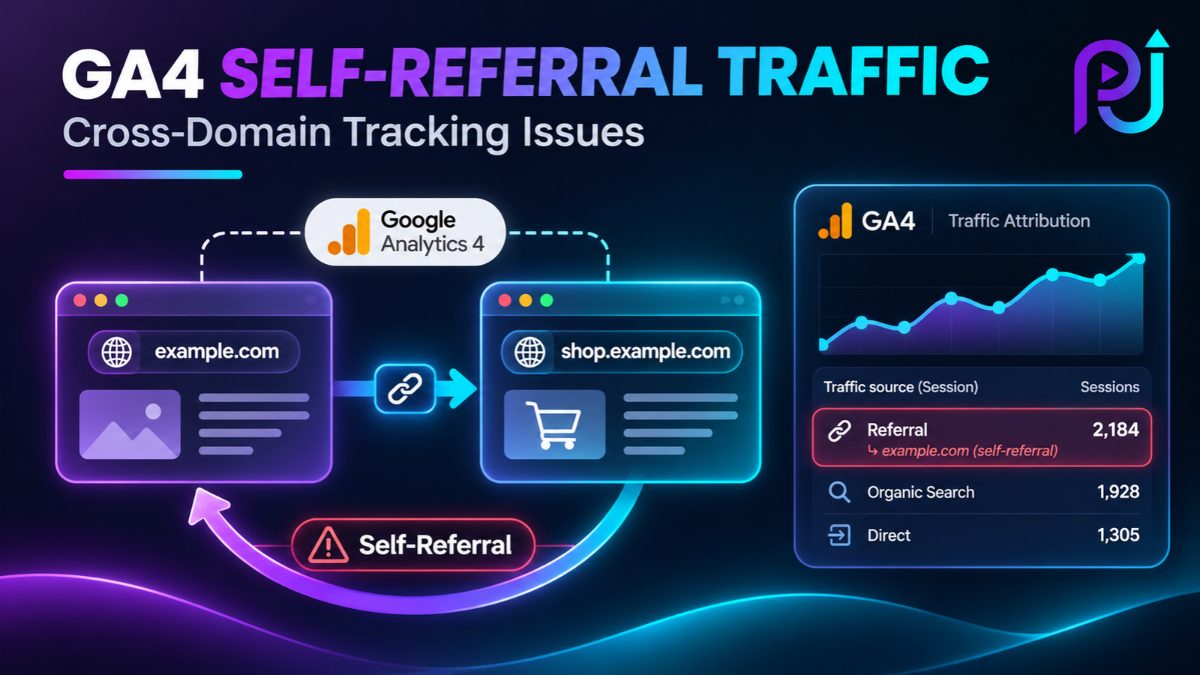
Your own website appears as a referral source.
Instead of showing Google Ads, organic search, or another marketing channel, GA4 reports traffic from your own domain.
For example:
example.com / referral
Or perhaps your checkout website appears as the source of a purchase.
You know customers aren't discovering your business through your own checkout page. So why is Google Analytics reporting it that way?
GA4 Self Referral Traffic occurs when Google Analytics attributes a visit to a domain that is already part of your website or customer journey.
This can happen when cross-domain measurement is incomplete, website tags are missing, cookies aren't shared as expected, or third-party services interrupt the visitor's journey.
The result can be confusing reports, incorrect traffic attribution, and unreliable conversion analysis.
However, there's an important distinction: cross-domain tracking itself is designed to prevent these problems. It's usually a broken or incomplete setup that allows self-referrals to appear.
Before changing your referral settings, review my guide on Google Analytics 4 tracking issues to understand how missing tags and incorrect measurement settings affect your reports.
In this article, I'll explain why self-referrals appear in GA4, how cross-domain tracking works, and 10 practical ways to identify and fix unwanted referral traffic.
What Is Self-Referral Traffic in Google Analytics 4?
A self-referral happens when Google Analytics identifies your own website as a source of referral traffic.
Normally, referral traffic comes from another website.
For example, someone clicks a link on an industry blog that sends them to your website.
GA4 may record:
industryblog.com / referral
That makes sense because another website introduced the visitor to your business.
But what happens when GA4 reports:
yourwebsite.com / referral
Your website is now being treated as if it introduced visitors to itself.
This often indicates that something interrupted how Analytics recognized the user or session.
Example of a Self-Referral
Imagine a customer follows this journey:
Google Ads → Product Page → Checkout → Thank-You Page
The customer originally arrived through a paid advertisement.
However, the checkout uses another domain, and the tracking setup does not preserve the measurement information correctly.
GA4 may record the checkout website as the referral source.
Instead of:
google / cpc
You might see:
checkout.example.com / referral
The problem isn't that the customer changed their behavior.
It's that the analytics setup did not connect the journey correctly.
How Cross-Domain Tracking Works in GA4
Cross-domain measurement helps Google Analytics identify the same visitor when they move between different websites that are part of one customer journey.
For example:
example.com
and
examplecheckout.com
These are different root domains.
By default, they don't share the same first-party analytics cookies.
Without appropriate cross-domain measurement, Google Analytics may recognize the visitor separately on each domain.
How GA4 Connects the Journey
When cross-domain measurement is configured correctly, Google uses a URL parameter called _gl to transfer relevant measurement information between participating domains.
For example:
https://examplecheckout.com/?_gl=1*example
The _gl parameter helps the destination domain receive the information required to continue measuring the same visitor and session.
Both domains need compatible Google Analytics tagging.
The Google tag must also be able to pass and process the parameter.
When this works, the visitor can move between domains without an unnecessary break in measurement.
Do Subdomains Need Cross-Domain Tracking?
Not always.
Consider:
www.example.com
shop.example.com
checkout.example.com
These websites share the same root domain.
GA4's default cookie behavior can support measurement across these subdomains without separate cross-domain configuration.
However, problems can occur when the subdomains use different cookie settings, different measurement IDs, or inconsistent Google tags.
In those cases, the setup needs to be reviewed.
Cross-Domain Tracking vs Unwanted Referral Exclusions
These are two different GA4 features.
| Feature | Cross-Domain Tracking | Unwanted Referral List |
|---|---|---|
| Main purpose | Maintain measurement across domains | Prevent selected domains from being treated as referrals |
| Typical use | Website and checkout on separate domains | Payment gateway returning shoppers |
| Requires tags on both domains | Yes, for normal cross-domain measurement | No |
| Preserves user and session identifiers | Yes, when configured correctly | No |
| Controls referral attribution | Helps prevent unwanted referrals | Ignores specified referrers |
| Solves missing website tags | No | No |
Cross-domain measurement addresses continuity between participating domains. Unwanted referral settings control which referring domains GA4 considers for attribution.
Adding a domain to the unwanted referral list may remove the unwanted referral source from future reports.
But it won't repair a missing GA4 tag or restore a broken user identity.
This difference matters when diagnosing the actual problem.
10 Reasons GA4 Shows Unwanted Self-Referrals
| # | Common Cause | Recommended Fix |
|---|---|---|
| 1 | Incorrect cross-domain configuration | Review configured domains |
| 2 | Different GA4 measurement IDs | Use consistent tagging |
| 3 | Missing GA4 tags on website pages | Fix tag coverage |
| 4 | Redirects remove the _gl parameter | Preserve query parameters |
| 5 | JavaScript navigation interrupts linking | Test and correct navigation |
| 6 | Cookie settings differ between subdomains | Review cookie scope |
| 7 | Payment gateways appear as referrals | Configure unwanted referrals |
| 8 | Third-party booking or login platforms interrupt tracking | Review the full journey |
| 9 | Internal links use UTM campaign tags | Remove unnecessary internal UTMs |
| 10 | Duplicate tags or inconsistent consent settings | Audit GTM and Google tags |
1. Your Cross-Domain Measurement Is Configured Incorrectly
One of the first things to check is whether you've added the correct domains in GA4.
For example, your customer journey might involve:
example.com → booking.exampletool.com
But GA4 is configured only for:
example.com
When the visitor moves to the booking platform, the required measurement information may not transfer.
Google Analytics may then recognize the destination as a separate visitor or session.
How to Fix It
Open Google Analytics 4.
Navigate to:
Admin → Data Streams → Select Web Stream → Configure Tag Settings → Configure Your Domains
Review the domains listed.
Add the relevant domains that belong to the same measurement journey and use the same GA4 web data stream.
Save the configuration.
Then test the journey in your browser.
Check whether the destination URL receives the _gl parameter when you follow a supported link or form submission.
Don't add unrelated third-party websites simply because they appear in referral reports.
2. Different Website Sections Use Different GA4 Measurement IDs
Suppose your main website uses:
G-AAAA1111
But your checkout platform uses:
G-BBBB2222
These IDs represent different web data streams.
If you expect both websites to be measured together through one GA4 web stream, this setup won't provide the intended cross-domain continuity.
The visitor can appear as a separate user or session.
How to Fix It
Inspect the Google tags installed on each participating domain.
Confirm that they send the intended events to the same GA4 web data stream.
Check whether the website uses Google Tag Manager, hardcoded Google tags, or an ecommerce integration.
Don't assume the correct tag is installed just because a GA4 script appears in the source code.
Use Tag Assistant to verify the actual measurement ID.
My guide to Google Tag Manager not firing after publishing covers tag installation, container versions, and live tracking problems.
3. Important Website Pages Are Missing GA4 Tags
A missing Google Analytics tag can interrupt measurement even if both domains are configured correctly.
Imagine this journey:
Homepage → Service Page → Booking Page → Thank-You Page
The homepage has the correct GA4 tag.
The service page also has it.
But the booking page does not.
When the customer returns to a tagged page, Analytics may lack the information needed to connect the complete journey as intended.
This is especially common when websites use multiple templates, landing-page builders, or third-party systems.
How to Fix It
Review all important pages involved in the conversion journey.
Check landing pages, checkout pages, booking forms, customer portals, and thank-you pages.
Use Tag Assistant to confirm whether GA4 loads and sends the expected events.
Verify the correct measurement ID on every participating page.
If tracking is missing from a template, update the underlying website or platform configuration.
Remember that adding a domain to the unwanted referral list will not replace a missing tracking tag.
4. Redirects Remove the GA4 Linker Parameter
This is a common technical reason cross-domain measurement fails.
Google uses the _gl parameter to transfer measurement information between participating domains.
For example:
https://checkout.example.com/?_gl=1*example
But what happens if the destination redirects to another URL?
If the redirect removes the query parameters, the destination may no longer receive the linker information.
Example
Original destination:
https://checkout.example.com/start?_gl=1*example
Redirected destination:
https://checkout.example.com/payment
The parameter is missing.
If the destination hasn't processed the linker information before the redirect, measurement continuity can break.
How to Fix It
Open Chrome Developer Tools.
Select the Network tab.
Start the customer journey from the original website.
Click through to the destination.
Check the redirect chain and the Location response headers.
Confirm whether _gl survives redirects until the destination tag can process it.
Ask your developer to preserve the required query parameters.
Where possible, link directly to the correct final destination instead of using unnecessary redirects.
5. JavaScript Navigation Prevents the Linker From Working
Some websites don't use ordinary links for navigation.
Instead, a button may execute JavaScript that sends the visitor to another domain.
For example:
A customer clicks "Book Now."
A JavaScript function runs.
The browser opens a third-party booking website.
In some implementations, Google's automatic cross-domain linker may not be able to decorate that navigation with the _gl parameter.
How to Fix It
Test the actual navigation method.
Do not assume a booking button behaves like a standard hyperlink.
Check whether _gl is added when the button sends the visitor to the destination.
Review scripts that prevent click events from reaching the document.
If automatic linking cannot support the navigation, a developer may need to use Google's supported manual cross-domain measurement approach.
After making changes, verify the visitor journey using Tag Assistant.
6. Cookie Settings Differ Between Subdomains
GA4 commonly handles subdomains through shared first-party cookie behavior.
For example:
www.example.com
and
shop.example.com
Under a standard configuration, these subdomains can share analytics identity through cookies scoped to their common root domain.
But custom settings can change that.
For example, one subdomain may use the default cookie domain while another uses a hostname-specific setting.
That can prevent the same analytics identifiers from being available across the journey.
How to Fix It
Check the Google tag configuration on each subdomain.
Review cookie domain settings and whether the expected first-party analytics cookies are accessible.
Avoid overriding the default cookie settings unless the implementation requires it.
Confirm the relevant subdomains use the correct GA4 property and data stream.
If the setup differs across subdomains, standardize it and test again.
7. Payment Gateways Appear as Referral Traffic
This issue often affects ecommerce stores.
Imagine a customer arrives through Google Ads.
They add a product to their cart and choose PayPal.
The customer moves to the payment provider, completes the payment, and returns to your website.
The browser may identify the payment platform as the referring website.
If GA4 treats that referral as a new acquisition source, the reports can become misleading.
For example:
Expected source:
google / cpc
Unexpected source:
paypal.com / referral
How to Fix It
Use GA4's List unwanted referrals setting for payment providers that act only as part of your existing customer journey.
Navigate to:
Admin → Data Streams → Web Stream → Configure Tag Settings → Show All → List Unwanted Referrals
Add the appropriate domain and save the setting.
Do not exclude every referral source.
Some external websites send genuine new visitors and should receive referral credit.
Google explains the feature in its official Identify Unwanted Referrals documentation.
Important: Unwanted referral exclusions are not retroactive. Historical reporting can still contain referral sources that you excluded later.
8. Third-Party Booking and Login Platforms Interrupt Tracking
Many businesses use external platforms for appointments, forms, authentication, or customer accounts.
For example:
example.com → bookingplatform.com → example.com/thank-you
The visitor leaves your website, interacts with the third-party service, and returns.
Whether you need cross-domain measurement or an unwanted referral exclusion depends on how that platform works.
If you can install the same GA4 web data stream on both domains and want to measure the full journey, cross-domain measurement may be suitable.
If you cannot add your GA4 tag to the third-party service, an unwanted referral exclusion may be appropriate for its return traffic.
How to Fix It
Map the full customer journey.
Check which domains allow Google Analytics tracking.
Find where the measurement information stops.
If you control both domains, review cross-domain tracking.
If the external platform only sends users back to your website, determine whether its referral should be ignored.
Also verify that the final booking or lead event fires only after a successful action.
My GA4 Event Tracking guide explains how to measure completed user actions rather than simple button clicks.
9. Internal Links Use UTM Campaign Parameters
UTM parameters help identify where marketing traffic comes from.
For example:
?utm_source=newsletter&utm_medium=email
These parameters are useful when visitors arrive through campaigns.
But placing UTM campaign parameters on links between pages that form the same website journey can create misleading campaign attribution.
For example:
example.com → examplecheckout.com?utm_source=example.com&utm_medium=referral
The internal link labels your own website as a campaign source.
This can interfere with how traffic sources are reported.
How to Fix It
Review links between your main website, checkout, booking system, and customer portal.
Remove unnecessary internal campaign parameters.
Use GA4 cross-domain measurement when the journey requires it.
Keep UTMs for actual marketing entry points, such as emails, paid campaigns, and external promotions.
Don't use UTM parameters as a replacement for proper cross-domain linking.
10. Duplicate Tags or Consent Settings Affect Measurement
Some websites have multiple Google Analytics implementations.
For example, the website may load GA4 through Google Tag Manager and also through a plugin.
This can create duplicate page views, unexpected event behavior, or inconsistent measurement settings.
Consent configurations can also affect whether Google Analytics is allowed to use analytics storage.
If visitors deny consent, the available measurement information may differ from a fully consented journey.
That is not automatically an implementation error.
How to Fix It
Audit the tags installed across your website.
Check whether GA4 is loaded through multiple sources.
Remove unintended duplicate implementations.
Verify the measurement IDs and event settings.
Test accepted and rejected consent states.
Make sure your consent management platform respects user choices.
Avoid changing consent settings simply to increase measured sessions.
How to Find Self-Referral Traffic in GA4
Before changing any settings, confirm where the unexpected referrals appear.
Step 1: Open Google Analytics 4
Select the correct property.
Step 2: Go to Traffic Acquisition
Navigate to:
Reports → Acquisition → Traffic Acquisition
Step 3: Change the Reporting Dimension
Change the main dimension to:
Session source / medium
Step 4: Search for Your Domain
Search for your website or checkout domain.
For example:
example.com
Review any entries where your own domain appears as a referral source.
Step 5: Investigate Affected Landing Pages
Review where those sessions started.
Use an exploration or additional reporting dimensions to connect unusual referral sources with landing pages and relevant user journeys.
Step 6: Check Your Actual Tagging
Use Tag Assistant to reproduce the journey.
Compare browser referrer information, Google tag activity, and the presence of the _gl parameter.
Remember that the browser's page_referrer value and GA4's reported session traffic source are not the same thing.
A page can have a referrer without GA4 assigning a new referral source to the session.
How to Set Up GA4 Cross-Domain Tracking Correctly
If your website and checkout use different root domains, follow this process.
Step 1: Open GA4 Admin.
Step 2: Select Data Streams under Data collection and modification.
Step 3: Open the relevant web data stream.
Step 4: Click Configure tag settings.
Step 5: Select Configure your domains.
Step 6: Add the relevant participating domains.
Step 7: Save your configuration.
Step 8: Confirm that all participating domains use the same intended GA4 web data stream.
Step 9: Use a standard link or form to navigate between domains.
Step 10: Check whether the destination receives _gl and whether the user journey remains connected.
Do not test only by opening the second website directly.
The test should start on the first website and follow the actual customer path.
How to Configure the Unwanted Referrals List
Use this feature when a domain is part of an existing journey but should not be treated as a new traffic source.
Open:
GA4 Admin → Data Streams → Web Stream → Configure Tag Settings → Show All → List Unwanted Referrals
Add a condition for the relevant domain.
Choose the match type carefully.
Save your changes.
GA4 supports up to 50 unwanted referral conditions per data stream.
When an event matches a configured condition, Google Analytics can apply:
ignore_referrer=true
This tells Analytics not to use that referrer as a traffic source for the matching event.
It does not automatically repair missing cookies or broken session continuity.
It also does not mean all excluded referrals become Direct traffic.
The attribution outcome depends on the available source history and the visitor's journey.
Example: A Google Ads Purchase Appears as Referral Traffic
Consider an illustrative ecommerce store.
The customer journey is:
Google Ads → Store → External Checkout → Confirmation
The store uses:
example.com
The checkout uses:
checkoutplatform.com
The business notices that GA4 reports the checkout platform as a traffic source.
Illustrative Reporting Problem
| Traffic Source | Expected Attribution | Possible Incorrect Attribution |
|---|---|---|
| Google Ads | google / cpc | checkoutplatform.com / referral |
| Organic Search | google / organic | checkoutplatform.com / referral |
| Email Campaign | newsletter / email | checkoutplatform.com / referral |
The next step is not to exclude the checkout domain immediately.
First, confirm whether the checkout platform uses the same GA4 data stream.
If it does, configure and test cross-domain measurement.
If you cannot place GA4 on the checkout platform, assess whether its return traffic should be excluded as an unwanted referral.
Then check whether the purchase event is being recorded on the correct page.
This process helps separate actual identity problems from referral attribution settings.
For businesses measuring paid advertising returns, my guide to Google Ads conversion tracking explains how conversion data affects campaign reporting.
Can Self-Referrals Affect Google Ads and Conversion Reports?
Yes, inaccurate GA4 attribution can make marketing reports harder to interpret.
For example, GA4 may show more referral traffic and less traffic credited to the original marketing source than expected.
This can affect how you evaluate campaigns.
However, a GA4 self-referral does not automatically mean your Google Ads conversion tag is broken.
Direct Google Ads conversion measurement and GA4 reporting can use different tracking and attribution paths.
You need to test both before assuming that Google Ads has lost conversions.
Self-referrals can also complicate lead-generation reports when customers move through external booking platforms or CRM forms.
My lead quality tracking guide explains how GA4, Google Ads, and CRM data can be connected to evaluate meaningful business outcomes.
GA4 Self-Referral Audit Checklist
| Check | What to Verify | Priority |
|---|---|---|
| Traffic acquisition | Own domains appearing as referrals | High |
| GA4 measurement ID | Consistent across participating domains | High |
| Google tag coverage | All important pages tagged | High |
| Cross-domain settings | Correct domains configured | High |
| Linker parameter | _gl passed when required | High |
| Redirect behavior | Required parameters preserved | High |
| JavaScript navigation | Linking works with the actual journey | High |
| Cookie domain | Expected cookie continuity | High |
| Payment gateways | Appropriate unwanted referral rules | High |
| Third-party platforms | Correct measurement approach | High |
| Internal UTM tags | No unnecessary campaign tagging | High |
| GTM installation | No unintended duplicate tags | High |
| Consent settings | Correct consent-aware behavior | High |
| Conversion events | Successful actions recorded correctly | High |
| Historical reports | Changes evaluated from the fix date | Medium |
How Long Does It Take GA4 Self-Referral Fixes to Appear?
Changes to cross-domain measurement and unwanted referral settings affect future data.
They do not rewrite historical sessions.
Google Analytics reporting also has processing delays, so you should not judge the results from one immediate report refresh.
A better approach is to test the live user journey first.
Confirm the tags, linker parameters, and event collection.
Then review new acquisition data after it has been processed.
Keep a record of the date you changed the configuration so you can compare results before and after the fix.
Best Practices to Prevent Self-Referrals
Use a consistent GA4 measurement setup across the domains involved in your customer journey.
Check tagging after website redesigns, migrations, and checkout changes.
Keep internal campaign links free from unnecessary UTM parameters.
Preserve _gl through applicable redirects.
Use unwanted referral exclusions for suitable third-party domains, not as a universal solution.
Test conversion events on the final confirmation page.
Review whether purchases or leads are being recorded more than once.
For websites with complex funnels, a regular conversion tracking audit helps identify broken measurement paths before they affect marketing decisions.
About Prem Jasuja
Prem Jasuja is a digital marketing professional specializing in Google Analytics 4, Google Tag Manager, Google Ads, Meta Ads, conversion tracking, and website measurement.
His work includes GA4 event configuration, cross-domain tracking, advertising attribution, CRM integrations, and conversion tracking audits.
He focuses on helping businesses understand which marketing channels bring visitors, leads, and sales.
Final Thoughts
GA4 Self Referral Traffic can make a website's marketing performance difficult to understand.
Your own domain or checkout platform may appear as a referral source even when the visitor originally arrived through Google Ads, organic search, or another campaign.
The cause is not always the referral exclusion settings.
Missing tags, incorrect measurement IDs, broken linker parameters, cookie configuration, and third-party platforms can all contribute.
The right solution starts with understanding the complete customer journey.
Identify where visitors move between domains.
Check whether Google Analytics tracks each step.
Verify cross-domain measurement and inspect the _gl parameter.
Then use the unwanted referral list where appropriate.
Fix the measurement journey first. Use referral exclusions to control attribution, not to hide broken tracking.
Frequently Asked Questions
What Is GA4 Self Referral Traffic?
GA4 self referral traffic occurs when your own website or a related domain appears as a referral source in Google Analytics 4. It can indicate a tracking configuration problem, incomplete cross-domain measurement, or an interruption in the customer journey.
Why Does My Own Website Appear as a Referral in GA4?
Your website may appear as a referral because of missing Google tags, inconsistent measurement IDs, cookie settings, or incomplete cross-domain tracking. GA4 automatically ignores many normal self-referrals, so unexpected cases should be investigated.
Does Cross-Domain Tracking Cause Self-Referrals?
Cross-domain tracking is designed to prevent measurement breaks between participating domains. However, incorrect configuration, missing linker parameters, or inconsistent tags can allow unwanted referrals to appear.
How Do I Stop Self-Referral Traffic in Google Analytics 4?
Start by identifying the affected domains in Traffic acquisition. Check tag coverage, measurement IDs, cookie settings, and cross-domain configuration. Add suitable third-party domains to the unwanted referral list only when appropriate.
What Is the Difference Between Cross-Domain Tracking and Referral Exclusions?
Cross-domain tracking helps maintain the same user and session across participating domains. Referral exclusions tell GA4 not to use selected domains as referral sources. Referral exclusions do not repair broken user or session continuity.
Should I Add My Own Domain to GA4's Unwanted Referral List?
Not automatically. GA4 already detects many self-referrals. If your own domain appears in reports, investigate missing tags, cookie problems, and domain configuration first. Add it only when the setting is appropriate for the issue.
Why Does PayPal or a Payment Gateway Appear as a Referral?
A payment gateway may appear as a referral when customers leave your website to complete payment and return. If the payment provider is only part of an existing journey, adding its domain to the unwanted referral list may be appropriate.
What Is the _gl Parameter in Google Analytics 4?
The _gl parameter is used by Google's cross-domain measurement system to transfer relevant identifiers between participating domains. It helps Analytics recognize the same visitor and session as users move between websites.
Do I Need Cross-Domain Tracking for Subdomains?
Usually not when the subdomains use the same GA4 web data stream and compatible default cookie settings. If cookies are scoped differently or measurement is inconsistent, additional configuration may be needed.
Does the GA4 Unwanted Referral List Fix Historical Data?
No. Changes to unwanted referral settings apply to future measurement. Historical reports can continue showing earlier referral sources. Record the date of your changes and evaluate new data after processing.