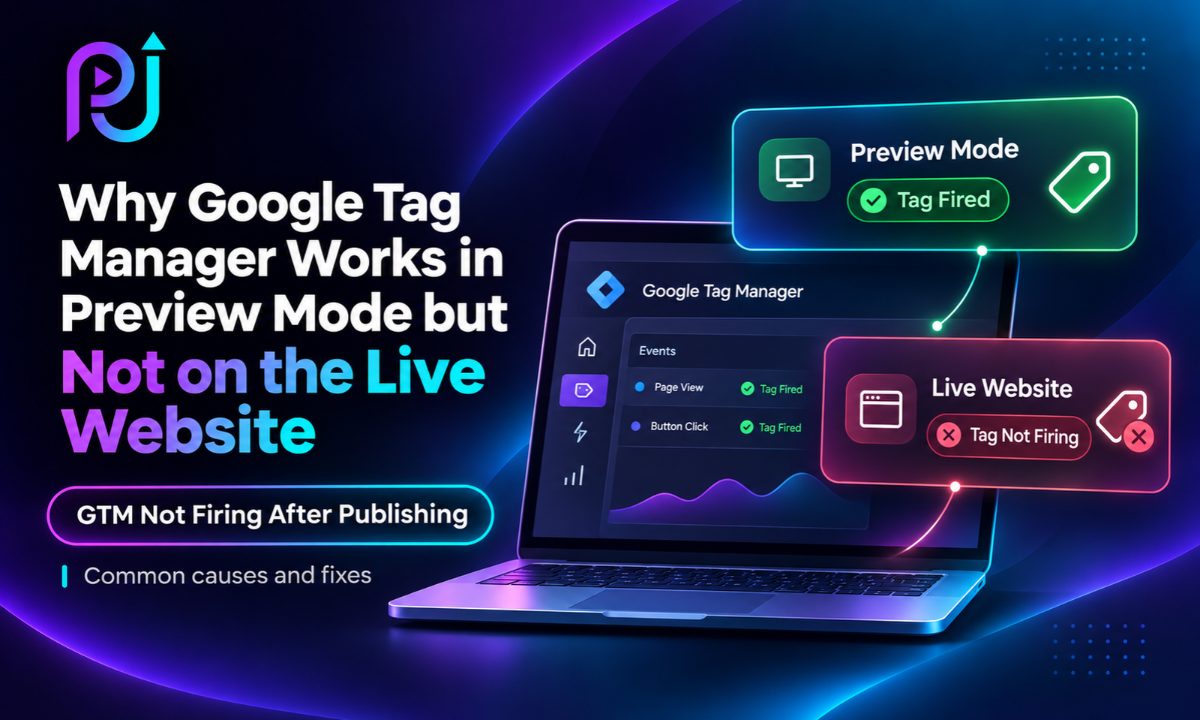
You set up a new conversion tracking tag in Google Tag Manager. You connect Preview Mode, visit your website, submit a form, and see that the tag fires successfully.
Everything appears to be working.
You publish the container and expect conversions to start recording in Google Ads, GA4, or Meta Ads.
But when you test the live website, nothing happens.
You return to Preview Mode, perform the same action, and the tag fires again.
What went wrong?
GTM Not Firing After Publishing is a common conversion tracking problem that can occur even when your tags, triggers, and variables appear to be configured correctly.
The issue may involve unpublished changes, incorrect container versions, cookie consent, browser restrictions, JavaScript errors, or the way your website handles events.
In this guide, I'll explain why Google Tag Manager works in Preview Mode but fails on live websites, how to identify the underlying cause, and what you can do to fix it.
Why Does Google Tag Manager Work in Preview Mode but Not Live?
Google Tag Manager Preview Mode allows you to test your workspace configuration before publishing it to your website.
This means you can test newly created tags, triggers, and variables without making those changes available to regular visitors.
However, the live website normally loads the published container version.
If your preview configuration differs from your published configuration, tracking behavior may also differ.
Even when the correct version is published, differences in browser settings, consent status, website events, and page navigation can affect whether tracking works.
This is why a successful Preview Mode test should not be the final step in your tracking setup.
You also need to verify how tracking behaves during a regular website visit.
GTM Preview Mode vs Live Website: What's the Difference?
Understanding the difference between these environments is the first step toward fixing the problem.
| Feature | GTM Preview Mode | Live Website |
|---|---|---|
| Container Version | Can load unpublished changes | Normally loads the published version |
| Debug Interface | Available through Tag Assistant | Not normally visible |
| Browser Session | Connected debugging session | Regular visitor session |
| Cookie Consent | Depends on the testing session | Depends on each visitor's choice |
| Data Layer | Events generated during testing | Events generated during actual visits |
| Tracking Requests | Can be inspected during debugging | Must be verified in production |
| Configuration Changes | Can be tested before publishing | Require publication to become active |
Preview Mode is a valuable testing tool, but it does not reproduce every possible visitor experience.
12 Reasons Google Tag Manager Is Not Firing After Publishing
| Possible Cause | Recommended Check |
|---|---|
| Unpublished GTM changes | Check published container versions |
| Incorrect GTM container ID | Inspect website source code |
| Wrong publishing environment | Verify the Live environment |
| Website caching | Check cached HTML and scripts |
| Incorrect trigger conditions | Review event names and variables |
| Missing data layer events | Inspect production events |
| Cookie consent restrictions | Review Consent Mode settings |
| Browser extensions | Check blocked network requests |
| JavaScript errors | Inspect the browser console |
| Content Security Policy | Review browser security errors |
| Page redirects | Check canceled tracking requests |
| Platform reporting issues | Verify event collection and reporting |
1. Your GTM Changes Have Not Been Published
One of the simplest reasons tags work in Preview Mode but fail on the live website is that the latest workspace changes have not been published.
Saving a tag is not the same as publishing a container.
For example, you might create a Google Ads conversion tag, assign a trigger, save it, and successfully test it in Preview Mode.
However, regular website visitors will not receive those changes until you publish the container to the intended environment.
How to Fix It
Open Google Tag Manager and follow these steps:
- Select the correct container.
- Click Submit in the upper-right corner.
- Select Publish and Create Version.
- Review your workspace changes.
- Enter a version name and description.
- Click Publish.
Once published, disconnect Preview Mode and test the website again in a regular browser session.
2. Your Website Has the Wrong GTM Container ID
A website may contain a different GTM container from the one you are editing.
This can happen after a website redesign, migration, plugin update, or changes made by another developer.
For example, you might be configuring:
GTM-AAAA111
But the live website loads:
GTM-BBBB222
Changes published to the first container will not update the second container.
How to Check the GTM Container ID
Open your website in Google Chrome.
Right-click anywhere on the page and select View Page Source.
Press Ctrl + F and search for:
GTM-
Compare the container ID with the one shown inside your Google Tag Manager account.
You can also inspect loaded GTM scripts through the Network tab in Chrome Developer Tools.
Check whether your website loads duplicate or unexpected containers through plugins, themes, or manually installed scripts.
Remove unintended duplicate installations while preserving any separate containers that serve a valid purpose.
3. You Published the Container to the Wrong Environment
Google Tag Manager supports multiple environments for testing and deployment.
A development team may use separate environments for:
- Development
- Testing
- Staging
- Production
If you publish your container to a staging environment, the changes may not become active on your live website.
How to Fix It
Open Google Tag Manager and navigate to Admin.
Review the Environments section.
Check which environment your production website uses.
Then open the Versions section and verify that the intended container version is published to Live.
If the website intentionally uses a custom environment, confirm that you have published to the correct one.
4. Your Website Is Loading Cached Code
Website caching improves loading speed, but outdated cached files can cause tracking problems.
This can be particularly relevant for WordPress websites using performance plugins, CDNs, or server-level caching.
For example, your website might continue serving an older JavaScript file that does not contain the latest data layer implementation.
Your regular browser and debugging session may also load different versions of the website.
How to Fix It
Clear relevant website and CDN caches.
Review any JavaScript delay, minification, or script optimization settings.
Open Chrome Developer Tools and select Network.
Enable Disable Cache while Developer Tools remains open.
Reload the page and test again.
Remember that publishing a standard GTM container does not normally require clearing your entire website cache. Caching becomes relevant when outdated website code, environment snippets, or supporting scripts interfere with tracking.
5. Your Trigger Conditions Are Not Matching
Google Tag Manager relies on triggers to determine when a tag should execute.
Even a small difference in an event name or variable value can prevent a trigger from matching.
For example, your trigger might expect:
form_submit_success
But your live website pushes:
form_success
These are different event names.
The trigger will not match unless the configuration accounts for the actual event.
How to Fix It
Open the affected tag in Google Tag Manager.
Review its assigned trigger.
Check the trigger type, event name, variable conditions, and any blocking exceptions.
Verify the values that exist when the event occurs.
Pay attention to capitalization, spaces, URL differences, and variables that return undefined.
The trigger should match the actual production event rather than only the conditions observed during one debugging session.
6. Your Data Layer Events Are Missing on the Live Website
The data layer allows your website to send structured information to Google Tag Manager.
Many conversion tracking implementations depend on events such as:
- add_to_cart
- begin_checkout
- purchase
- generate_lead
- form_submit_success
If the expected event is missing, the associated tag cannot fire through its custom event trigger.
Example Data Layer Event
A website could push the following event after a successful lead submission:
window.dataLayer = window.dataLayer || [];
window.dataLayer.push({
event: "form_submit_success",
form_id: "contact_form"
});
The application should execute this code only after confirming that the form submission has succeeded.
You can then configure a Custom Event trigger in GTM.
Trigger Type: Custom Event
Event Name: form_submit_success
Tag: Google Ads Conversion Tracking or GA4 Event
How to Fix It
Check whether the expected event appears during a regular website visit.
You can inspect available data layer entries through the browser console:
window.dataLayer
Make sure the application produces the event after the actual business action occurs.
Do not include unnecessary personal information, such as customer names, email addresses, or phone numbers, in general analytics events.
For more information about event configuration, read my guide to GA4 Event Tracking.
7. Cookie Consent Is Preventing Your Tags From Firing
Cookie consent is another important reason Google Tag Manager may behave differently in Preview Mode and on the live website.
During testing, you may have already accepted your website's cookie banner.
A new visitor may reject optional cookies or may not have made a consent choice yet.
Depending on your implementation, certain tags may be blocked or may operate with restricted behavior.
What Should You Check in Consent Mode?
Review these Consent Mode parameters:
| Consent Parameter | Purpose |
|---|---|
| ad_storage | Advertising-related storage |
| analytics_storage | Analytics-related storage |
| ad_user_data | Sending user data to Google for advertising purposes |
| ad_personalization | Personalized advertising |
A consent management platform should set the appropriate default consent states and update them when visitors make their choices.
How to Fix It
Connect your website to Tag Assistant.
Open the Consent tab.
Review the default consent state and subsequent updates.
Check the consent status at the exact moment your conversion event occurs.
Also review any Additional Consent Checks configured on the affected tag.
Google tags have built-in consent behavior. Additional consent restrictions should only be configured when your implementation requires them.
Test your website with both accepted and rejected consent choices.
Tracking must respect the visitor's privacy choices. A tag being blocked after consent is denied does not necessarily indicate a technical error.
8. Browser Extensions Are Blocking Tracking Requests
Ad blockers and privacy-focused browser extensions can prevent tracking scripts or collection requests from loading.
Depending on the browser and its settings, these restrictions may affect:
- Google Tag Manager
- Google Analytics
- Google Ads conversion tracking
- Meta Pixel
- Third-party tracking scripts
In some cases, a tag can execute but the browser blocks the outgoing measurement request.
How to Fix It
Open Chrome Developer Tools.
Select the Network tab.
Perform the conversion action and look for blocked requests.
An error such as the following may indicate browser-side blocking:
ERR_BLOCKED_BY_CLIENT
For controlled testing, compare your ordinary browser profile with a clean profile that does not contain unnecessary extensions.
Test multiple browsers where appropriate.
Do not assume that all visitors will allow tracking. Browser privacy protections and user preferences can legitimately limit measurement coverage.
9. JavaScript Errors Are Interrupting Tag Execution
Google Tag Manager relies on JavaScript for many tracking operations.
Custom HTML tags may also depend on website functions, external libraries, or data layer variables.
If a required function is unavailable, the tag may fail.
This can happen when a script loads in a different order on the live website.
How to Fix It
Open the website and press F12.
Navigate to the Console tab.
Perform the action that should trigger your tag.
Look for errors such as:
- ReferenceError
- TypeError
- SyntaxError
- Uncaught Exceptions
Identify whether the error relates to your tracking implementation.
Check that any required variables, functions, or external libraries exist before the tag runs.
Where appropriate, review tag sequencing or change the implementation to use a reliable application event.
10. Content Security Policy Is Blocking Your Tracking
Content Security Policy, also known as CSP, helps websites control which resources browsers can load.
A website may allow the GTM container itself while blocking an external tracking script or its outgoing requests.
For example, your Custom HTML tag might attempt to connect to an endpoint that the website's security policy does not permit.
How to Fix It
Open Chrome Developer Tools and inspect the Console.
Look for Content Security Policy violation messages.
Review whether the blocked resource is required for your tracking setup.
Work with your website developer to allow the necessary, trusted resources.
Different CSP directives control different resource types, including scripts, images, and network connections.
Avoid disabling the entire security policy just to make a tracking tag work.
11. Your Form or Page Redirect Happens Too Quickly
This issue is common when tracking contact forms, booking buttons, and checkout conversions.
Imagine a visitor submits a form.
The conversion tag begins running, but the website immediately redirects the visitor to another page.
The browser may cancel an unfinished tracking request during navigation.
In Preview Mode, differences in the loaded configuration or page behavior may make the request appear successful.
Button Click vs Actual Form Submission
Tracking a button click is not the same as tracking a completed lead.
A visitor may click Submit without completing the required fields.
The form may also fail because of validation errors or server problems.
If your conversion fires on the button click alone, you may record leads that never occurred.
How to Fix It
Choose a tracking method that matches the actual form behavior.
| Form Type | Recommended Tracking Method |
|---|---|
| Dedicated Thank You Page | Page view or confirmed success event |
| AJAX Form | Custom successful submission event |
| Same-Page Confirmation | Application success event |
| Third-Party Booking Form | Supported callback, integration, or webhook |
| E-Commerce Checkout | Confirmed purchase event |
| Native HTML Form | Valid form submission or confirmed success event |
For suitable native form and link triggers, GTM's Wait for Tags option may help prevent premature navigation.
For AJAX forms, a custom event generated after successful submission is generally more reliable.
12. Your Tag Fires but the Destination Platform Does Not Report It
Sometimes GTM is working correctly, but the conversion does not appear in the expected platform.
This can happen when your tracking request contains the wrong destination ID, event name, or conversion label.
Reporting delays, filters, attribution rules, and deduplication may also affect what you see.
What Does a Fired Tag Actually Prove?
| Tracking Observation | What It Confirms |
|---|---|
| Event appears in Tag Assistant | The debugging session detected an event |
| Tag appears under Tags Fired | GTM invoked the tag |
| Network request appears | The browser created a measurement request |
| Successful HTTP response | The endpoint returned a successful response |
| Event appears in platform diagnostics | The platform exposed the event in its diagnostic tools |
| Conversion appears in reports | The event met relevant reporting and processing conditions |
These are different stages of the tracking process.
A tag appearing green in Preview Mode does not guarantee that every stage has succeeded.
How to Check Whether GTM Is Working Without Preview Mode
The Network tab in Chrome Developer Tools helps confirm whether tracking requests are being sent from your website.
Step 1: Disconnect Preview Mode
Stop your current Tag Assistant session.
Open the normal website URL without unnecessary debugging parameters.
Step 2: Open Chrome Developer Tools
Press F12 and select Network.
Enable Preserve Log so navigation does not clear the recorded requests.
Step 3: Perform the Conversion Action
Submit a test form, complete a test purchase, or perform the action you want to measure.
Step 4: Filter Tracking Requests
Search for relevant request patterns:
| Platform | Common Request Filter |
|---|---|
| Google Tag Manager | gtm.js |
| Google Analytics 4 | g/collect |
| Google Ads | conversion |
| Meta Pixel | facebook.com/tr |
These are common patterns, not a complete list. Endpoints may differ depending on your implementation, especially with server-side tracking.
Step 5: Inspect the Network Request
Review the request status, destination, and payload.
Check whether the expected event name and identifiers are present.
Step 6: Verify the Destination Platform
Check GA4 Realtime, Google Ads diagnostics, or Meta Events Manager as appropriate.
Keep platform collection and advertising attribution separate when reviewing results.
Example: Google Ads Conversion Tag Fires in Preview Mode but Not Live
Imagine a home services business using Google Ads to generate quote requests.
A conversion tag is configured to fire when someone submits its contact form.
During Preview Mode, the tag fires successfully.
However, Google Ads records fewer conversions than the business receives.
After reviewing the implementation, the developer discovers that the unpublished workspace contains a new form submission trigger.
The live container still uses an older trigger.
The solution is to publish the correct configuration and verify successful submissions outside Preview Mode.
The business then checks the outgoing conversion requests and the Google Ads conversion action.
This hypothetical example shows why changing tracking settings without first checking the live container version can waste time.
Google Tag Manager Troubleshooting Checklist
Before considering your tracking setup complete, verify the following:
- Correct GTM container installed.
- Latest intended version published to the appropriate environment.
- Expected website events present.
- Trigger conditions evaluated correctly.
- Consent Mode configured as intended.
- No unintended duplicate tracking tags.
- No relevant JavaScript or security errors.
- Tracking requests sent to the correct destination.
- Conversion events recorded in platform diagnostics.
- Failed form submissions excluded from successful lead counts.
- Tracking tested without Preview Mode.
When Should You Consider a Conversion Tracking Audit?
A conversion tracking audit can help when your advertising platforms report fewer leads or purchases than your business receives.
Missing or duplicated events can make advertising performance difficult to evaluate.
They can also affect automated bidding when campaigns rely on inaccurate conversion signals.
A proper audit should review GTM, website events, consent settings, destination platforms, and actual business results.
You can learn more about identifying advertising issues in my Google Ads Audit guide or explore my Digital Marketing Services.
Final Thoughts
GTM Not Firing After Publishing does not always mean your tag or trigger is incorrectly configured.
The problem may involve container deployment, missing production events, cookie consent, browser restrictions, JavaScript errors, or canceled tracking requests.
Start by verifying the published container.
Then check the actual event, trigger conditions, consent status, and outgoing measurement request.
Finally, confirm whether the destination platform received and processed the event.
Avoid relying exclusively on Preview Mode when setting up conversion tracking.
A tracking implementation is not complete until you have verified that it works on the live website under the intended visitor and consent conditions.
Frequently Asked Questions
Why Does GTM Work in Preview Mode but Not on the Live Website?
This can happen because of unpublished changes, incorrect container versions, missing data layer events, consent restrictions, browser blocking, or differences between debugging and production sessions.
Why Is GTM Not Firing After Publishing?
Check whether the correct container version is published to the intended environment. Then review trigger conditions, website events, consent states, and outgoing tracking requests.
Does Saving a GTM Tag Automatically Publish It?
No. Saving a tag updates your workspace. You must publish the container to the appropriate environment before those changes become available to regular website visitors.
Can Cookie Consent Prevent GTM Tags From Firing?
Yes. Depending on your consent implementation and tag settings, certain tags may be blocked or operate with restricted behavior when visitors have not granted the required consent.
Does a Tag Firing in Preview Mode Guarantee Conversion Tracking Works?
No. A fired tag indicates GTM invoked the tag. You must also verify the outgoing tracking request and confirm that the receiving platform processes the event.
Can Website Caching Cause GTM Tracking Issues?
Yes. Outdated website scripts, cached container snippets, or JavaScript optimization settings can affect tracking behavior. Check whether the live website loads the intended code.
How Can I Check GTM Tags Without Preview Mode?
Open Chrome Developer Tools, select Network, enable Preserve Log, and perform the conversion action. Inspect the relevant measurement requests and their destination.
Why Does My GTM Tag Work in One Browser but Not Another?
Different browser settings, privacy protections, extensions, consent states, and website behavior can affect tracking. Compare browser sessions to identify the specific cause.
Why Is My Google Ads Conversion Tag Firing but Not Recording Conversions?
Possible reasons include incorrect conversion IDs or labels, blocked requests, reporting delays, attribution requirements, and conversion action settings. Verify the request and platform diagnostics.
Should I Track Form Button Clicks or Successful Form Submissions?
Successful form submissions are generally more reliable for lead tracking because clicking a button does not guarantee that the form was accepted. Use a confirmed success event whenever possible.