
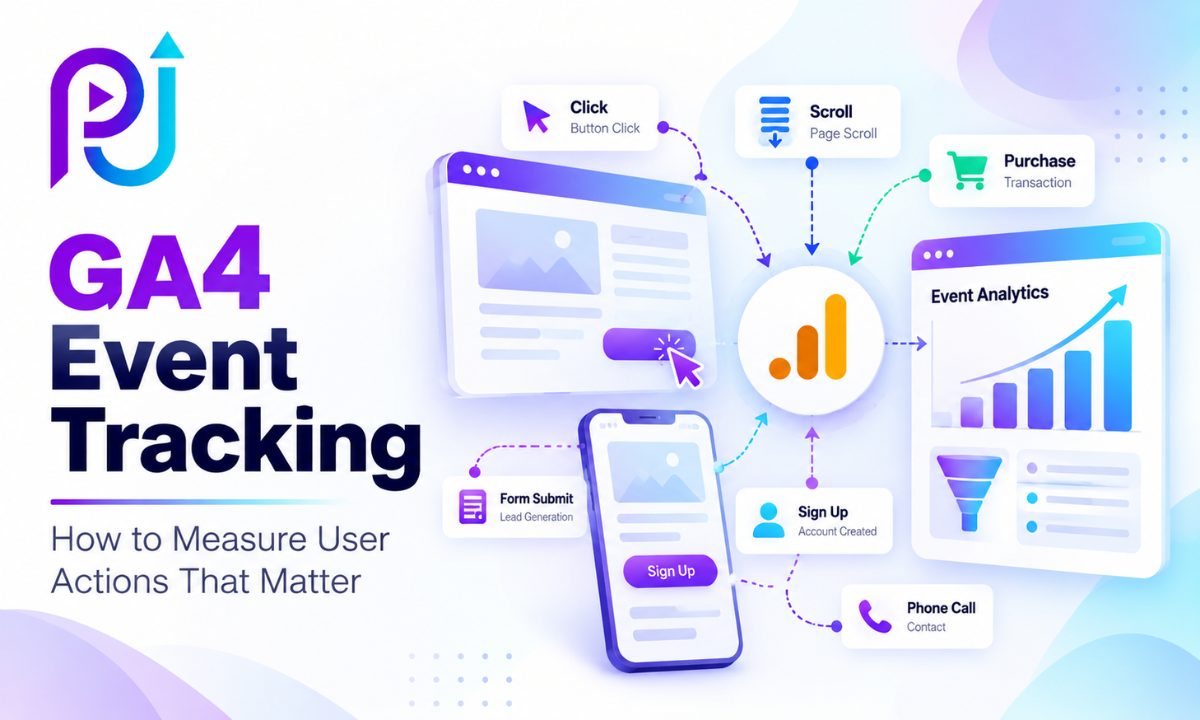
Your website is receiving visitors, but do you know what those people actually do after arriving?
You may know how many users visit your homepage, which channels generate traffic, and how long people stay on your website. But these numbers do not explain whether visitors are contacting your business, booking appointments, downloading resources, or purchasing products.
This is where GA4 event tracking becomes important.
Google Analytics 4 (GA4) uses an event-based measurement system that records interactions on websites and apps. These events help businesses understand customer behavior and identify the activities that contribute to leads and sales.
For example, a local service business may want to track successful contact form submissions and appointment bookings. An eCommerce store may prioritize product views, add-to-cart actions, and completed purchases.
A SaaS company may need to measure demo requests and trial registrations.
The goal of GA4 event tracking is not to record every possible interaction. It is to measure the actions that help you make better marketing and business decisions.
In this guide, you will learn what GA4 events are, the four event categories, how to configure event tracking using Google Tag Manager, how to identify key events, and how to avoid common tracking problems.
What Is GA4 Event Tracking?
GA4 event tracking is the process of collecting information about interactions and activities that occur on your website or app.
Unlike the older Universal Analytics model, which used different hit types for pageviews and events, GA4 uses events as the foundation of measurement.
Even a pageview is recorded as an event called page_view.
Other events can record when someone starts a session, downloads a document, views a product, or completes a transaction.
Each event has a name that identifies the action.
It can also include parameters that provide more details about what happened.
For example, an event named file_download might include information about the downloaded file.
An event named purchase can include transaction details and monetary value.
These details help businesses understand user behavior beyond basic website traffic.
How Does GA4 Event Tracking Work?
A typical GA4 event tracking process involves four steps:
- A visitor performs an action on your website.
- A tracking configuration identifies the action.
- The event and its parameters are sent to Google Analytics.
- GA4 processes the information and makes it available for reporting.
For example, a visitor opens your contact page and successfully submits an inquiry form.
Your tracking implementation can send a generate_lead event after the submission is confirmed.
GA4 then records the event so you can analyze lead generation performance.
The accuracy of this process depends on how the event is configured and whether it represents the intended action.
Why Is GA4 Event Tracking Important?
Website traffic alone does not indicate business success.
Imagine two advertising campaigns.
Campaign A generates 1,000 visitors but only five genuine inquiries.
Campaign B generates 500 visitors and 25 genuine inquiries.
Looking only at traffic, Campaign A appears stronger.
However, Campaign B generates more valuable actions with fewer visitors.
Accurate GA4 event tracking helps you identify these differences.
Understand Customer Behavior
Events reveal how visitors interact with important website elements.
You can understand whether people download resources, engage with forms, or progress through a checkout process.
Measure Lead Generation
Tracking successful form submissions and bookings helps you understand which marketing channels contribute to inquiries.
Improve Advertising Decisions
Reliable event data can support campaign analysis in Google Ads and other marketing platforms.
However, GA4 reporting and Google Ads conversion reporting may use different counting and attribution settings.
Identify Website Problems
If many visitors start a form but few complete it, the form may need attention.
Similarly, a high number of product views with few purchases can indicate opportunities to investigate checkout friction, pricing, or customer expectations.
Measure Meaningful Outcomes
The most important benefit is connecting marketing activity with real business results.
That means looking beyond pageviews and clicks to leads, purchases, appointments, and qualified customers.
The Four Types of Events in GA4
Google Analytics 4 groups events into four main categories.
Understanding these categories helps you choose the most appropriate implementation method.
1. Automatically Collected Events
Automatically collected events are recorded when your Google Analytics tracking is configured correctly.
You do not need to create separate event tags for them.
Examples include:
| Event Name | Purpose |
|---|---|
| first_visit | Records a user's first visit |
| session_start | Records the start of a session |
| user_engagement | Records user engagement information |
These events provide a foundation for analyzing how people use your website.
They are useful for general reporting but do not necessarily represent valuable business outcomes.
For example, a session_start tells you that a session began.
It does not tell you whether that visitor requested a quote.
2. Enhanced Measurement Events
Enhanced Measurement allows GA4 to collect several common website interactions without requiring separate custom implementations.
You can review these options in your GA4 web data stream settings.
Examples include:
| Event Name | Tracked Action |
|---|---|
| page_view | A page is viewed |
| scroll | A visitor reaches approximately 90% scroll depth |
| click | An outbound link is clicked |
| file_download | A supported downloadable file link is clicked |
| view_search_results | A site search results page is viewed |
| video_start | A supported embedded YouTube video starts |
| form_start | A supported form interaction begins |
| form_submit | A supported form submission is detected |
Enhanced Measurement is convenient, but it has limitations.
Some website builders use custom forms that do not behave like traditional HTML forms.
A form may also trigger tracking in situations that do not match the business's definition of a successful inquiry.
Similarly, built-in video measurement depends on compatible YouTube embeds and configurations.
Always test these events before relying on them.
3. Recommended Events
Recommended events have predefined names and purposes documented by Google.
They are not necessarily collected automatically.
You usually need to implement them through Google Tag Manager, website code, or a supported integration.
Examples include:
| Event Name | Purpose |
|---|---|
| generate_lead | A lead is generated |
| qualify_lead | A lead becomes qualified |
| sign_up | A user completes registration |
| login | A user logs in |
| view_item | A product is viewed |
| add_to_cart | A product is added to the cart |
| begin_checkout | Checkout begins |
| purchase | A purchase is completed |
Google recommends these events for common business scenarios.
For lead generation, generate_lead is generally more appropriate for a verified new lead than treating every generic form interaction as a valuable conversion.
Recommended event names also help maintain consistent measurement across website and reporting configurations.
4. Custom Events
Custom events are useful when your website contains a meaningful interaction that is not covered by the existing event categories.
For example, a business may want to measure when users open a pricing calculator, interact with a particular comparison tool, or begin a support chat.
Possible custom names include:
- pricing_calculator_open
- support_chat_started
- cta_click
- service_filter_used
Before creating a custom event, check whether Google already provides a suitable recommended event.
This helps keep your analytics configuration organized.
GA4 Events vs Key Events: What Is the Difference?
Not every event should be treated as equally important.
For example, scrolling through a page is an interaction.
Completing a purchase is a business outcome.
GA4 uses the term key event for an event that measures an action particularly important to your business.
You can mark a collected event as a key event within Google Analytics.
For a lead-generation website, successful quote requests or appointment confirmations may be key events.
For an eCommerce business, completed purchases are typically business-critical.
Examples of supporting events include scrolls, file downloads, and general CTA clicks.
These may help explain visitor behavior but should not automatically become primary business performance indicators.
Example: A Lead Generation Website
Imagine a roofing company with the following events:
| Event | Suggested Classification |
|---|---|
| page_view | General event |
| scroll | Engagement event |
| form_start | Supporting event |
| cta_click | Supporting event |
| generate_lead | Key event |
| qualify_lead | Key event when implemented appropriately |
This structure helps distinguish between visitors who show interest and visitors who actually become leads.
A key event should reflect an important business action rather than simply an easy-to-track interaction.
Which GA4 Events Should Your Business Track?
The most useful events depend on your business model.
For Local Service Businesses
A plumbing, auto detailing, or construction business may prioritize successful contact forms, appointment bookings, and qualified inquiries.
Phone-click events can also provide supporting information.
However, a phone link click does not prove that a completed conversation occurred.
If phone calls are important, consider appropriate call tracking and CRM integration.
For B2B Companies
A B2B consulting business may measure demo requests, proposal inquiries, qualified leads, and sales opportunities.
Tracking later stages can help identify which marketing channels attract prospects who are more likely to become customers.
For eCommerce Stores
An online store should focus on product views, cart activity, checkout progress, and completed purchases.
Transaction IDs and accurate purchase values are especially important.
For SaaS Businesses
A SaaS company may track registrations, completed free trial activations, demo requests, and paid subscriptions.
The initial registration may be useful, but paid subscription activity can provide a more complete view of acquisition performance.
For Content Websites
A content publisher may measure downloads, newsletter subscriptions, or completed registrations.
General engagement events can help identify popular content, but the events you prioritize should reflect your actual goals.
How to Set Up GA4 Event Tracking Using Google Tag Manager
Google Tag Manager (GTM) is a practical way to manage website tracking tags and event triggers.
It allows marketers and developers to configure many tracking interactions without changing the website's source code for every event.
However, some complex actions still require developer support.
Step 1: Create or Review Your GA4 Property
Start by confirming that your Google Analytics account contains the correct GA4 property and web data stream.
Locate the Measurement ID associated with the website.
Make sure the tracking code is installed correctly and that pageview data is reaching GA4.
Avoid installing duplicate Google tags that send the same events to the same property.
Step 2: Connect Google Tag Manager
If GTM is not already installed, add its container using the supported installation method for your website.
Inside GTM, configure a Google tag using the appropriate Measurement ID.
Review whether an existing website integration or plugin already sends analytics data.
Multiple installations can cause duplicate pageviews or other unexpected behavior.
Step 3: Choose the Action to Measure
Before creating an event, define what should trigger it.
For example:
Business Goal: Generate consultation inquiries.
User Action: Contact form is submitted successfully.
Event Name: generate_lead
Trigger: Verified successful form submission.
This is more precise than simply tracking all clicks on a submit button.
Step 4: Configure the Trigger
In GTM, open the Triggers section and create an appropriate trigger.
The trigger depends on how your website works.
For traditional forms, a form submission trigger may be possible.
For AJAX forms, custom website builders, and JavaScript-based applications, a data layer event or other verified success signal may be more reliable.
The best trigger is one that fires only when the intended action genuinely occurs.
Step 5: Create the GA4 Event Tag
Navigate to Tags and create a new tag.
Choose the Google Analytics: GA4 Event tag type.
Select or configure the appropriate Google tag or Measurement ID.
Enter the event name, such as generate_lead.
Attach the trigger that identifies the successful form submission.
Add useful event parameters when appropriate.
Step 6: Test the Event in Preview Mode
Open GTM Preview mode and connect to your website.
Perform the action you want to track.
For example, submit the contact form using valid test information.
Confirm that the correct trigger occurs and that the corresponding GA4 event tag fires.
Then test the form with invalid details.
The lead event should not fire when the form submission fails.
Step 7: Verify the Event in GA4
Open GA4 DebugView and confirm the event arrives.
Review the event name and any important parameters.
You can also inspect the Realtime report.
Remember that standard reporting may take additional time to process.
After verification, publish the GTM container.
Step 8: Mark Important Events as Key Events
In GA4, navigate to the Events area under Admin.
Find the event that represents your business goal and mark it as a key event.
Depending on your property permissions and interface, you may also be able to designate a newly created event as a key event during setup.
Verify the configuration after it takes effect.
Do not mark every supporting interaction as a key event merely because it is available.
How to Track Successful Contact Form Submissions in GA4
Form tracking is one of the most important measurement activities for lead-generation websites.
It is also an area where errors frequently occur.
Imagine someone fills out a contact form and clicks Submit.
The form then displays an error because a required field is missing.
If your event tracks the button click, GA4 may record an inquiry even though the business never received the information.
The correct approach is to track a verified success condition.
Option 1: Thank-You Page Tracking
If your website redirects visitors to a dedicated confirmation page after successful submission, that page can serve as a tracking signal.
For example, after a successful inquiry, the visitor reaches a confirmation URL.
You can use a properly configured event based on that pageview to measure the lead.
However, the page should not be accessible in ways that inflate lead counts through refreshes or direct visits.
Option 2: Data Layer Event Tracking
For websites that display a success message without changing the URL, a developer can send a data layer event when the server or form system confirms submission.
For example, a custom event could indicate that a particular contact form was successfully processed.
GTM can listen for that event and send generate_lead to GA4.
This approach is often useful for AJAX forms and dynamic websites.
Option 3: Platform-Specific Integration
Some website builders or form plugins provide supported tracking integrations.
These may offer reliable success callbacks or events.
Test them carefully rather than assuming a built-in event always represents a completed inquiry.
Important: If you use a dedicated generate_lead event, review your existing Enhanced Measurement form_submit tracking so you understand both events and avoid sending duplicate versions of the same lead into your reporting or ad optimization.
What Are Event Parameters in GA4?
Event parameters provide additional context about an event.
The event name identifies what happened.
Parameters describe details about that action.
For example, imagine a visitor clicks a consultation CTA.
The event name might be cta_click.
Useful parameters could include:
| Parameter | Example Value |
|---|---|
| button_text | Book Consultation |
| button_location | Hero Section |
| service_category | Google Ads |
| page_location | Current page URL |
These parameters can help identify which website elements attract engagement.
For eCommerce purchases, recommended parameters such as transaction ID, value, currency, and item information support accurate purchase reporting.
Not every parameter is automatically available as a reporting dimension.
You may need to register custom parameters as custom dimensions or metrics where appropriate.
Avoid sending personal information such as email addresses, phone numbers, or customer names through ordinary GA4 event parameters.
How to Track eCommerce Events in GA4
An eCommerce store needs more than a single purchase event.
Tracking key stages of the shopping journey helps businesses understand where customers abandon the process.
A common eCommerce measurement sequence includes:
| Event | Customer Action |
|---|---|
| view_item | Views a product |
| add_to_cart | Adds the product to the cart |
| view_cart | Opens the cart |
| begin_checkout | Starts checkout |
| add_shipping_info | Provides shipping details |
| add_payment_info | Provides payment details |
| purchase | Completes the transaction |
These recommended events generally require implementation through website code, a suitable plugin, a data layer, or another supported integration.
They are not all automatically captured by basic Enhanced Measurement.
For purchases, verify that transaction values, currency, and transaction identifiers are recorded correctly.
A purchase event should represent a confirmed transaction, not a click on the checkout button.
Also review whether a page refresh or repeated event dispatch can create duplicate purchase records.
Reliable eCommerce tracking helps businesses analyze product interest, checkout performance, and revenue.
How to Debug GA4 Events
Even when an event appears to work, it should be tested before being used in performance reporting.
Use GTM Preview Mode
GTM Preview helps determine whether the correct trigger activates and which tag fires.
If the event does not fire, inspect the trigger conditions and available variables.
Check GA4 DebugView
DebugView displays events from devices or sessions configured for debugging.
Review event names, sequences, and parameters.
Review Realtime Reports
The Realtime report helps confirm that recent events are reaching the property.
However, events appearing in Realtime do not necessarily prove they are configured correctly.
Test Multiple Scenarios
For a lead form, test a successful submission, an invalid submission, and an attempt with missing required information.
For purchases, test the complete transaction process using a safe testing environment.
Check for Duplicate Events
If one form submission creates two generate_lead events, examine whether multiple tags, plugins, or triggers are sending the same action.
Duplicate events can distort reporting and lead optimization.
Verify the Published Container
Events working in Preview mode do not guarantee that the intended configuration is live.
Confirm that the correct GTM version has been published and that production data is arriving as expected.
Common GA4 Event Tracking Mistakes
1. Tracking Clicks Instead of Completed Actions
A submit-button click is not proof of a successful form submission.
Use a verified completion signal whenever possible.
2. Installing GA4 More Than Once
Duplicate installations can create repeated events or pageviews.
Review plugins, Google tags, and GTM configurations before adding more tracking.
3. Tracking Every Interaction as a Key Event
Not every click or scroll represents business success.
Reserve key events for meaningful actions.
4. Using Incorrect Event Names
Google provides recommended event names for common scenarios.
Use them when appropriate rather than creating unnecessary alternatives.
5. Ignoring Event Parameters
Without useful parameters, it may be difficult to understand where or how an interaction occurred.
Add relevant context while respecting privacy requirements.
6. Not Testing Enhanced Measurement
Built-in form and video tracking may behave differently across websites.
Verify how events trigger on your particular platform.
7. Duplicating Google Ads Conversions
If the same lead is tracked through a native Google Ads conversion tag and an imported GA4 key event, review your conversion goals carefully.
Do not accidentally optimize bidding toward duplicate records of the same business action.
8. Not Maintaining Tracking After Website Updates
Website changes can affect form selectors, page URLs, JavaScript events, and existing triggers.
Retest important tracking after redesigns or plugin updates.
How to Analyze GA4 Events in Reports
Once tracking is configured correctly, use the event data to understand performance.
The GA4 Events report provides information about collected events and their frequency.
You can also use Explorations to investigate the customer journey.
For example, a lead generation funnel might include:
- Landing page view
- Contact form start
- Successful lead submission
- Qualified lead
- Customer acquisition
Not every stage will necessarily be measured inside GA4.
Later sales stages may require a CRM integration or another reporting system.
Look at how events vary by marketing channel, landing page, device, and campaign.
For example, a business may discover that mobile users start forms frequently but complete them less often than desktop users.
That finding suggests investigating mobile usability rather than immediately changing advertising targeting.
You can also connect relevant GA4 reports to Looker Studio to communicate business results more clearly.
GA4 Event Tracking for Google Ads Campaigns
Accurate event tracking is particularly important when your business invests in Google Ads.
The campaign may receive clicks, but Google Ads optimization requires meaningful conversion data.
For lead generation, this could include completed form submissions, booked consultations, or qualified leads.
For eCommerce, it may include purchases and transaction values.
Before importing a GA4 key event into Google Ads, confirm that it represents the intended business action.
Review conversion counting settings, attribution, and whether the same action is already tracked through another method.
A campaign optimized toward general button clicks may attract people who click buttons rather than those who become customers.
Using valuable conversion actions gives you a more relevant basis for evaluating and optimizing campaigns.
Learn more about Google Ads Management and Conversion Tracking Services.
A Practical GA4 Tracking Example for a Service Business
Imagine a local auto detailing company running paid advertising.
Its website contains separate pages for auto detailing, scratch repair, and paint protection film.
The business wants to measure which services generate genuine inquiries.
A basic tracking plan could include:
| User Action | GA4 Event | Measurement Purpose |
|---|---|---|
| Service page viewed | page_view | Understand service interest |
| Contact form started | form_start | Investigate form engagement |
| Phone number clicked | phone_click | Supporting contact intent |
| Quote form submitted successfully | generate_lead | Confirmed lead |
| Lead qualified in CRM | qualify_lead | Lead quality |
| Customer acquired | close_convert_lead | Sales outcome |
The names generate_lead, qualify_lead, and close_convert_lead follow Google's recommended lead-generation event framework.
The example does not imply that every stage is automatically recorded.
A suitable CRM integration and measurement design may be required for later-stage events.
With accurate tracking, the business can better understand which service pages contribute to qualified inquiries.
GA4 Event Tracking Checklist
Before relying on your analytics data, review the following:
- The correct GA4 property and web data stream are configured.
- Google tags are not installed multiple times.
- Enhanced Measurement settings have been reviewed.
- Important business actions are clearly defined.
- Recommended event names are used where applicable.
- Custom events use consistent naming.
- Successful forms are tracked after confirmed submissions.
- Purchases are tracked after successful transactions.
- Event parameters are relevant and accurate.
- Sensitive personal information is not included in event parameters.
- GTM Preview and GA4 DebugView testing is complete.
- Duplicate event firing has been checked.
- Appropriate events are marked as key events.
- Google Ads conversion goals have been reviewed.
- Tracking is retested after important website changes.
An organized tracking plan helps ensure your reports reflect meaningful customer activity rather than inflated interaction counts.
When Should You Hire a GA4 Tracking Specialist?
Basic GA4 events can be relatively straightforward to configure.
However, businesses with custom websites, dynamic forms, eCommerce stores, or complex advertising integrations may require technical expertise.
Professional support can be useful when events are missing, duplicate conversions appear, form submissions are inaccurate, or Google Ads and GA4 report unexpected differences.
A specialist can also help create a measurement plan, configure GTM triggers, work with developers on data layer events, and test the complete tracking setup.
The aim should be to collect dependable data that supports useful decisions.
Why Work With Prem Jasuja for GA4 Event Tracking?
Prem Jasuja is a freelance digital marketing professional with experience in Google Ads, Meta Ads, SEO, Google Tag Manager, and conversion tracking.
His work includes SaaS companies, eCommerce businesses, and local service providers.
Effective event tracking starts with understanding the business goal.
For a local service business, that may involve measuring verified quote requests and appointments.
For an eCommerce store, accurate purchase events and transaction values are important.
For a B2B company, tracking qualified lead stages can help connect initial inquiries with sales opportunities.
Prem's approach focuses on selecting meaningful events, checking implementation, and connecting analytics data with advertising performance.
Explore Conversion Tracking Services to learn more about GA4 and GTM measurement support.
You can also review previous projects for examples of the types of businesses supported.
Final Thoughts
GA4 event tracking helps businesses understand what visitors do after reaching a website.
It provides more useful information than pageviews alone by measuring actions such as successful form submissions, product interactions, appointments, and completed purchases.
However, collecting more events does not automatically create better analytics.
The most effective approach is to identify meaningful business actions, use the appropriate GA4 event types, configure reliable triggers, and verify that the data is accurate.
Use Google Tag Manager when you need greater implementation control, and review GA4 DebugView before relying on important events.
Most importantly, distinguish between general user engagement and genuine business results.
Tracking the right actions can help you identify website problems, improve advertising decisions, and understand which marketing activities contribute to customers.
Need Help Setting Up GA4 Event Tracking?
If your website is missing important events or your Google Ads conversion data is unreliable, Prem Jasuja can help review your measurement setup and identify practical improvements.
Contact Prem Jasuja to discuss GA4, Google Tag Manager, and conversion tracking requirements.
Frequently Asked Questions
What Is GA4 Event Tracking?
GA4 event tracking measures interactions and occurrences on your website or app. Examples include pageviews, downloads, form submissions, registrations, and purchases. Events provide information that helps businesses understand user behavior and evaluate performance.
What Are the Four Types of Events in GA4?
The four categories are automatically collected events, Enhanced Measurement events, recommended events, and custom events. Each category has a different implementation method and purpose.
How Do I Set Up GA4 Event Tracking With Google Tag Manager?
Configure the correct Google tag, define the user action, create an appropriate trigger, and add a GA4 Event tag. Test the setup using GTM Preview and GA4 DebugView before publishing the container.
What Is the Difference Between a GA4 Event and a Key Event?
A GA4 event records an interaction or occurrence. A key event is an event designated as particularly important to business success, such as a confirmed lead, completed registration, or purchase.
Does GA4 Automatically Track Form Submissions?
GA4 Enhanced Measurement can detect supported form interactions and submissions. However, not every website form is handled reliably. Verify that the recorded event represents a genuinely successful submission.
What Is the Best Event to Track Leads in GA4?
Google recommends generate_lead for new lead generation. It should be triggered when a lead is actually generated, such as after a verified contact form submission.
How Can I Track Button Clicks in GA4?
You can configure a click trigger in Google Tag Manager and send a GA4 event with relevant parameters. Use clicks as engagement indicators unless the click itself represents the business outcome being measured.
How Do I Test GA4 Events?
Use GTM Preview mode to inspect tag firing and GA4 DebugView to verify event receipt and parameters. Test both successful and unsuccessful user actions, and check for duplicate events.
Why Are My GA4 Events Duplicated?
Common causes include multiple Google tag installations, overlapping GTM triggers, duplicate data layer events, and simultaneous automatic and manual tracking of the same action.
Can GA4 Events Be Used for Google Ads Conversions?
Yes. Appropriate GA4 key events can be used in Google Ads conversion measurement. Review the event's business meaning, counting method, attribution, and existing Google Ads tags to avoid duplicate optimization signals.