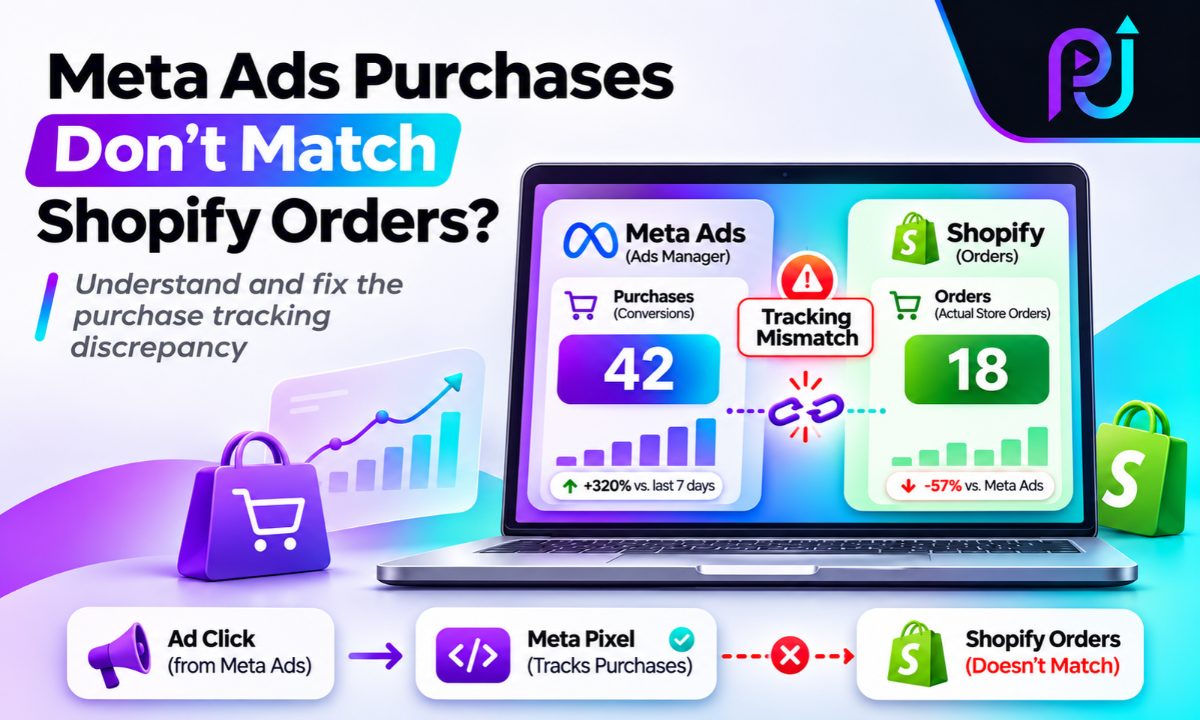
You open Meta Ads Manager and see that your Facebook and Instagram campaigns generated 25 purchases yesterday.
That's good news.
But when you check Shopify, something doesn't match.
Your store shows only 12 orders.
You refresh the dashboard, check the date range, and review your sales records. The difference is still there.
Now imagine something even more confusing. Meta reports 25 purchases, but Shopify shows zero orders.
Where did those purchases come from?
Did Meta count the same customer twice? Is your Facebook Pixel recording events incorrectly? Or does Meta use a different method to measure sales?
A Meta Ads Purchase Discrepancy happens when the purchases reported by Meta do not match the actual orders recorded in your Shopify store.
Small differences can occur because the platforms use different attribution methods, reporting dates, and measurement systems.
However, when Meta reports purchases that never happened, you may have a tracking configuration problem.
This is why reviewing your Meta Ads Audit is important before changing budgets or scaling campaigns.
In this guide, I'll explain why Meta Ads reports purchases that Shopify cannot find, how to identify false Purchase events, and how to fix tracking problems involving the Meta Pixel, Conversions API, and Shopify integrations.
Why Meta Ads and Shopify Show Different Purchase Numbers
Meta Ads Manager and Shopify answer different questions.
Shopify records orders placed through your store and keeps details such as payment status, refunds, cancellations, and sales channels.
Meta Ads Manager reports purchases attributed to advertisements according to its measurement and attribution rules.
These are not the same thing.
For example, imagine someone sees your Instagram advertisement on Monday.
On Wednesday, they search for your brand on Google and purchase a product.
Shopify records the order and may attribute the sale to Google Search under its selected attribution model.
Meta may also credit the purchase to the earlier advertisement if the interaction falls within the applicable attribution window.
Both platforms can report information about the same real order without assigning credit to the same channel.
But that does not explain every discrepancy.
If your store has no completed orders, yet Meta receives numerous Purchase events, you need to investigate the tracking setup rather than assume the difference is normal.
Meta Ads Manager vs Events Manager vs Shopify
Before fixing anything, understand which report you're comparing.
| Platform | What It Measures |
|---|---|
| Shopify Orders | Orders recorded in your Shopify store |
| Shopify Analytics | Store sales, visitors, and marketing attribution |
| Meta Events Manager | Events received from the Pixel, Conversions API, and connected sources |
| Meta Ads Manager | Purchases attributed to advertising activity |
One important detail: Events Manager may show both browser and server event activity. Its raw received-event count is not necessarily a deduplicated order count.
You need to review event sources and deduplication diagnostics before comparing its totals directly against Shopify.
A good investigation starts by separating actual orders, received Purchase events, and ad-attributed purchases.
10 Reasons Meta Ads Reports Purchases That Shopify Cannot Find
| Possible Cause | What Happens | What to Check |
|---|---|---|
| Incorrect Purchase Trigger | Page visits or checkout actions count as purchases | Event Setup |
| Duplicate Pixel Installation | More than one tracking source records an event | Shopify Pixels |
| Failed CAPI Deduplication | Browser and server copies are not matched | Event IDs |
| Multiple Tracking Apps | Separate integrations send purchase events | Installed Apps |
| Confirmation Page Tracking | Custom scripts fire repeatedly | Checkout Tracking |
| Attribution Differences | Meta credits sales to earlier ads | Attribution Settings |
| Date and Time Differences | The same order appears in different periods | Time Zones |
| Test and Cancelled Orders | Reported purchases differ from retained revenue | Shopify Orders |
| Custom Conversion Errors | Wrong conditions define a purchase | Custom Conversions |
| Estimated Results or Data Issues | Meta reports estimates or incomplete measurements | Reporting Diagnostics |
Let's examine each cause.
1. Your Meta Pixel Fires Purchase Events Before an Order Is Completed
This is one of the first issues I would check when Meta reports purchases but Shopify has no matching orders.
The Meta Pixel records customer actions through events.
Common events include:
- PageView
- ViewContent
- AddToCart
- InitiateCheckout
- AddPaymentInfo
- Purchase
Each event serves a different purpose.
A customer viewing a product is not the same as a customer completing a purchase.
However, an incorrect setup may fire Purchase when someone clicks the checkout button or visits a page that doesn't confirm a completed order.
Example
Imagine 50 visitors open your checkout page.
Only five complete purchases.
If your tracking setup incorrectly sends Purchase on checkout page visits, Meta might receive 50 Purchase events instead of the five genuine purchases.
How to Fix It
Open Meta Events Manager.
Select your website dataset and find the Purchase event.
Review its setup and recent activity.
Use Test Events to follow the customer journey.
Visit a product page, add an item to the cart, and start checkout without placing an order.
Purchase should not fire before the checkout is completed.
Then complete a controlled test order and confirm that the correct Purchase event is sent.
2. Your Shopify Store Has Multiple Meta Pixel Installations
Duplicate Pixel installations can create inaccurate event data.
This sometimes happens when a Shopify store has been managed by different developers or marketing agencies.
For example, one person connects the official Facebook & Instagram sales channel.
Another installs a Meta Pixel through Google Tag Manager.
An older tracking script may still exist in the website theme.
These installations can overlap.
However, multiple Pixel installations do not automatically mean every purchase is counted twice. The effect depends on which events each installation sends.
How to Check
Open Shopify Admin.
Go to Settings → Customer events.
Review the app pixels and custom pixels.
Then check the Facebook & Instagram sales channel.
Look for other apps that provide Meta tracking.
If custom scripts were previously added to your theme, review them as well.
How to Fix It
Identify every active source of Meta Purchase events.
Keep the integrations you actually need.
Remove unnecessary duplicate tracking only after confirming which source handles browser events, server events, and other required functions.
Avoid deleting tracking code without checking whether it supports other important events.
3. Meta Pixel and Conversions API Events Are Not Deduplicating
Meta recommends using both its browser Pixel and Conversions API when appropriate.
The browser Pixel records events through the visitor's browser.
The Conversions API sends events from a server or connected platform.
Using both can improve measurement reliability.
But there is one important requirement.
Meta needs to recognize when the browser and server describe the same purchase.
This process is called event deduplication.
How Event Deduplication Works
Imagine Shopify records order #1054.
The browser sends:
Purchase | eventID: order_1054
The server sends:
Purchase | event_id: order_1054
When the event names and identifiers match, Meta can recognize the two events as copies of the same purchase.
If the browser sends order_1054 but the server sends purchase_9876, Meta may treat them as separate events.
How to Fix It
Open Events Manager and review Purchase event deduplication diagnostics.
Check whether browser and server events use matching event names and IDs.
Meta's documented event-ID method requires the browser's eventID to match the server's event_id.
Matching events must also arrive within the supported deduplication period.
For implementation details, read Meta's official event deduplication documentation.
4. Multiple Shopify Apps Are Sending Purchase Events
You may have only one Meta Pixel ID but still receive duplicate events.
This happens when multiple apps send data to the same dataset.
For example:
- Shopify's Facebook & Instagram channel sends Purchase.
- A third-party tracking app also sends Purchase.
- A server-side tracking integration sends another Purchase.
These tools may not share event identifiers.
As a result, Meta can receive overlapping events that are not properly deduplicated.
How to Fix It
Review your installed Shopify apps.
Identify which apps send website or server-side events to Meta.
Check the connected dataset ID in each integration.
Use Events Manager to inspect event sources and deduplication.
Decide which integration should manage each event source, and remove unnecessary overlap.
Do not disable the Conversions API simply because you see browser and server events. Sending both is intentional when they are configured to deduplicate correctly.
5. Your Purchase Event Fires Repeatedly on the Order Confirmation Page
Custom tracking scripts can cause a purchase to be recorded more than once.
For example, someone completes an order and reaches the confirmation page.
The tracking script fires Purchase.
Later, the customer opens the confirmation page again from an email.
If the custom implementation fires another Purchase without protection, the same order may be counted again.
What Shopify Does
Shopify provides a standard checkout_completed customer event.
According to Shopify's developer documentation, this event is triggered once per checkout.
It usually occurs on the Thank You page.
For post-purchase upsells, it can occur on the first upsell offer page instead.
How to Fix It
Check whether your Purchase tracking is based on Shopify's checkout completion event or a custom page-load trigger.
Use an appropriate unique identifier for each genuine order.
Test whether revisiting the confirmation page sends an additional Purchase event.
If you use a custom solution, make sure it handles Shopify's checkout flow correctly.
The official Shopify checkout_completed documentation explains this event's behavior.
6. Meta Uses Different Attribution Rules From Shopify
Not every reporting difference means tracking is broken.
Meta can credit purchases to advertisements based on earlier clicks, engagements, or views, depending on the attribution settings.
For example:
A customer views your Facebook advertisement on Monday.
They search for your brand on Tuesday.
They place an order through your website.
Shopify may attribute the customer to the later search visit.
Meta may credit the same purchase to the Facebook advertisement.
This creates a channel-attribution difference, not an additional real order.
How to Check
Open Meta Ads Manager.
Review your ad set's attribution setting.
Where available, use Compare Attribution Settings to examine click-based and view-based results.
Check how much purchase reporting comes from people who clicked advertisements versus those who viewed them.
For a broader explanation of how Meta campaigns move customers through the buying process, see Meta Ads Funnels That Actually Convert.
Important
Attribution differences explain why platforms assign credit differently.
They do not, by themselves, prove that 20 actual purchases occurred when Shopify has no corresponding orders.
If you see that pattern, continue investigating tracking and event quality.
7. Meta and Shopify Use Different Reporting Dates or Time Zones
Even when both platforms record the same genuine order, the numbers may appear under different dates.
Your Meta advertising account and Shopify store can use different time zones.
For example, Shopify may use India Standard Time while the Meta account uses a US time zone.
A purchase recorded late at night in one region may appear on the previous calendar day in another.
Depending on the reporting configuration, an ad platform may also assign conversion credit to an earlier advertising interaction.
How to Fix It
Check the time zone configured in Shopify.
Review the Meta advertising account's time zone.
Compare a complete reporting period rather than a few hours.
For attribution analysis, choose a period old enough for most expected conversions to be reported.
Shopify also explains these differences in its Analytics Discrepancies documentation.
8. You're Comparing Purchases With Paid, Fulfilled, or Non-Refunded Orders
Not every Shopify order represents revenue you have collected and kept.
A store may have:
- Pending payments
- Test orders
- Cancelled orders
- Refunded purchases
- Cash-on-delivery orders
- Orders returned after delivery
A Purchase event may have been sent when an order was placed.
If that order is later cancelled or refunded, the original Meta event does not automatically disappear simply because the financial outcome changed.
Example
Your Shopify store records 40 orders.
Ten are cash-on-delivery orders that customers later refuse.
Meta may have received Purchase events for those orders when they were placed.
But the business ultimately keeps revenue from fewer transactions.
How to Fix It
Compare Meta Purchase events with the appropriate Shopify order records.
Then examine payment, cancellation, and refund status separately.
For profitability reporting, calculate revenue after relevant refunds and returns.
Do not treat every attributed purchase as guaranteed collected revenue.
9. Your Meta Custom Conversion Is Configured Incorrectly
Meta allows advertisers to create custom conversions based on supported event and URL conditions.
These can be useful when you need to measure a specific type of customer action.
However, a misconfigured custom conversion can produce misleading results.
For example, a custom conversion might use a broad URL condition that also matches an ordinary page view.
If that custom conversion is presented as a purchase-related result, the account may appear to generate sales that never occurred.
How to Fix It
Open Events Manager.
Review your custom conversions.
Check which dataset and underlying events they use.
Examine URL rules, event parameters, and other conditions.
Confirm that purchase-related custom conversions represent actual completed orders.
Do not assume a conversion is correct simply because Meta labels it as a purchase-related result.
Also review your campaign's selected conversion event.
If you're optimizing for the wrong action, improving Meta Ads Targeting alone will not correct the measurement problem.
10. Meta Reports Estimated Results or Receives Incomplete Tracking Data
Meta's reporting can include modeled or estimated conversion results in certain circumstances.
This helps account for limitations in directly observing advertising outcomes.
Privacy settings, browser restrictions, and incomplete tracking signals can affect which customer actions Meta can measure.
However, modeled reporting and incorrect Purchase event triggers are different issues.
A store with no genuine orders and a large number of received Purchase events should investigate its event implementation first.
How to Check
Review Meta's attribution and reporting information.
Compare Ads Manager with Events Manager.
Inspect the Purchase event's browser and server sources.
Check whether the issue appeared after installing an app, changing checkout settings, or updating tracking.
If necessary, review your broader GA4 Event Tracking to compare how purchase events are being recorded across tools.
Remember that GA4 is another measurement system, not a replacement for Shopify order records.
How to Fix Meta Ads Showing Purchases but No Shopify Orders
If Meta reports sales that Shopify cannot find, follow this process before changing your advertising budget.
Step 1: Check Actual Shopify Orders
Open Shopify Admin → Orders.
Select the date range you want to investigate.
Review all relevant orders and payment statuses.
Check whether you're excluding test, cancelled, draft, POS, or other order types from the report you're viewing.
Step 2: Check Meta Ads Manager
Open Ads Manager.
Review the purchase metric, attribution setting, and reporting dates.
Confirm you're looking at the correct ad account and dataset.
Step 3: Open Meta Events Manager
Select the dataset connected to your Shopify store.
Find the Purchase event.
Check the event activity and available diagnostics.
Step 4: Identify Event Sources
Review browser events and Conversions API events.
Don't simply add the two source counts together and treat them as separate purchases.
Check whether corresponding events are being deduplicated.
Step 5: Inspect Shopify Customer Events
Open Shopify → Settings → Customer events.
Review app pixels and custom pixels.
Also check your installed tracking apps and any remaining manual scripts.
Step 6: Review Facebook & Instagram Data Sharing
Open Shopify → Sales channels → Facebook & Instagram → Settings → Data sharing settings.
Confirm the connected Meta dataset and selected sharing level.
Shopify supports three levels:
| Level | Tracking Method |
|---|---|
| Standard | Meta Pixel |
| Enhanced | Meta Pixel and Conversions API |
| Maximum | Meta Pixel, Conversions API, and additional supported Meta features |
Choose the level that fits your measurement needs and privacy requirements.
If another integration already sends server-side purchases, check for overlap before changing the setup.
Step 7: Test the Purchase Event
Open Events Manager → Test Events.
Visit your website and complete a controlled test order using an appropriate payment testing method.
Confirm that Shopify records the order.
Verify that Meta receives the corresponding Purchase event.
Check the event name, value, currency, and available event identifiers.
Step 8: Test Actions That Are Not Purchases
Visit a product page.
Add an item to the cart.
Start checkout.
Abandon the transaction before completing the order.
Make sure these actions do not incorrectly trigger Purchase.
Step 9: Fix the Confirmed Problem
If the Purchase event fires too early, correct the trigger.
If multiple integrations send duplicate events, fix the overlap.
If browser and server event IDs do not match, correct deduplication.
If the issue is only attribution, review the reporting settings rather than changing tracking code.
Step 10: Recheck With Fresh Orders
After making a correction, test the setup again.
Monitor a complete reporting period.
Compare Meta reporting with actual Shopify orders and examine whether the discrepancy has improved.
Practical Example: Meta Shows 105 Purchases but Shopify Shows Zero
Let's use the type of problem described in the Shopify community discussion.
A store owner launches a Facebook traffic campaign.
The next day, Meta reports 105 purchases.
Shopify shows zero actual orders.
The store owner has already tested checkout and confirmed that it works.
What should they investigate?
First, check whether the Purchase event fires during ordinary browsing.
If it does, that points to an incorrect event trigger.
Next, review the Event Setup Tool and custom conversion rules.
Then inspect duplicate tracking sources and Conversions API deduplication.
Finally, compare dates, datasets, test orders, and order statuses.
The main lesson is that 105 Meta purchases against zero Shopify orders should not be dismissed as a normal attribution difference.
The discussion does not establish which exact configuration caused that merchant's issue, so it would be wrong to claim one proven explanation.
Why Incorrect Purchase Tracking Can Hurt Meta Ads Performance
Incorrect tracking does more than create confusing reports.
Meta's advertising system uses conversion data to help optimize ad delivery.
If ordinary page visits are reported as purchases, Meta may receive misleading information about which visitors complete valuable actions.
For example, your campaign could appear to generate 100 purchases at a low cost.
But your store might have only 15 actual orders.
You could increase your advertising budget because the reported return on ad spend looks strong.
Meanwhile, your business is not generating the expected sales.
This is why conversion tracking needs to reflect genuine business outcomes.
A campaign with accurate tracking and fewer reported purchases is often more useful than a campaign with inflated conversion numbers.
Should You Trust Meta Ads ROAS or Shopify Revenue?
Use both reports for different purposes.
Meta Ads ROAS is useful for evaluating the revenue Meta attributes to your advertising campaigns.
Shopify provides the actual order records and financial outcomes for your store.
For example:
| Metric | Example |
|---|---|
| Meta Ads Spend | $1,000 |
| Meta-Attributed Purchase Value | $5,000 |
| Meta-Reported ROAS | 5.0x |
| Shopify Total Sales | $4,200 |
| Shopify Net Sales After Returns | $3,800 |
These numbers are illustrative.
They do not automatically prove that Meta is overcounting.
You need to check whether the differences result from attribution, event duplication, timing, refunds, or value calculations.
For business profitability, use actual store revenue, costs, refunds, and advertising spend.
Use Meta's reports to compare campaign performance while keeping the limitations of platform attribution in mind.
How to Prevent Meta Ads Purchase Discrepancies
Once you've corrected the tracking, maintain a simple review process.
Check purchase tracking after major Shopify theme updates, checkout changes, or new app installations.
Review Pixel and Conversions API diagnostics.
Keep track of which integration sends each event.
Test purchases across the checkout methods your store supports.
Ensure your Purchase event carries the correct value and currency.
Check that browser and server events use appropriate identifiers.
Review attribution settings before comparing Meta against Shopify.
And most importantly, compare actual orders against reported purchase activity on a regular schedule.
For a broader review of conversion tracking and advertising performance, my Conversion Tracking Services page explains the key areas involved in setting up reliable campaign measurement.
Meta Ads Purchase Tracking Audit Checklist
| Audit Area | What to Verify | Priority |
|---|---|---|
| Shopify Orders | Actual orders and payment status | High |
| Meta Purchase Events | Correct event activity | High |
| Purchase Trigger | Fires only on valid purchase completion | High |
| Pixel Installation | No unintended duplicate installations | High |
| Conversions API | Correct server-side configuration | High |
| Event Deduplication | Matching event names and IDs | High |
| Shopify Customer Events | Active app and custom pixels | High |
| Tracking Apps | No unnecessary overlapping event sources | High |
| Attribution Settings | Correct reporting window | High |
| Reporting Dates | Comparable periods and time zones | High |
| Purchase Value | Correct order value | High |
| Currency | Correct currency code | High |
| Test Orders | Identified separately | Medium |
| Refunds and Cancellations | Reflected in financial analysis | High |
| Event Diagnostics | No unresolved critical tracking errors | High |
| Campaign Optimization | Uses the intended business event | High |
About Prem Jasuja
Prem Jasuja is a freelance digital marketing professional specializing in Meta Ads, Google Ads, Google Analytics 4, Google Tag Manager, conversion tracking, Shopify advertising, and landing page optimization.
His work includes reviewing Meta Pixel installations, Conversions API integrations, event deduplication, purchase tracking, attribution settings, and advertising performance.
He focuses on helping businesses measure genuine leads and sales so advertising decisions are based on reliable data.
Final Thoughts
A Meta Ads Purchase Discrepancy does not always mean that your advertisements or Shopify store are broken.
Meta and Shopify measure different parts of the customer journey.
Attribution rules, reporting dates, and estimated conversions can explain some differences.
However, when Meta reports purchases that your Shopify store cannot find, incorrect tracking should be one of your first investigations.
Check the Purchase event.
Review your Pixel installation.
Confirm that browser and server events are deduplicated.
Look for overlapping tracking apps and incorrect custom conversion rules.
Then test your checkout and compare the results with actual Shopify orders.
Avoid changing campaign budgets based on inflated purchase reporting.
The goal is not to force Meta and Shopify to display identical numbers. It is to ensure every real purchase is measured correctly and that your advertising decisions reflect actual business results.
Frequently Asked Questions
Why Does Meta Ads Show Purchases That Shopify Cannot Find?
Meta Ads may show purchases that Shopify cannot find because of incorrect Purchase event triggers, duplicate tracking, failed deduplication, attribution differences, or reporting-date mismatches. When Shopify has no corresponding orders, investigate the tracking setup first.
Can Meta Ads Report Purchases When Shopify Has Zero Orders?
Yes. Incorrectly configured Purchase events or custom conversions can produce purchase-related results without genuine Shopify orders. Estimated reporting or mismatched reporting periods may also contribute. Check Events Manager and Shopify order records.
Why Does Meta Ads Show More Purchases Than Shopify?
Meta may attribute the same real order differently from Shopify. However, duplicate Pixel events, overlapping tracking integrations, incorrect purchase triggers, and reporting differences can also increase Meta's reported purchase count.
How Do I Check Whether My Meta Pixel Is Tracking Purchases Correctly?
Open Meta Events Manager and use Test Events. Complete a controlled Shopify test order and confirm that Purchase fires for the completed checkout, not during browsing or checkout initiation. Check the value, currency, and event identifiers.
Can Meta Pixel and Conversions API Count the Same Purchase Twice?
Yes. If browser and server Purchase events are sent without working deduplication, Meta may count them separately. Using matching event names and event IDs allows Meta to identify corresponding events.
How Do I Fix Duplicate Purchase Events in Shopify?
Review Shopify Customer events, installed tracking apps, theme code, and the Facebook & Instagram integration. Identify overlapping Purchase event sources, correct event IDs, and verify deduplication through Meta Events Manager.
Should I Use Shopify's Facebook & Instagram App for Meta Tracking?
Shopify's official Facebook & Instagram integration supports Meta Pixel tracking and, with Enhanced or Maximum data sharing, Conversions API purchase events. It can be a suitable option, but check whether other integrations already send the same events.
Why Are Meta Ads Purchase Numbers Different From Shopify Analytics?
Meta and Shopify may use different attribution models, reporting windows, dates, and time zones. Shopify tracks store orders, while Meta reports purchases it attributes to advertisements. Their totals are not expected to match exactly.
Does a High Meta Ads ROAS Mean My Shopify Store Is Profitable?
No. Meta ROAS measures attributed purchase value relative to advertising spend. It does not automatically account for product costs, refunds, shipping, taxes, or other business expenses. Review actual Shopify revenue and profit.
How Can I Prevent Meta Ads Purchase Discrepancies?
Maintain accurate Purchase event triggers, avoid duplicate tracking installations, configure Pixel and Conversions API deduplication, test checkout events, and compare Meta reporting with Shopify orders. Review tracking after major website or app changes.