You open Google Search Console to check your website's SEO performance.
Everything looked normal last week. Google had indexed 420 pages, your website was receiving impressions, and your content was appearing in search results.
But today, the Page Indexing report shows only 190 indexed pages.
More than half your indexed pages appear to have disappeared.
You haven't deleted any content, changed your website structure, or updated your SEO settings.
So what happened?
Did Google remove your pages from its index? Is there a technical issue with your website? Or is Search Console showing a reporting change?
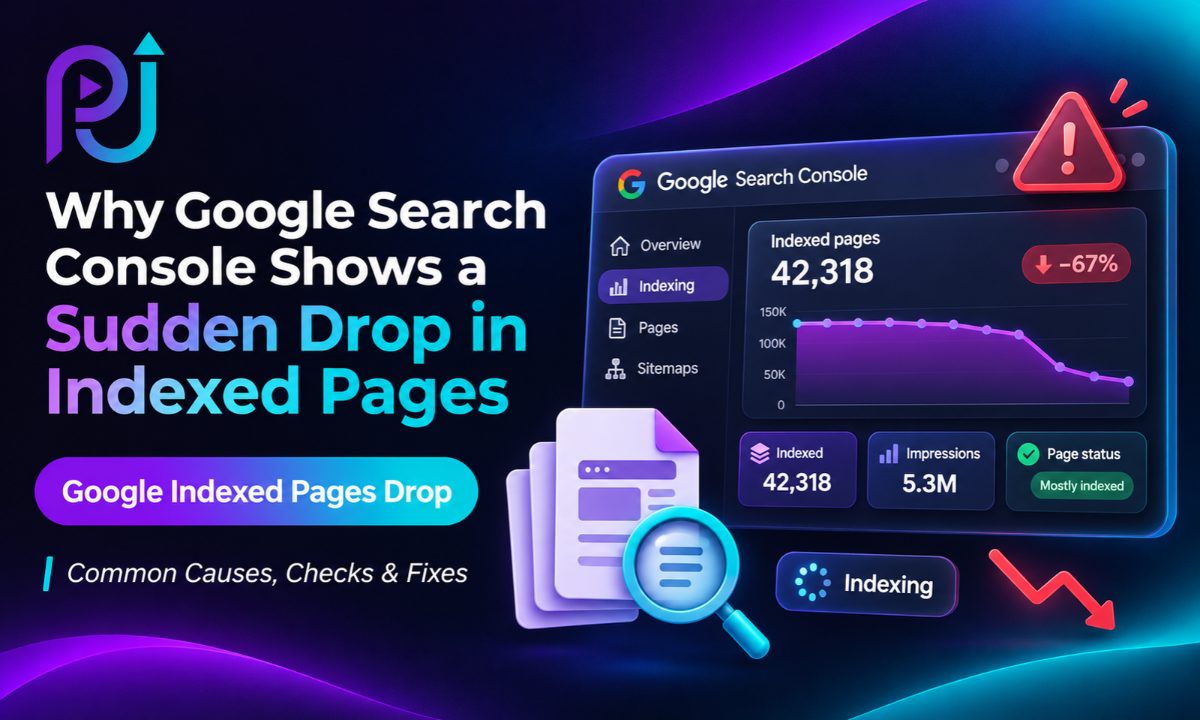
A sudden Google Indexed Pages Drop can happen for several reasons, including indexing directives, duplicate content, incorrect canonicals, server problems, website migrations, and delayed reporting.
However, a lower indexed-page count does not always mean your website has lost search visibility.
Google may have consolidated duplicate URLs, discovered that some pages no longer exist, or updated its reporting data.
Before making changes, it's important to understand what the report is actually showing.
A proper Technical SEO Audit can help identify whether the decline affects important website pages or URLs that never needed independent indexing.
In this guide, I'll explain why Google Search Console shows a sudden drop in indexed pages, how to find the cause, and what you can do to recover pages that should appear in Google Search.
What Does a Drop in Indexed Pages Mean?
When Google indexes a webpage, it processes the page and stores information about it in its search index.
An indexed page becomes eligible to appear in Google Search results.
However, indexing does not guarantee rankings, impressions, or clicks.
The Page Indexing report in Google Search Console shows the indexing status of URLs Google knows about for your website.
It divides them into two main categories:
- Indexed: URLs Google has included in its index.
- Not indexed: URLs Google has not indexed for a reported reason.
For example:
| Metric | Previous Period | Current Period |
|---|---|---|
| Indexed Pages | 420 | 190 |
| Not Indexed Pages | 180 | 410 |
| Total Known URLs | 600 | 600 |
In this hypothetical example, the number of indexed pages decreases while non-indexed pages increase.
This suggests that Google may have changed how it classifies or processes some URLs.
But the graph alone does not tell you why.
You need to examine which URLs moved into the non-indexed categories and whether those URLs are important to your business.
Indexed Pages Drop vs Search Impressions Drop: What's the Difference?
This distinction is important because the fixes are different.
| Issue | What It Means | Where to Check |
|---|---|---|
| Indexed Pages Drop | Fewer URLs are reported as indexed | Page Indexing Report |
| Impressions Drop | Pages appear less often in search results | Performance Report |
| Clicks Drop | Fewer people click your Google Search results | Performance Report |
| Ranking Drop | Pages appear lower for relevant searches | Queries and Pages Reports |
| Reporting Delay | Search Console data has not fully updated | Report Freshness and Data Anomalies |
Imagine your website had 300 indexed pages last month and still has 300 indexed pages today.
However, organic impressions decrease by 80%.
That is not automatically a deindexing problem.
Your pages may still be indexed but receiving less visibility because of changes in rankings, search demand, competition, or Google's search systems.
Now imagine your indexed-page count falls from 300 to 120, and several important service pages show a new non-indexed status.
That situation requires an indexing investigation.
The key lesson is that search visibility and indexing status must be checked separately.
10 Reasons Google Search Console Shows a Sudden Drop in Indexed Pages
| Possible Cause | What Happens | What to Check |
|---|---|---|
| Reporting Delay | The report updates after a gap | Last updated date |
| Accidental Noindex | Important pages are excluded | Meta robots and HTTP headers |
| Canonical Problems | Google selects another URL | URL Inspection |
| Deleted Pages | URLs return 404 or 410 | HTTP status codes |
| Robots.txt Restrictions | Googlebot cannot crawl pages | Robots.txt and crawl access |
| Server Errors | Googlebot encounters failed requests | Crawl Stats and server logs |
| Website Migration | URLs or redirects change | Redirect mapping |
| Duplicate or Weak Content | Google does not retain some pages independently | Content and indexing status |
| Sitemap and Internal Link Changes | Google receives different discovery signals | Sitemap and internal links |
| Security or Manual Actions | Google may restrict affected pages | Search Console reports |
Let's look at each issue and how to investigate it.
1. Search Console Is Showing Delayed Reporting Data
Before changing anything on your website, check when the Page Indexing report was last updated.
Search Console does not display a live count of every URL in Google's index.
The Page Indexing report is refreshed periodically, and its data can lag behind actual indexing activity.
If reporting stops updating for a period and later catches up, the graph may show a sharp change that appears to have happened overnight.
For example, imagine Google gradually changes the indexing status of 50 URLs over two weeks.
If the report does not update during that period, those changes may appear together when fresh data becomes available.
How to Check It
Open Google Search Console and navigate to Indexing → Pages.
Review the report's last updated date.
Then compare it with the dates shown in the Performance report.
Check whether organic impressions and clicks changed around the same period.
Inspect a sample of important pages individually.
If the report appears stale but important URLs remain indexed and their search performance is stable, investigate possible reporting delay before assuming widespread deindexing.
How to Fix It
There may be nothing to fix on your website.
Confirm the indexing status of important URLs and monitor the next report update.
Avoid removing content, changing canonical tags, or resubmitting every sitemap simply because a graph suddenly changes.
2. Your Website Has Accidental Noindex Tags
A noindex directive tells search engines not to include a page in search results.
Website owners sometimes use it intentionally for pages that should not appear in Google.
However, accidental noindex directives can affect important pages.
This may happen after a website redesign, theme update, SEO plugin change, or staging-to-live migration.
For example, a developer might add a noindex directive while building a new website.
If that setting remains active after launch, Google may remove affected pages from its index after processing the directive.
How to Check It
Inspect an affected URL in Search Console.
Look for messages such as:
"Excluded by noindex tag"
Review the HTML source for:
<meta name="robots" content="noindex">
Also check whether a noindex directive is sent through an X-Robots-Tag HTTP response header.
How to Fix It
Remove accidental noindex directives from pages that should appear in Google Search.
Confirm the corrected page is accessible to Googlebot.
Test the live URL in Search Console.
After fixing the issue, request indexing for important URLs.
Do not remove noindex directives from pages that are intentionally excluded, such as private or unnecessary utility pages.
3. Google Has Selected Different Canonical URLs
Canonicalization helps Google choose the representative version of duplicate or very similar pages.
For example, your website may have these URLs:
https://example.com/product
https://example.com/product?source=email
Both may show the same product content.
Google may index one version and treat the other as a duplicate.
This is normal when multiple URLs serve essentially the same page.
However, problems can arise when Google selects an unrelated or unintended canonical URL.
How to Check It
Open URL Inspection for an affected page.
Compare:
User-declared canonical
Google-selected canonical
If Google selected another URL, inspect both pages.
Determine whether their main content is genuinely different.
Check canonical tags, redirects, internal links, and XML sitemaps for conflicting signals.
How to Fix It
Keep canonical signals consistent.
If two URLs display the same content, choose an appropriate main version.
If two pages serve different customer needs, make sure each page contains meaningful, distinct information.
For example, separate service pages should explain their specific services instead of repeating the same generic content with different titles.
This is also where High-Intent SEO Keywords matter. Each important page should answer a clear search need rather than exist only to target another keyword variation.
Google is not required to select your declared canonical, so changing the tag alone may not resolve the problem.
4. Important Website Pages Return 404 or 410 Errors
Google may remove URLs from its index when those pages no longer exist.
For example, imagine your website previously contained:
https://example.com/services/roof-repair
After a redesign, the URL is removed.
The website now returns a 404 response.
If Google determines the page is gone, it may eventually stop indexing that URL.
A 410 response also indicates that the requested resource is gone.
How to Check It
Open the Page Indexing report.
Look for the "Not found (404)" category.
Review the affected URLs.
Determine whether they were intentionally deleted or should still exist.
Check whether important pages were renamed without redirects.
How to Fix It
If an important page was removed accidentally, restore it.
If it moved to a new URL, redirect the old address to the relevant replacement.
If the page was intentionally deleted and has no suitable replacement, a 404 or 410 response may be correct.
Not every 404 error needs to be fixed.
Focus on broken URLs that still receive important internal links, appear in sitemaps, or represent content users need.
5. Robots.txt Is Blocking Important Pages
The robots.txt file tells search engine crawlers which areas of a website they are allowed to crawl.
A configuration mistake can prevent Googlebot from accessing important pages.
For example, a website might accidentally include:
User-agent: Googlebot
Disallow: /services/
This prevents Googlebot from crawling URLs under the /services/ path.
However, blocking a page with robots.txt does not guarantee that Google will remove it from the index.
A blocked URL may remain indexed based on information Google already knows.
How to Check It
Open your robots.txt file.
Review recent changes.
Use URL Inspection to check whether crawling is allowed for affected pages.
Compare the blocked paths with URLs that have indexing problems.
How to Fix It
Remove unintended crawl restrictions.
Keep restrictions that serve a valid purpose.
Do not use robots.txt as a substitute for noindex when the goal is to prevent indexing.
Google needs to crawl a page to discover an HTML noindex directive.
6. Your Website Is Experiencing Server Errors
Googlebot needs to access your website to retrieve and process page content.
Server problems can interrupt that process.
For example, your server might return:
- 500 Internal Server Error
- 502 Bad Gateway
- 503 Service Unavailable
- 504 Gateway Timeout
Temporary errors do not always result in immediate deindexing.
However, persistent access problems can affect Google's ability to keep pages indexed.
How to Check It
Open Search Console's Crawl Stats report.
Review server response patterns and host availability.
Check whether errors increased around the date of the indexed-page decline.
Inspect your web server logs for failed Googlebot requests.
Look for hosting outages, firewall restrictions, and incorrect server configurations.
How to Fix It
Resolve the underlying server problem.
Make sure important pages return the correct HTTP response.
Review whether security tools or firewall rules are blocking legitimate Googlebot requests.
If you use JavaScript to load important content, also verify that Google can access the content needed to understand your pages.
7. You Recently Changed Your Website URLs or Domain
Website migrations can affect indexing when URLs change.
Common migrations include:
- HTTP to HTTPS
- WWW to non-WWW
- Domain changes
- URL structure changes
- Website redesigns
- CMS migrations
For example, imagine your old URLs used:
https://example.com/blog/article-name
Your new website uses:
https://example.com/articles/article-name
If the migration is not handled correctly, Google may encounter broken links, redirects, or conflicting canonical URLs.
How to Check It
Review recent website changes.
Inspect old and new URLs.
Confirm that permanent redirects lead to the intended replacements.
Check whether your sitemap includes current canonical URLs.
Review Search Console indexing statuses for redirected pages and redirect errors.
How to Fix It
Create accurate redirects for URLs that moved.
Update important internal links to the new addresses.
Use consistent canonical tags.
Keep the sitemap aligned with the preferred URLs.
Monitor indexing and performance after the migration.
A reduction in indexed old URLs can be normal when Google replaces them with their new versions.
The concern is whether the replacement pages become indexed and retain relevant search visibility.
8. Google Is No Longer Indexing Some Duplicate or Low-Value Pages
Not every page discovered by Google will be indexed.
Google may choose not to index pages that repeat existing content or offer little distinct value.
For example, an online store might generate hundreds of URLs from sorting and filtering options.
Those URLs may show almost identical product collections.
Google does not need to index every variation independently.
Similarly, publishing numerous pages that repeat the same information with only small wording changes may not help users.
How to Check It
Review indexing categories such as:
- Crawled, currently not indexed
- Duplicate, Google chose different canonical than user
- Alternate page with proper canonical tag
Check which pages are affected.
Compare their main content with pages that Google has indexed.
Determine whether the affected pages serve separate search intents.
How to Fix It
Do not try to force Google to index every URL.
Focus on pages that provide meaningful information and answer useful searches.
Improve content that lacks original details or does not adequately address its topic.
Consolidate unnecessary duplicates where appropriate.
For location-based businesses, your Local SEO Guide explains how service pages and local content can help customers find relevant business information.
The objective is to make important pages useful and accessible, not simply increase the indexed-page count.
9. Your XML Sitemap or Internal Linking Structure Changed
Sitemaps and internal links help Google discover and revisit pages.
If a major website update removes important URLs from navigation, internal links, or sitemap files, Google may receive weaker discovery signals.
For example, a website redesign might remove links to several important service pages.
Those pages still exist, but they become harder to discover through the site's structure.
However, removing a URL from a sitemap does not automatically cause Google to deindex it.
How to Check It
Review your XML sitemap.
Confirm that it contains important canonical URLs.
Inspect navigation menus, category pages, and breadcrumbs.
Check whether affected URLs still receive relevant internal links.
Identify orphan pages that have no discoverable links from other website pages.
How to Fix It
Keep important pages in the appropriate sitemap.
Link to valuable pages from relevant sections of the website.
Fix broken internal links.
Remove obsolete URLs from sitemap files.
Avoid submitting large numbers of unnecessary duplicate or parameter URLs.
A sitemap helps discovery, but it does not guarantee indexing.
10. Your Website Has a Manual Action, Security Issue, or Removal Request
In some cases, indexing problems can be connected to manual actions, security issues, or URL removal requests.
A manual action occurs when Google's human reviewers identify violations of its spam policies.
Security problems may include hacking, malware, or deceptive website content.
A removal request may temporarily hide specific URLs from Google Search.
These problems require different responses.
How to Check It
In Google Search Console, review:
Security & Manual Actions → Manual Actions
Security & Manual Actions → Security Issues
Also check whether any relevant URL removals have been requested.
How to Fix It
If a manual action exists, follow the details in Search Console.
Correct the policy violations and request reconsideration when appropriate.
If the website has been compromised, remove malicious content and secure the site.
If someone submitted an unwanted temporary removal request, review whether it can be canceled.
A website can experience ranking or indexing changes without receiving a manual action. The absence of a manual action does not prove that every page meets Google's search quality expectations.
How to Check Which Pages Google Removed From Its Index
Follow this process before making technical changes.
Step 1: Open the Page Indexing Report
Go to Google Search Console.
Select the correct property.
Navigate to Indexing → Pages.
Step 2: Check the Reporting Date
Confirm when the report was last updated.
If the report is stale, investigate its freshness before concluding that pages disappeared overnight.
Step 3: Compare Indexed and Not Indexed Counts
Identify whether indexed pages declined, non-indexed pages increased, or both changed.
Step 4: Review the Reasons for Non-Indexing
Open the categories under "Why pages aren't indexed."
Look for changes involving noindex, redirects, duplicates, crawl problems, or missing pages.
Step 5: Inspect Important URLs
Select a sample of affected URLs, especially service pages, product pages, and articles that previously received organic traffic.
Use URL Inspection to review the indexed status.
Step 6: Test the Live Pages
Check whether Google can access the current page.
Remember that a successful live test does not guarantee that Google has indexed the URL.
Step 7: Compare Search Performance
Open Performance → Search Results.
Compare the dates before and after the indexing decline.
Review clicks and impressions by page and query.
Step 8: Check Google Search Traffic in Analytics
Use GA4 to compare organic traffic trends where reliable traffic-source data is available.
Search Console measures Google Search performance, while GA4 measures activity on your website.
These figures should not be expected to match exactly.
A reliable GA4 Event Tracking setup can also help you assess whether important actions, such as leads or purchases, changed during the same period.
Step 9: Identify the Cause
Use the evidence to determine whether the issue involves actual deindexing, URL consolidation, reporting delay, or ranking changes.
Step 10: Make Targeted Fixes
Correct confirmed technical or content problems.
Avoid making major website changes based only on the indexed-page total.
What If Indexed Pages Drop but Search Impressions Stay Stable?
This can happen when the affected URLs contribute little search visibility.
For example, imagine Google stops indexing 200 duplicate parameter URLs.
Your indexed-page count may decline, but your important product and service pages continue appearing in search results.
In that case, organic impressions may remain stable.
Another possibility is that the Page Indexing report is showing delayed or revised data.
What Should You Do?
Inspect the affected URLs.
Determine whether they were important canonical pages or unnecessary duplicates.
Compare the performance of the affected page groups rather than relying only on the website-wide total.
If the changes concern URLs that never needed independent indexing, fixing them may not be necessary.
What If Search Impressions Drop but Pages Remain Indexed?
This was the key pattern in the September 2026 Search Console community example you shared.
The website owner reported a sharp decline in impressions and clicks while several inspected pages remained indexed.
That points toward a different investigation.
Indexing confirms a page is eligible to appear in Google Search, but it does not guarantee that Google will show it for the same searches or at the same positions.
A decline in impressions can result from changing rankings, lower demand, shifting search results, or changes in how Google assesses and serves content.
How to Investigate
Compare affected pages and queries.
Check whether the loss is sitewide or concentrated in certain page types.
Review the countries and devices where impressions declined.
Check average position trends for queries that still receive impressions.
Compare search results for the affected queries.
Review Google's ranking update history and data anomalies when relevant.
If the pages remain indexed, avoid treating the issue as a deindexing problem without further evidence.
Is It Bad to Have More Not Indexed Pages Than Indexed Pages?
Not necessarily.
Imagine Search Console shows:
| Status | URLs |
|---|---|
| Indexed | 270 |
| Not Indexed | 738 |
That ratio alone does not prove your website has a problem.
An ecommerce website may generate numerous URLs through product filters, sorting options, pagination, and tracking parameters.
Many of those URLs do not need independent indexing.
The important question is:
Which pages are not indexed, and should those pages appear in Google Search?
If most excluded URLs are duplicates or intentionally excluded pages, the ratio may be acceptable.
If your key services, products, and useful articles are not indexed, the issue deserves attention.
Google does not recommend trying to reach 100% indexing coverage for every known URL.
How Long Does It Take to Recover Indexed Pages?
There is no guaranteed recovery timeframe.
Google must recrawl affected URLs and process the changes.
Some updates may appear within days.
Others can take several weeks or longer, depending on the issue and the website.
For example, removing an accidental noindex directive may allow a page to become eligible for indexing again after Google processes the change.
However, eligibility does not guarantee immediate indexing.
Content and search visibility improvements can take longer.
For broader SEO expectations, read How Long Does SEO Take?.
Once you fix a confirmed issue, request indexing for important URLs when appropriate and monitor the results.
Repeated indexing requests do not guarantee faster indexing.
Google Indexed Pages Drop: SEO Audit Checklist
| SEO Audit Area | What to Verify | Priority |
|---|---|---|
| Report Freshness | Page Indexing last updated date | High |
| URL Inspection | Current indexed status of affected URLs | High |
| Performance Report | Organic clicks and impressions | High |
| Noindex Directives | Accidental indexing restrictions | High |
| Robots.txt | Important pages are crawlable | High |
| Canonical Tags | Preferred URLs are correctly identified | High |
| Redirects | Old URLs lead to valid replacements | High |
| HTTP Status | Important pages return correct responses | High |
| Server Logs | Googlebot can access the site | High |
| XML Sitemap | Important canonical URLs included | Medium |
| Internal Links | Valuable pages remain discoverable | High |
| Duplicate Content | Unnecessary URL variations identified | Medium |
| Content Quality | Pages serve useful search needs | High |
| Manual Actions | No unresolved manual action | High |
| Security Issues | Website is secure and accessible | High |
Use the checklist to identify the reason for the drop before making changes.
About Prem Jasuja
Prem Jasuja is a freelance digital marketing professional specializing in SEO, Google Ads, Meta Ads, Google Analytics 4, Google Tag Manager, conversion tracking, and landing page optimization.
His SEO work includes technical website audits, indexing reviews, on-page optimization, internal linking, and analysis of search performance data.
He focuses on helping businesses identify website problems, improve search visibility, and attract relevant organic traffic.
Final Thoughts
A sudden Google Indexed Pages Drop in Search Console can look concerning, especially when the graph changes without any obvious website updates.
However, a decrease in indexed URLs does not always mean that Google has removed important content or that your website has suffered an SEO penalty.
The change may involve duplicate URL consolidation, reporting delays, technical indexing problems, website migrations, or inaccessible pages.
Start by checking the Page Indexing report's freshness and the specific reasons URLs are no longer indexed.
Then inspect important pages and compare their Search performance.
If your indexed-page count decreases while important URLs remain indexed and their visibility is stable, avoid unnecessary fixes.
If Google has removed valuable pages because of technical or content problems, correct the underlying cause and allow Google to reassess those URLs.
The goal is not to make every website URL indexed. It is to ensure that the pages important to your business are accessible, useful, and eligible to appear in Google Search.
Frequently Asked Questions
Why Did My Google Indexed Pages Suddenly Drop?
A sudden Google indexed pages drop can result from reporting delays, accidental noindex directives, duplicate content, canonical changes, server errors, website migrations, or deleted pages. Check the Page Indexing report and inspect affected URLs to find the cause.
Does a Drop in Indexed Pages Mean My Website Has Been Penalized?
No. A decrease in indexed pages does not automatically indicate a Google penalty. It may reflect duplicate URL consolidation, technical problems, or normal indexing changes. Check the Manual Actions report for confirmed manual actions.
How Can I Find Which Pages Google Deindexed?
Open Google Search Console, navigate to Indexing → Pages, and review the reasons listed under non-indexed pages. Inspect important affected URLs individually to confirm their current indexed status.
Can Google Search Console Show Incorrect Indexed Page Counts?
Search Console's Page Indexing report is not a live index counter. Reporting delays and updates may create differences between the aggregate report and the status of individual URLs. Check the last updated date and use URL Inspection for important pages.
Why Are My Pages Still Indexed but Impressions Have Dropped?
Indexed pages can receive fewer impressions because of changes in rankings, search demand, competition, or Google's search systems. Review affected queries, pages, countries, devices, and search performance rather than assuming a deindexing issue.
Can Duplicate Content Cause Indexed Pages to Decrease?
Yes. Google generally selects one canonical version from groups of duplicate or very similar pages. Other versions may be excluded from indexing. This can be normal when the excluded URLs do not need independent search visibility.
Can Robots.txt Cause Google Indexing Problems?
Yes. Robots.txt restrictions can prevent Googlebot from accessing important pages. However, blocking crawling does not guarantee deindexing. Use the appropriate crawl and indexing controls for your website's needs.
Is It Normal to Have More Not Indexed Pages Than Indexed Pages?
Yes, depending on the website. Ecommerce filters, sorting parameters, duplicate URLs, and intentionally excluded pages can increase non-indexed counts. Focus on whether valuable pages are indexed rather than the overall ratio.
How Long Does Google Take to Reindex Removed Pages?
There is no fixed timeframe. Google may recrawl pages within days or weeks, while other issues take longer to resolve. Fix the underlying problem, request indexing for important URLs when appropriate, and monitor Search Console.
Should I Resubmit My Sitemap When Indexed Pages Drop?
Resubmit or update a sitemap when it is incorrect or missing important URLs. However, repeatedly submitting the same sitemap does not guarantee indexing or resolve reporting delays. First determine why the indexed-page count changed.